Camera, microphone and system audio
Add your camera, your voice and your computer's sound to a recording.
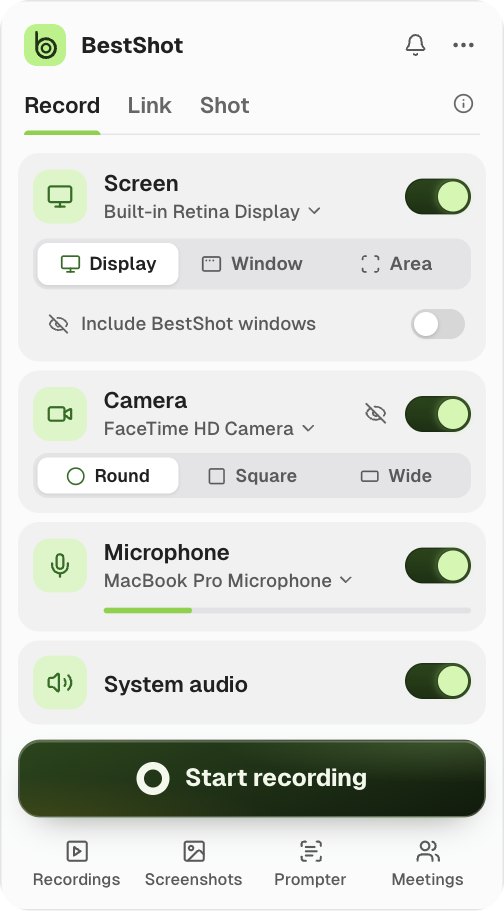
The capture panel has a card for each input. Turn each one on with its switch. Click the device name to choose another camera or microphone.
Camera
- Turn on the Camera switch, then click the camera's name to choose a device.
- A floating camera preview appears. Choose its shape under the card: Round, Square or Wide.
- In a Record take the preview is left out of the screen capture. The camera is saved as its own track and placed in the editor where the preview was.
- The preview's own toolbar (on hover) closes it, changes its size and shape, mirrors it and blurs your background.
Microphone
Turn on the Microphone switch and choose a device. A live level bar under the name shows that BestShot hears you.
If you start a recording with no microphone, BestShot can ask first: Record anyway or Cancel.
System audio
Turn on System audio to record the sound your computer plays, such as a video or a call. Shot and Camera only don't record system audio.
Needs access
If a card shows Needs access, click Allow to give BestShot permission. See First-run setup and permissions.
Change devices during a take
Click the gear on the recording bar to switch the microphone or camera, or show the camera preview again. You can only switch inputs the take started with; others show as locked for this recording. Switching pauses the recording first.
Still stuck? Email support and tell us what you tried.