Record a studio take
Record mode saves a full-quality take on your computer and opens it in the editor when you stop.
Record is for videos you want to polish before you share them. The take is saved on your computer, and when you stop it opens in the editor, where you can add zooms, captions, backgrounds and cuts before you export.
Start a Record take
Any of these starts one:
- Home → Record, or the green Record button at the bottom of the sidebar.
- The global shortcut: ⇧⌘5 on a Mac, Alt+Shift+1 on Windows.
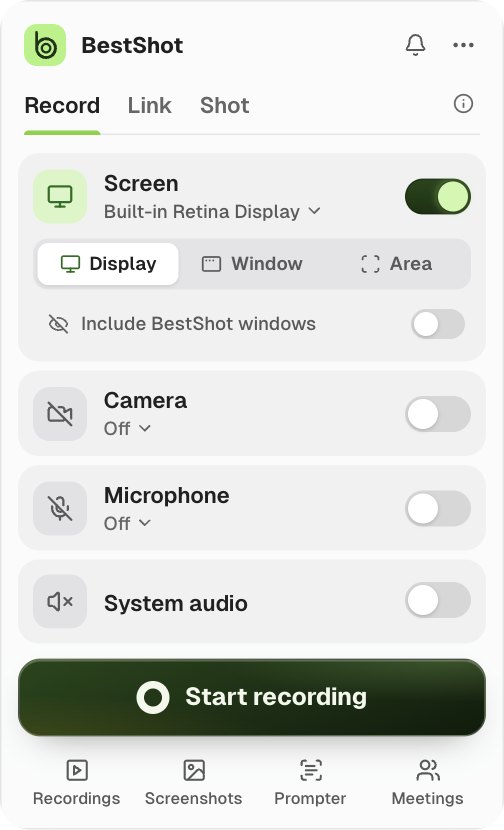
- The capture panel: choose the Record tab, then click Start recording.
- The BestShot icon's right-click menu: Record.
From the sidebar button and the shortcut, the take starts at once on the screen or window you used last. Use the capture panel when you want to change the screen, camera or audio first.
What gets recorded
Each part of the take is saved as its own track: the screen, the camera, the microphone and system audio. The editor works on those tracks without changing them, so you can always go back to the original.
When a camera is on, its preview stays on screen while you record but is left out of the screen capture. The camera is recorded separately and placed in the editor where the preview was.
While you record
The recording controls float on screen. Use them to pause, restart, delete or stop the take.
When you stop
The take opens in the editor as a new tab of the BestShot window. It also appears in Library → Recordings.
Record takes never upload by themselves. To share one, use Share on the editor's Export page.
Still stuck? Email support and tell us what you tried.