Share instantly with Link
Link mode uploads your take to BestShot Watch when you stop and copies the link, without opening the editor.
Link is for quick shares. When you stop, BestShot uploads the recording to BestShot Watch and copies the Watch link, so you can paste it straight into a chat or email. You can still open the recording in the editor later.
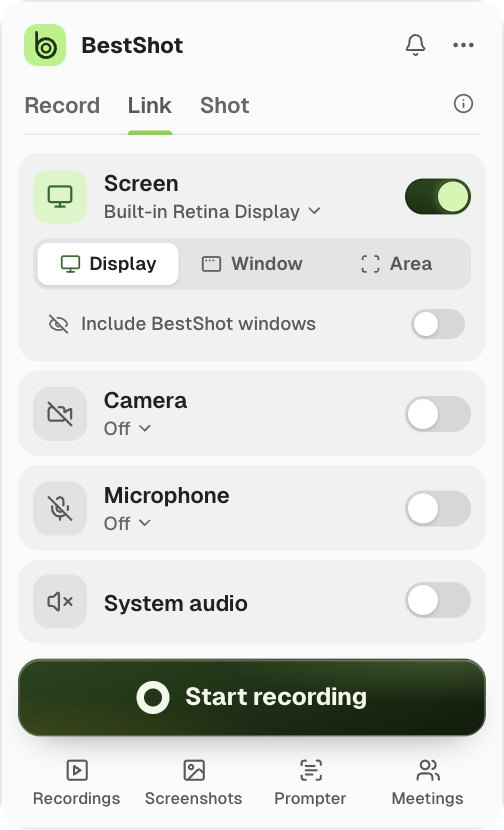
Start a Link take
- Home → Link.
- The global shortcut: ⇧⌘6 on a Mac, Alt+Shift+2 on Windows.
- The capture panel: choose the Link tab, then click Start recording.
- The Record button's arrow menu, or the BestShot icon's right-click menu: Link.
When you stop
- BestShot exports the recording and uploads it to your Watch destinations.
- The Watch link is copied to your clipboard.
- A small card shows the upload's progress.
Before your first Link take
Link needs a connected BestShot workspace. Connect it in Settings → Connected services, then choose where uploads go in Settings → Uploads:
| Setting | What it does |
|---|---|
| Google Drive (via Watch) | Uploads to your Google Drive through Watch. On by default. |
| GoHighLevel (via Watch) | Uploads to GoHighLevel through Watch. Off by default. |
| Upload Link recordings automatically | On by default. Turned off, Link recordings are only saved on your computer. |
| Watch page access | Private or Anyone with link, for Link uploads to Drive. |
The Link upload preset in the same page sets the resolution, frame rate and quality of the uploaded MP4.
Without a connected workspace, or with no destination connected, Link recordings are only saved on your computer and no link is copied.
Still stuck? Email support and tell us what you tried.