Import videos, images and audio
Bring files you already have into BestShot as recordings, screenshots or meetings.
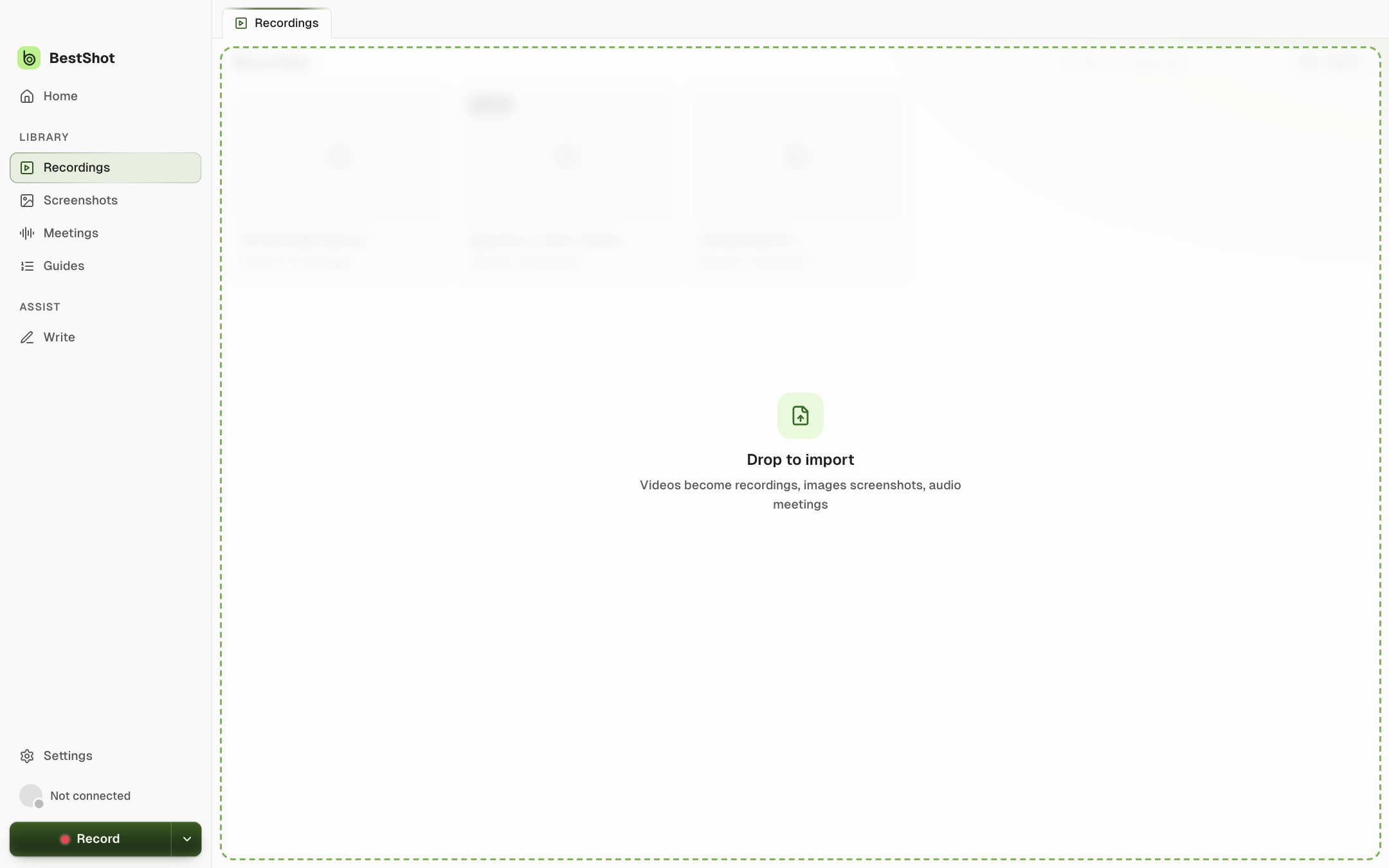
Import adds existing files to your library. Videos become recordings you can edit, images become screenshots, and audio becomes meetings that are transcribed.
Ways to import
- Home → Import.
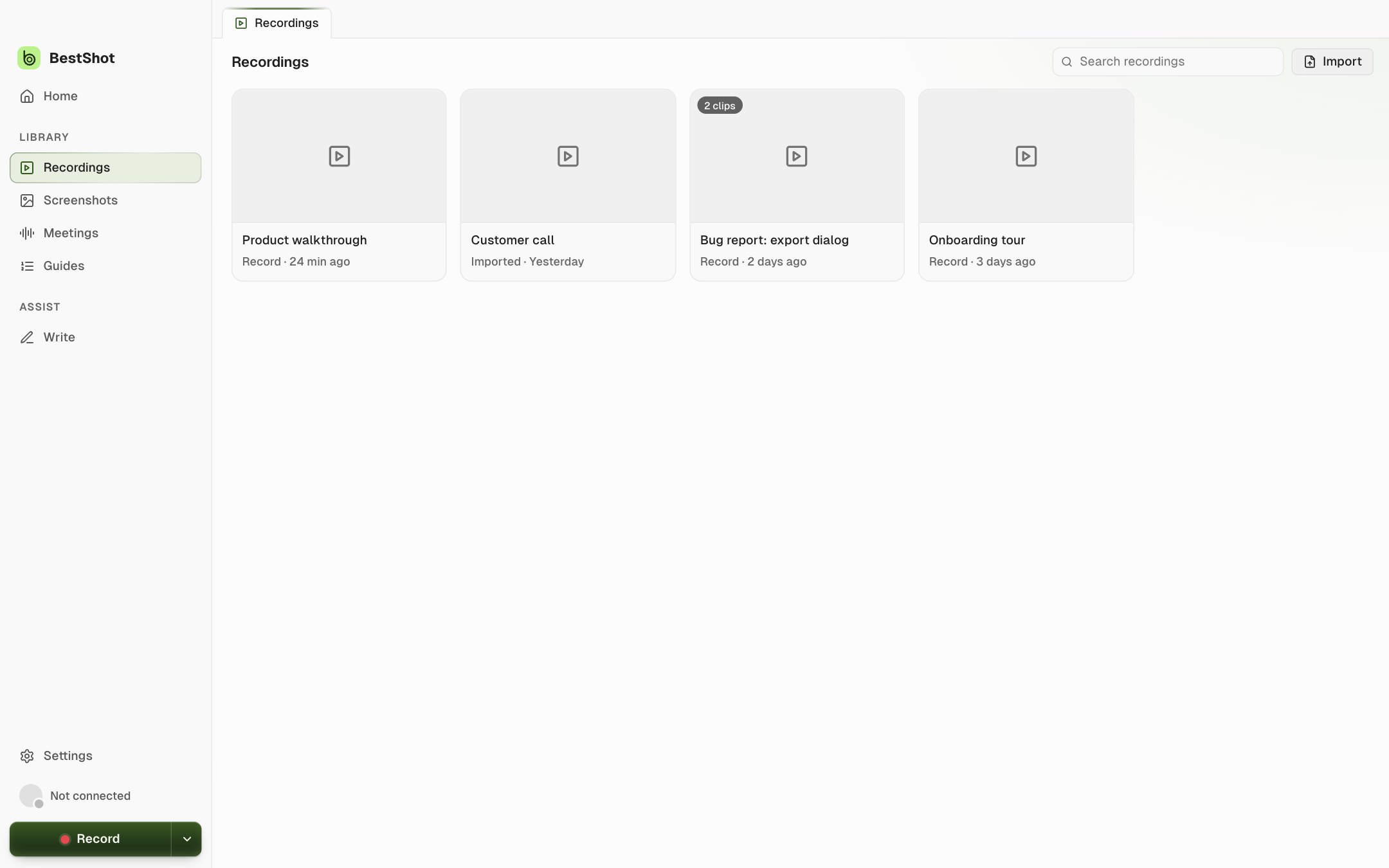
- The Import button at the top of Recordings or Screenshots (and in the Meetings list).
- File → Import… or ⌘I on a Mac (Ctrl+I on Windows).
- Drag files onto the BestShot window.
What each file becomes
| File | Formats | Becomes | Opens in |
|---|---|---|---|
| Video | MP4, MOV, M4V, WebM, 3GP | a recording | the editor |
| Image | PNG, JPEG, HEIC, WebP, GIF, TIFF, BMP | a screenshot | Screenshot Studio |
| Audio | M4A, MP3, WAV, AAC, CAF, AIFF, FLAC | a meeting | the meeting page |
A video imported from the Meetings section becomes a meeting. After importing a single video elsewhere, you can choose Import as meeting instead.
Good to know
- Your files are only read. BestShot imports a copy and never moves or changes the original.
- One file opens straight away. Several show a summary such as "Imported 5 · 3 recordings, 2 screenshots".
- Files BestShot can't use are skipped, and a message names them.
- Imported items show Imported on their card.
- You can import up to 100 files at a time, one import at a time. Folders aren't imported.
| Limit | Size |
|---|---|
| Video | up to 20 GB |
| Image | up to 256 MB |
| Audio | up to 4 GB |
Still stuck? Email support and tell us what you tried.