Recording controls and the menu-bar icon
The floating recording bar, and the capture panel under BestShot's menu-bar (tray) icon.
While a take runs, a small recording bar floats on screen. Before a take, the BestShot icon in the menu bar (or the notification area on Windows) gives you the capture panel and quick actions.
The recording bar
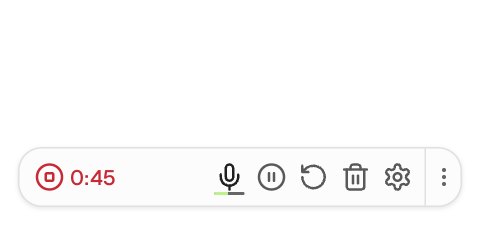
| Control | What it does |
|---|---|
| Stop / timer (red) | Shows the elapsed time. Click it to stop and save. |
| Microphone | Shows the microphone level. In a Link take it mutes and unmutes the microphone. |
| Pause / Resume | Pauses the take. The timer leaves out paused time. |
| Restart | Throws the take away and starts again (asks first). |
| Delete | Deletes the take and closes the bar (asks first). |
| Settings (gear) | Show Camera Preview, and switch the microphone or webcam. |
| ⋮ handle | Drag to move the bar. |
The bar is never part of your recording. If something goes wrong, such as a microphone being unplugged, a red warning appears above the bar.
The menu-bar icon
Click the BestShot icon to open the capture panel under it. It's the same panel you get from Record → More Options… in the main window.
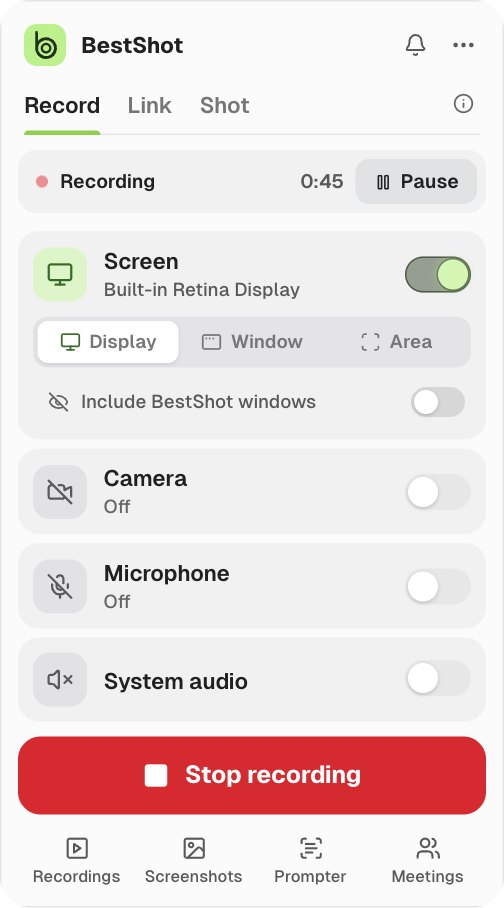
- The Record, Link and Shot tabs choose the mode. The ⓘ button explains each one.
- The cards choose the screen, camera, microphone and system audio.
- The big button starts the take, or stops it while one runs. A row above the cards shows the status and time, with Pause.
- The footer opens Recordings, Screenshots, Meetings and the Prompter.
- The ••• menu has Open Main Window, Settings…, Help & Tour and Quit BestShot.
The panel closes when you click elsewhere or press Esc.
Right-click the icon for a quick menu: Open BestShot, Record, Link, Shot and Meeting Notes (each starts at once), the Recordings, Meetings, Write and Settings… sections, and Quit BestShot.
Still stuck? Email support and tell us what you tried.