Take a screenshot with Shot
Shot captures a display, window or area and opens it in Screenshot Studio.
Shot takes a still of your screen. It's saved to your library and copied to the clipboard, ready to mark up in Screenshot Studio.
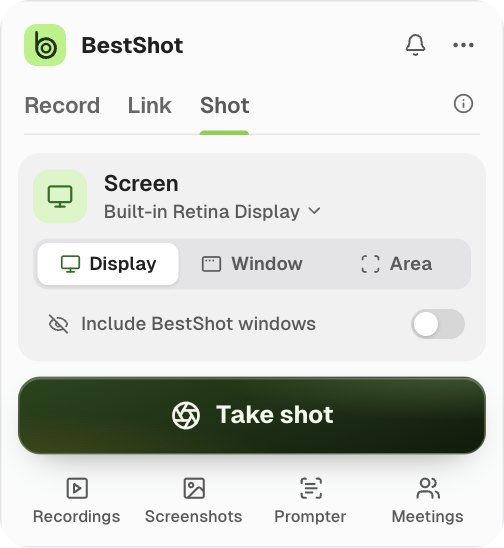
Take a shot
- Home → Shot.
- The global shortcut: ⇧⌘4 on a Mac, Alt+Shift+3 on Windows.
- The capture panel: choose the Shot tab, then click Take shot.
- The Record button's arrow menu, or the BestShot icon's right-click menu: Shot.
Shot uses the same Display, Window and Area choice as recordings. With Area, drag to choose the part of the screen you want. Shot mode has no camera or audio.
On a Mac, macOS keeps ⇧⌘4 for its own screenshots unless you turn that off. Until then BestShot uses ⌃⌥⌘4. See Keyboard shortcuts.
After the shot
By default each new screenshot opens in a new tab of the BestShot window, in Screenshot Studio. You'll also find it in Library → Screenshots.
You can change this in Settings → General → Capture → After a shot:
| Option | What happens |
|---|---|
| Open in a new tab | BestShot comes forward with the new screenshot open. |
| Show thumbnail only | A small Saved card appears; click Edit to open the screenshot. Nothing else moves. |
Each new screenshot also goes to the clipboard. Turn that off with Copy to the clipboard in Settings → General.
Still stuck? Email support and tell us what you tried.