Choose a display, window or area
Pick what BestShot captures with the Screen card, or record your camera on its own.
The Screen card in the capture panel decides what BestShot captures. Your choice is remembered, so the shortcuts and the Record button use it next time.
To open the capture panel, click the BestShot icon in the menu bar, or choose More Options… from the arrow beside the Record button.
Display, Window or Area
| Choice | What it captures |
|---|---|
| Display | A whole screen. Click the screen's name under Screen to see every display with a thumbnail and choose one. |
| Window | One app window. Click Choose a window to pick from thumbnails. |
| Area | A part of the screen you draw each time. |
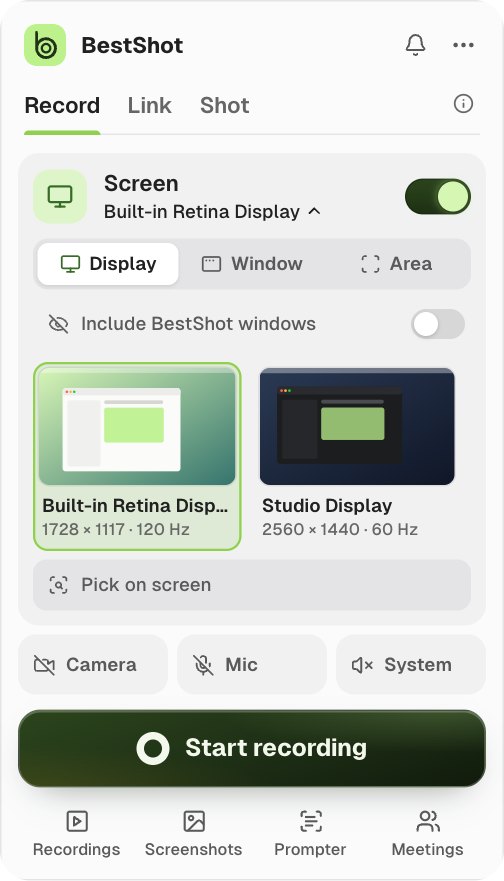
Pick on screen lets you click the display or window right on your screen instead of choosing a thumbnail.
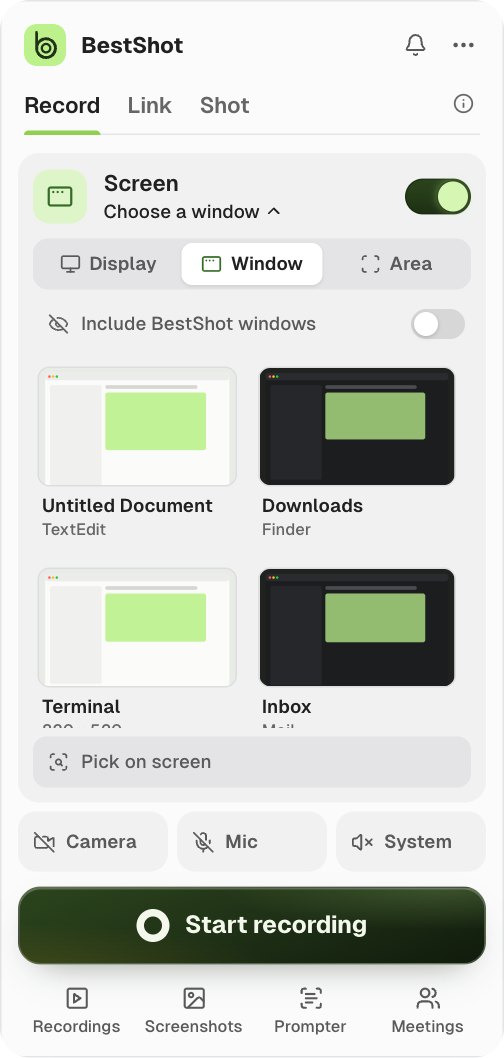
If the window you chose has closed, BestShot asks you to pick again when you start.
Draw an area
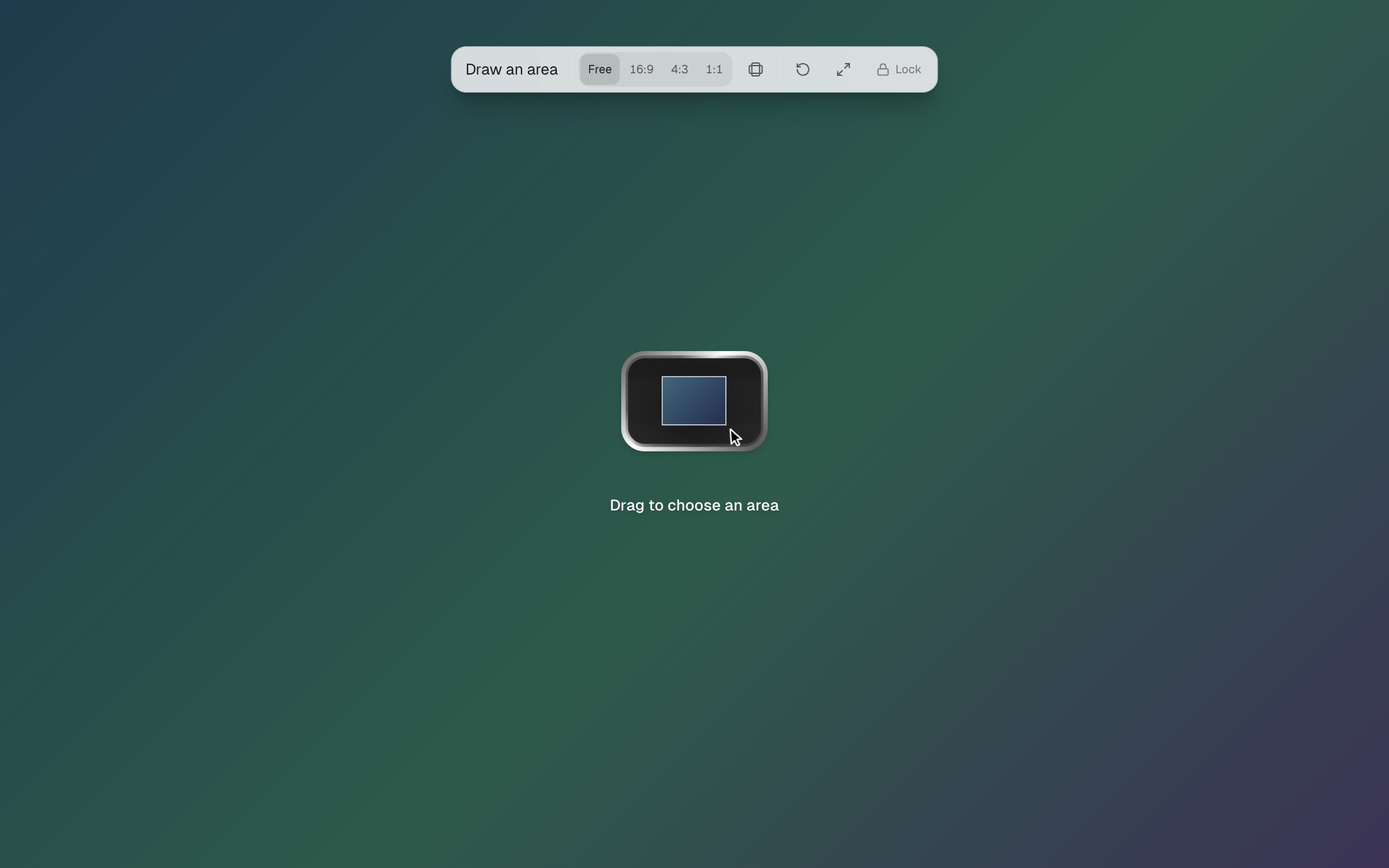
With Area, a picker covers your screen when you start. Drag to choose the area. The toolbar at the top offers Free, 16:9, 4:3 and 1:1 proportions and Lock. Press Esc to cancel.
Camera only
Turn off the Screen switch to record only your camera (and microphone). The card then reads Camera only. Turn the switch back on to return to your last screen choice.
With the screen off and no camera, you can't start: BestShot asks you to Turn on Screen or Camera.
Include BestShot windows
BestShot normally leaves its own windows out of recordings and screenshots, and moves them aside while you pick. Turn on Include BestShot windows to show them, for example to record a BestShot tutorial. While it's on, a BestShot visible badge reminds you.
The recording bar, the pickers, the camera bubble and the teleprompter always stay out. The same switch is in Settings → General → Capture.
Still stuck? Email support and tell us what you tried.