First-run setup and permissions
What the setup window asks for the first time you open BestShot, and how to run it again.
The first time you open BestShot, a setup window appears before the main window. It takes a minute and has five short steps. You can move between them with Back, Next or the dots at the bottom.
1. Welcome
Click Get started.
2. Permissions
BestShot needs your permission to capture your screen. The other permissions are optional, and each card shows its live status.
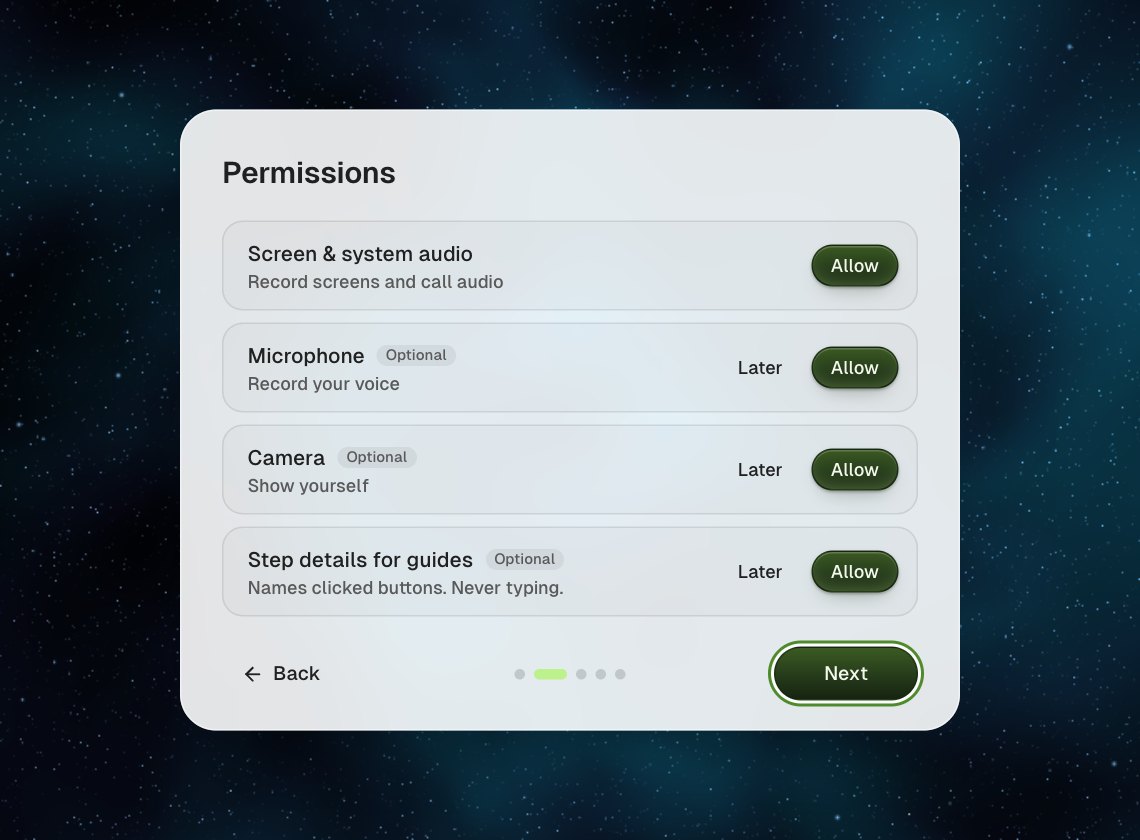
| Permission | What it's for | Required? |
|---|---|---|
| Screen & system audio | Records your screens and call audio | Yes |
| Microphone | Records your voice | Optional |
| Camera | Shows you on camera | Optional |
| Step details for guides | Names the buttons you click, so guides can be written from a recording. It never records typing. | Optional |
Click Allow on each card you want. Your computer shows its own permission prompt. Optional cards also have Later, and Next is never blocked. A granted card shows a check mark.
On a Mac, the screen permission often only takes effect after BestShot restarts. If the card says Reopen BestShot to apply, click Reopen. Setup opens again on the same step.
3. Modes
A quick overview of the ways to capture: Record, Link, Shot and Meetings. Nothing to choose here.
4. Meetings
This step is optional. Tick I'll get consent from people I record. if you plan to record meetings. You can also copy a short notice to paste into the meeting chat. If you skip it, BestShot asks before your first meeting.
5. Connect
Both connections are optional and can be set up later in Settings → Connected services.
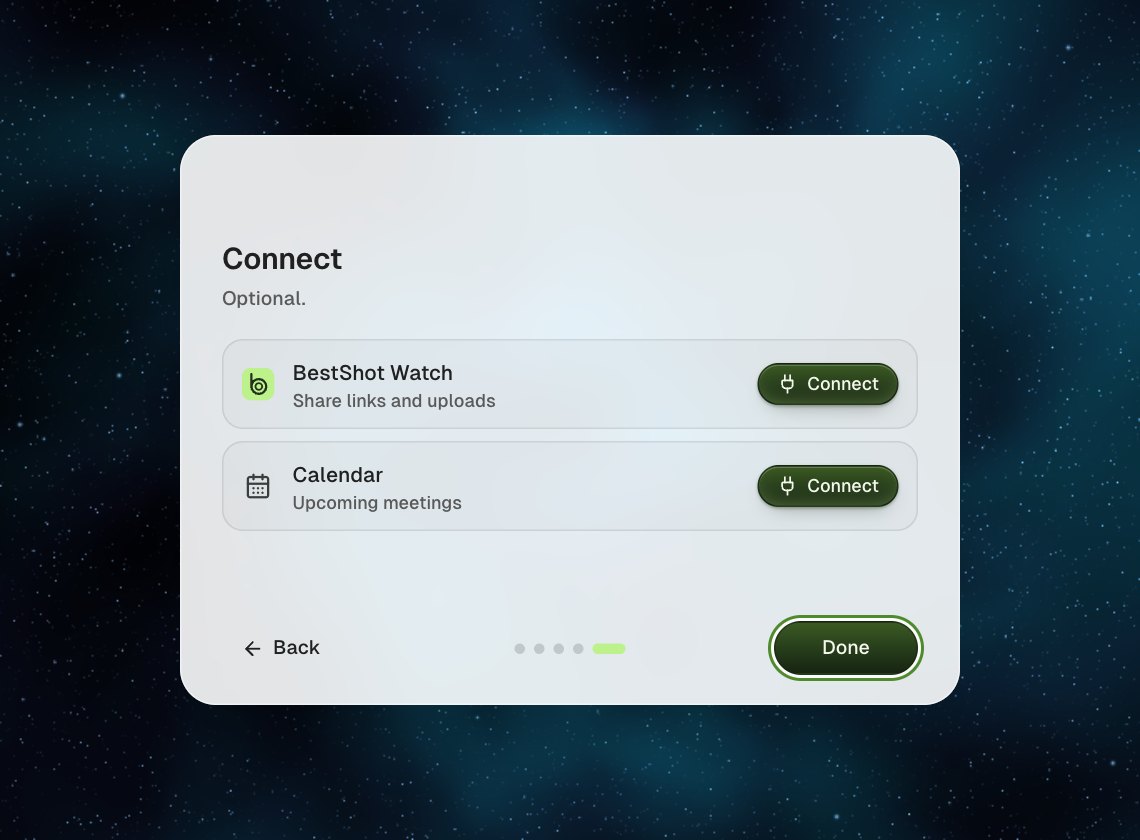
- BestShot Watch lets you share links and upload recordings. Connect opens an approval page in your browser.
- Calendar shows your upcoming meetings in BestShot. Connect asks for calendar access.
Click Done. The main BestShot window opens on Home.
Run setup again
Open Settings → General and click Run setup again in the Setup card.
If you missed a permission
You don't need to run setup again to fix a permission. The capture panel shows the problem where it matters:
- Screen Recording is off with Allow in the Screen card.
- Needs access with Allow on the Camera or Microphone card.
On Windows, camera and microphone access is also controlled in Windows Settings under Privacy & security.
Still stuck? Email support and tell us what you tried.