A quick tour of Home
Where everything lives in the BestShot window, from the Record button to your library.
Home is the first thing you see when you open BestShot. It puts every way to capture one click away and shows what you made most recently.
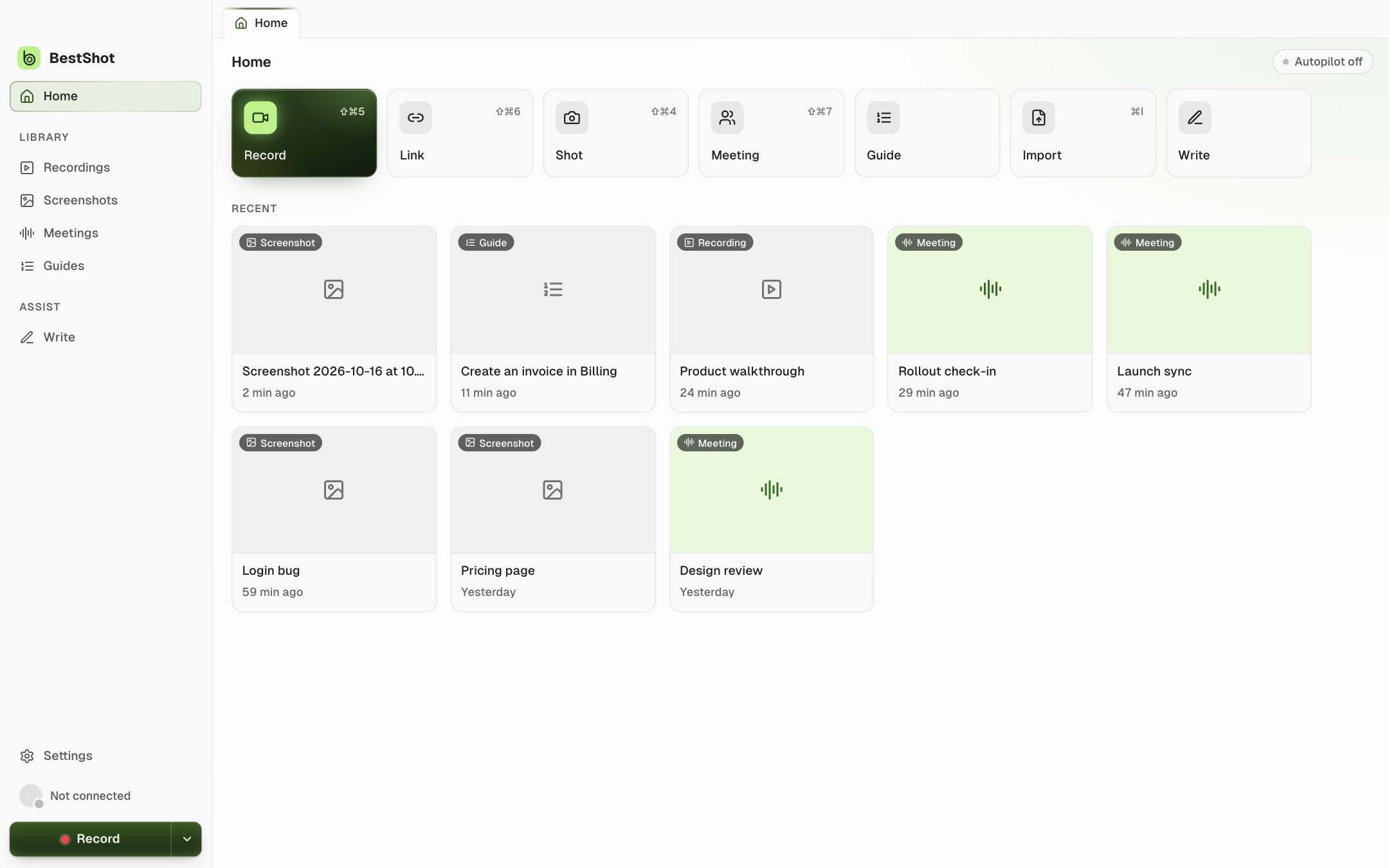
Start something new
The tiles across the top start each kind of capture:
| Tile | What it does |
|---|---|
| Record | Records your screen for the editor, so you can polish it before you share. |
| Link | Records and uploads as you go, then copies a Watch link when you stop. |
| Shot | Takes a screenshot and opens it in Screenshot Studio. |
| Meeting | Records the call's audio on your computer and transcribes it. |
| Guide | Turns a walkthrough into step-by-step instructions. |
| Import | Brings in videos, images or audio you already have. |
Each tile shows its keyboard shortcut, such as ⇧⌘5 for Record on a Mac. See Keyboard shortcuts for the full list.
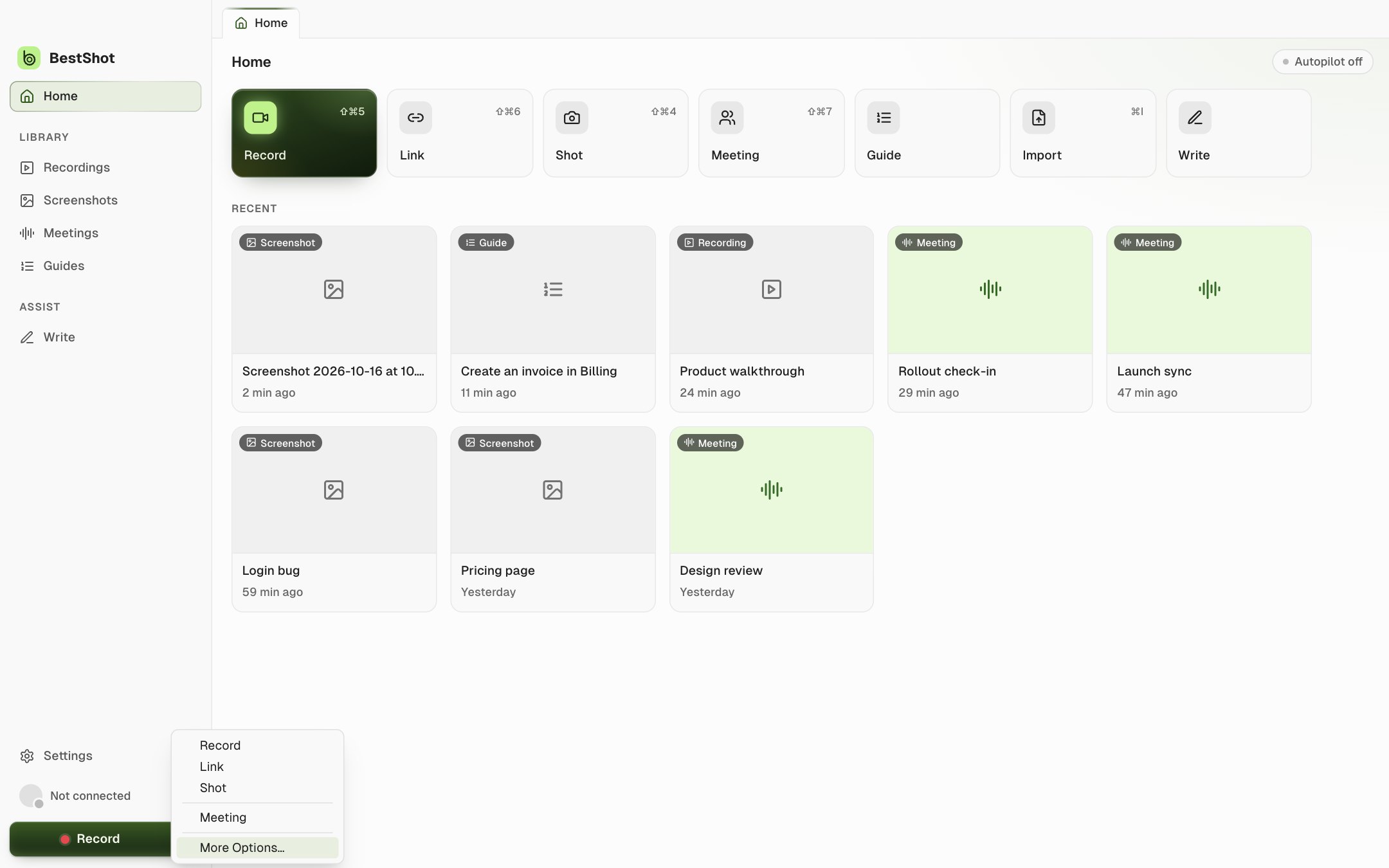
The Record button
The green Record button at the bottom of the sidebar is always there. Click the arrow beside it for every capture type in one menu.
Your library
The sidebar's Library keeps everything you have made, sorted by type: Recordings, Screenshots, Meetings and Guides. Recent on Home shows the latest of all of them.
Everything in your library is saved on your computer first. Sharing a Watch link uploads a copy; your original stays where it is.
Still stuck? Email support and tell us what you tried.