Make your first recording
Record your screen, stop, and land in the editor, step by step.
This walks you through a first Record take from start to finish. A Record take is saved on your computer and opens in the editor when you stop.
1. Start from Home
Open BestShot. On Home, click the Record tile, or the green Record button at the bottom of the sidebar.
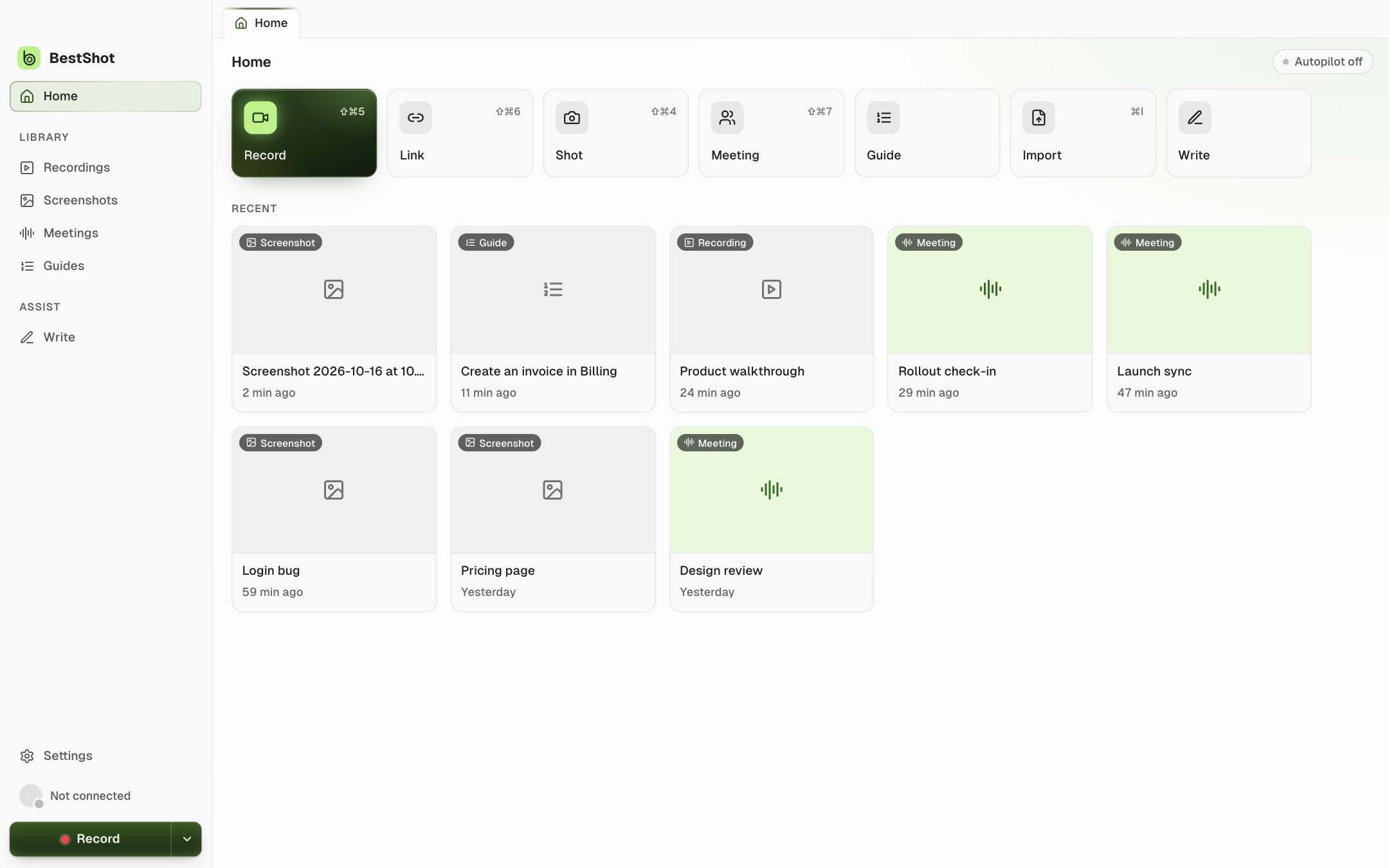
BestShot records the screen you used last (your main display the first time). If you chose Area, or a window that is no longer open, a picker appears first so you can choose again.
Want to choose a different screen, window or area, or turn on your camera and microphone first? Click the arrow beside the Record button and choose More Options…. See Choose a display, window or area.
2. Record
The floating recording bar appears and shows the time. BestShot's own windows step out of the recording unless you've turned on Include BestShot windows.
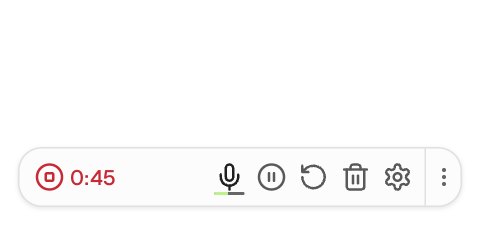
Do what you want to show. You can pause and resume from the bar.
3. Stop
Click the red timer on the bar, or press ⌃⇧⌘S on a Mac (Alt+Shift+S on Windows).
The recording opens in the editor as a new tab of the BestShot window. From there you can trim, zoom, add captions and backgrounds, then export or share. You'll also find it later under Library → Recordings.
Next steps
Still stuck? Email support and tell us what you tried.