Zoom in on the action
Let BestShot add zooms around your clicks, draw your own, and set how far and where each one zooms.
Zooms move the view closer to what you are doing, then back out. BestShot can add them for you from your mouse clicks, and you can add, move and adjust them yourself on the Zoom row of the timeline.
Automatic zooms from clicks
With Auto zoom on clicks turned on in Settings → General (it is on by default), every Record take arrives in the editor with zooms already added around your clicks. Clicks close together share one zoom, and the click that stopped the recording is ignored.
If the Zoom row is empty, it offers Generate zoom segments automatically. Click Generate to build zooms from the clicks in this recording. If you change your mind, use Undo.
Moving the mouse never creates a zoom on its own. Only clicks do.
Add a zoom yourself
Hover over the Zoom row: a faint segment with a + shows where a new zoom will go. Click to add it, or press and drag to the right to make it longer. The new zoom is selected, and its settings open in the sidebar.
To change a zoom on the timeline:
- Move it: drag the middle of the zoom.
- Make it longer or shorter: drag either end.
- Delete it: select it and press Delete, or click Delete in the sidebar.
Zoom amount and mode
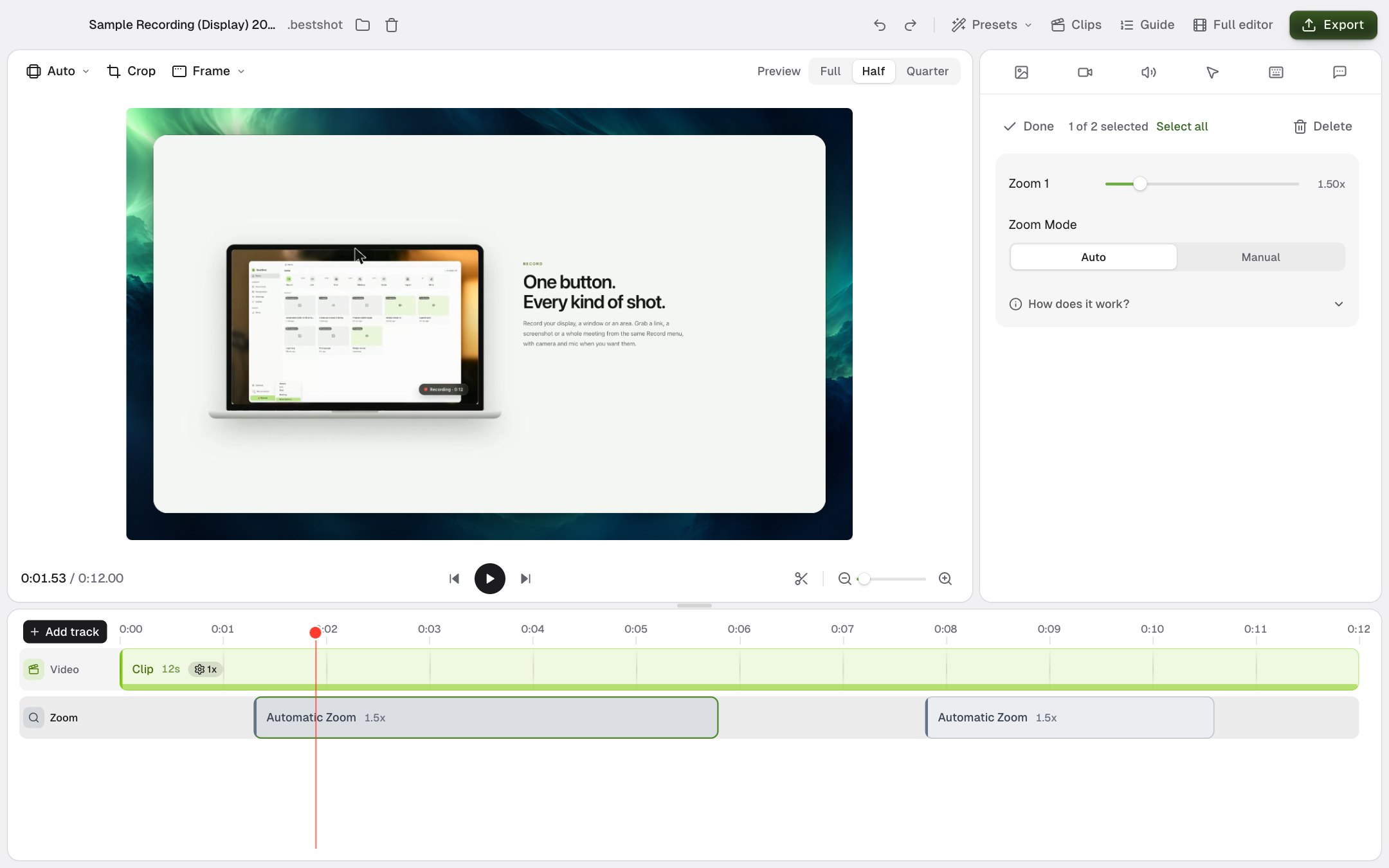
Select a zoom to see its settings.
| Setting | What it does |
|---|---|
| Zoom | How far it zooms in, from 1x to 4.5x. |
| Zoom Mode: Auto | The view follows your cursor around the screen. It holds still while the cursor makes small movements, and glides to each new click. |
| Zoom Mode: Manual | The view stays on one spot that you choose. |
In Manual, a still of the frame appears below. Drag the round marker to the spot you want to zoom into.
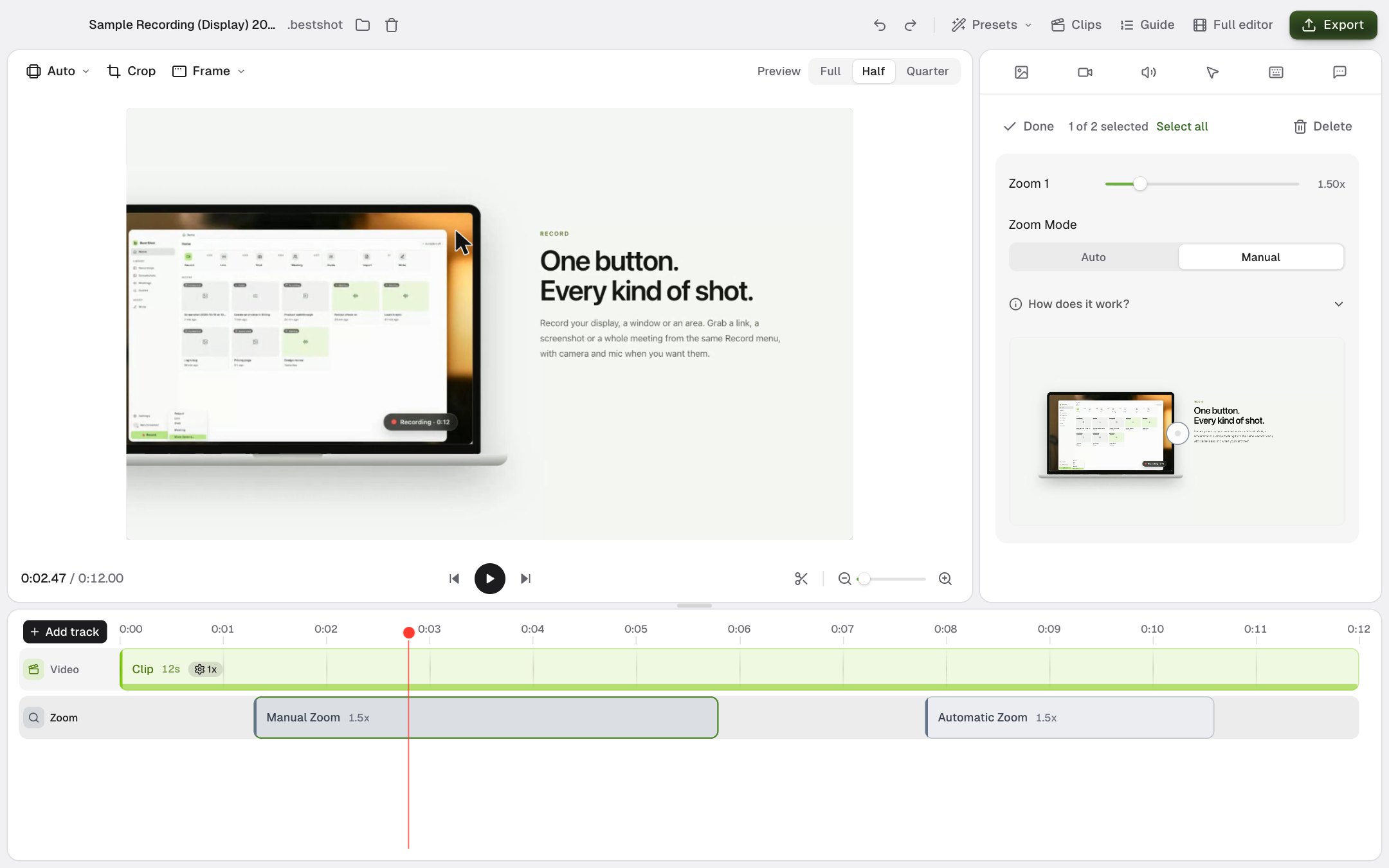
Click How does it work? in the sidebar for a short animation of both modes.
Change several zooms at once
Select more than one zoom (or click Select all in the sidebar). One Zoom Amount slider and one Zoom Mode control then change all of them together, and a preview of each zoom appears below.
Set the default amount
Settings → General → Default zoom amount sets the amount used for automatic zooms and for zooms you add by hand.
Still stuck? Email support and tell us what you tried.