Trim, split and change speed
Cut out parts of a recording, split clips, change their speed and volume, add transitions, and add more footage.
The Video row of the timeline holds your clips. Trimming, splitting and speed changes only change the edit; the original recording stays as it was.
Trim the start or end
Drag either end of a clip on the Video row inwards to trim it. Drag it back out to bring the footage back.
Split a clip
- Split at the playhead: move the playhead and press C.
- Split mode: click the scissors below the preview, or press S. Then click a clip wherever you want to cut it. Press S again to leave split mode.
To remove a piece, select it and press Delete. Everything after it moves up to close the gap.
The clip menu
Click the small settings pill on a clip (it shows the speed, such as 1x), or right-click the clip, to open its menu.
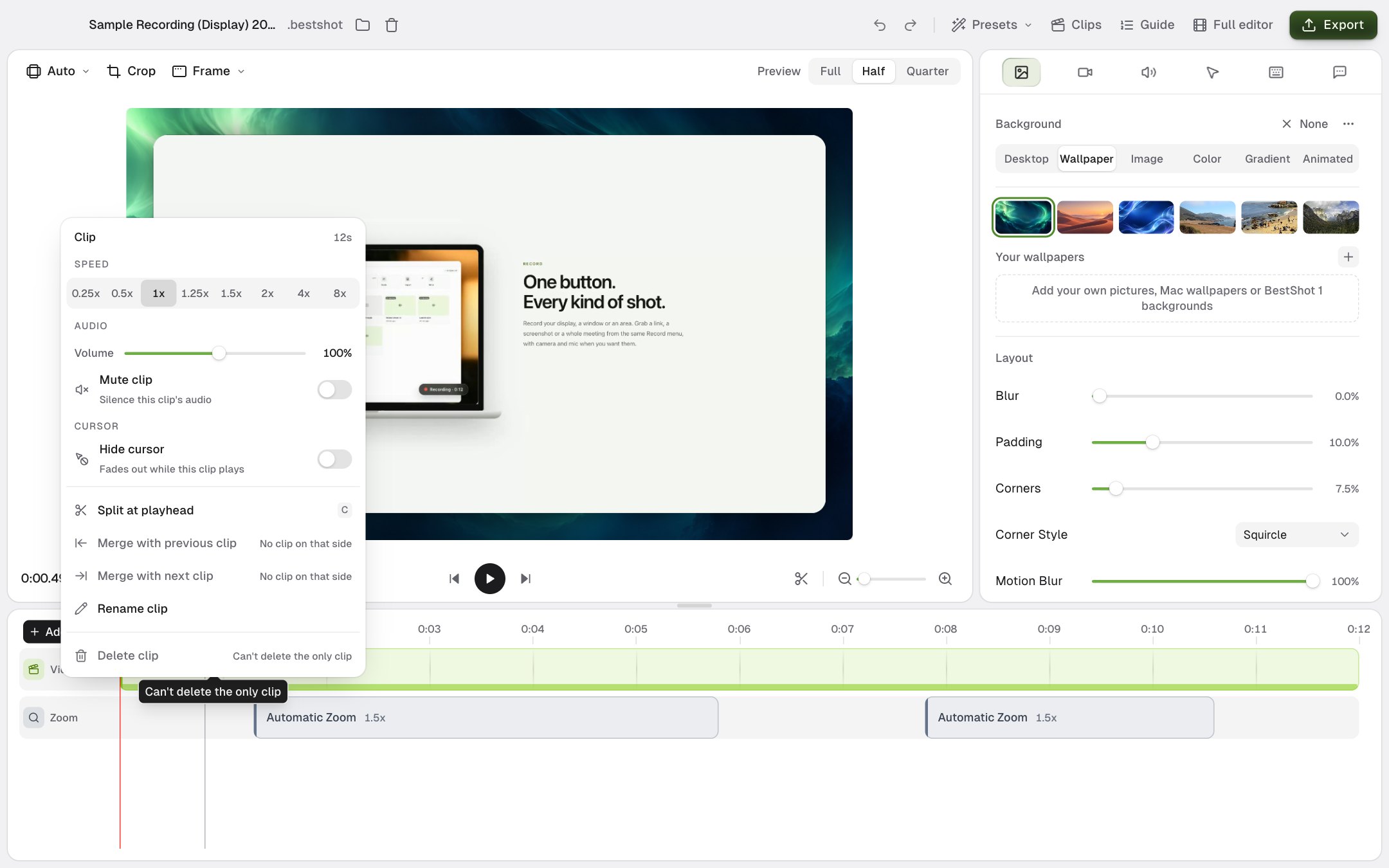
| Setting | What it does |
|---|---|
| Speed | Plays the clip from 0.25x to 8x. Zooms, captions and other tracks stay lined up with the footage. |
| Volume | The clip's loudness, from 0% to 200%. |
| Mute clip | Silences this clip. At other speeds you choose Mute, Keep pitch or Match speed instead. |
| Hide cursor | Hides the cursor while this clip plays. |
| Split at playhead | Cuts the clip where the playhead is. |
| Merge with previous clip / Merge with next clip | Joins two pieces back together, when they come from the same recording, are next to each other and have the same speed. |
| Rename clip | Gives the clip a name. |
| Delete clip | Removes the clip. You cannot delete the only clip. |
Transitions between clips
Hover over the start of any clip after the first and click the + that appears to add a transition. Click the transition to choose Crossfade or Fade (through black), change its length, or click Remove transition.
The Clips list
Click Clips in the editor header to see every clip as a list.
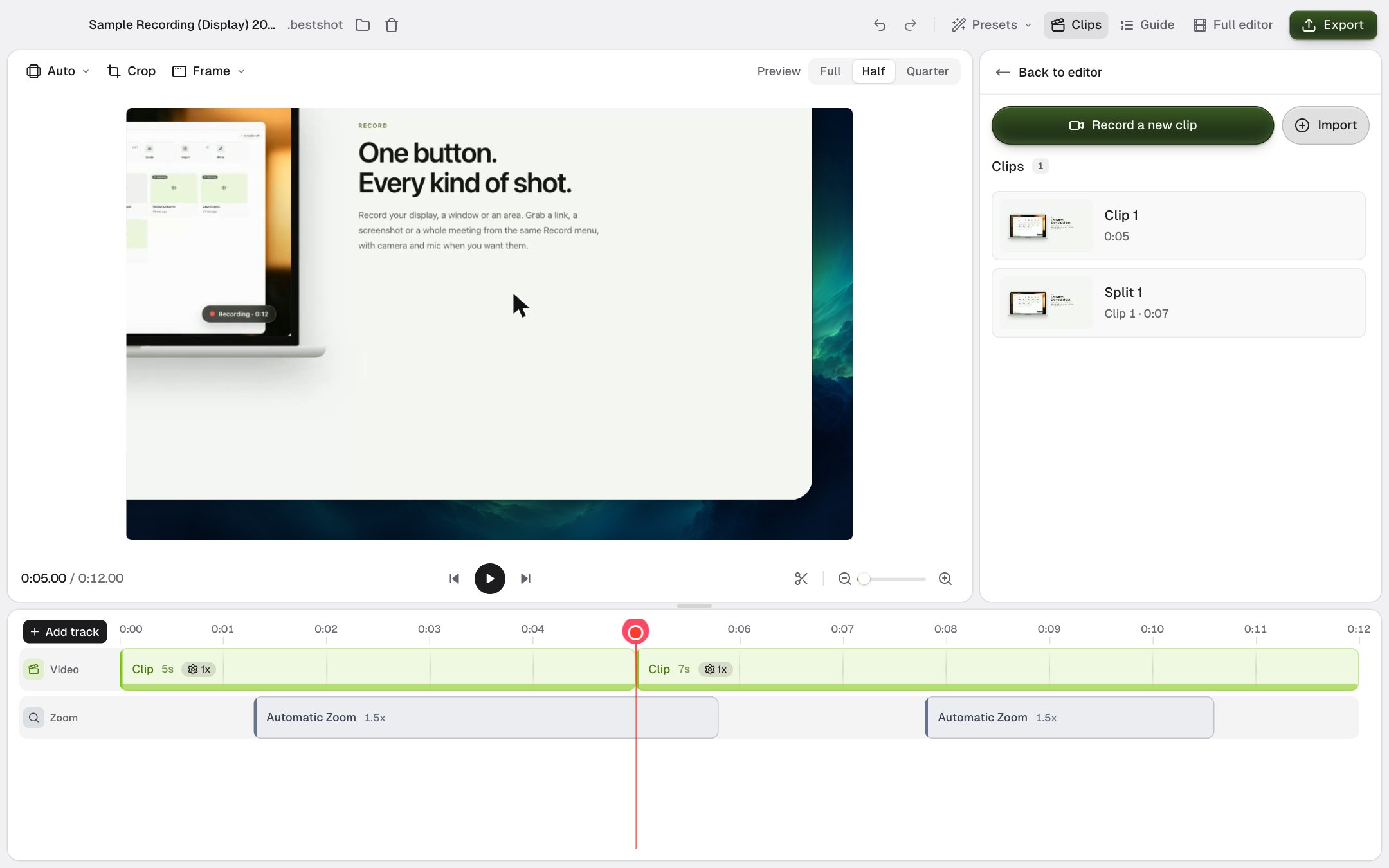
- Drag a clip up or down to change the order.
- Rename with the pencil, or remove with the trash can (when there is more than one clip).
- Record a new clip records another take and adds it to the end of this video.
- Import adds an existing BestShot recording or an MP4 video.
Click Back to editor to return to the settings sidebar.
Still stuck? Email support and tell us what you tried.