Background, padding, corners and frame
Put your recording on a wallpaper, colour or gradient, and set padding, rounded corners, shadow, frame and aspect ratio.
The Background tab (the picture icon, first in the sidebar) sets what sits behind your recording and how the recording is framed on it.
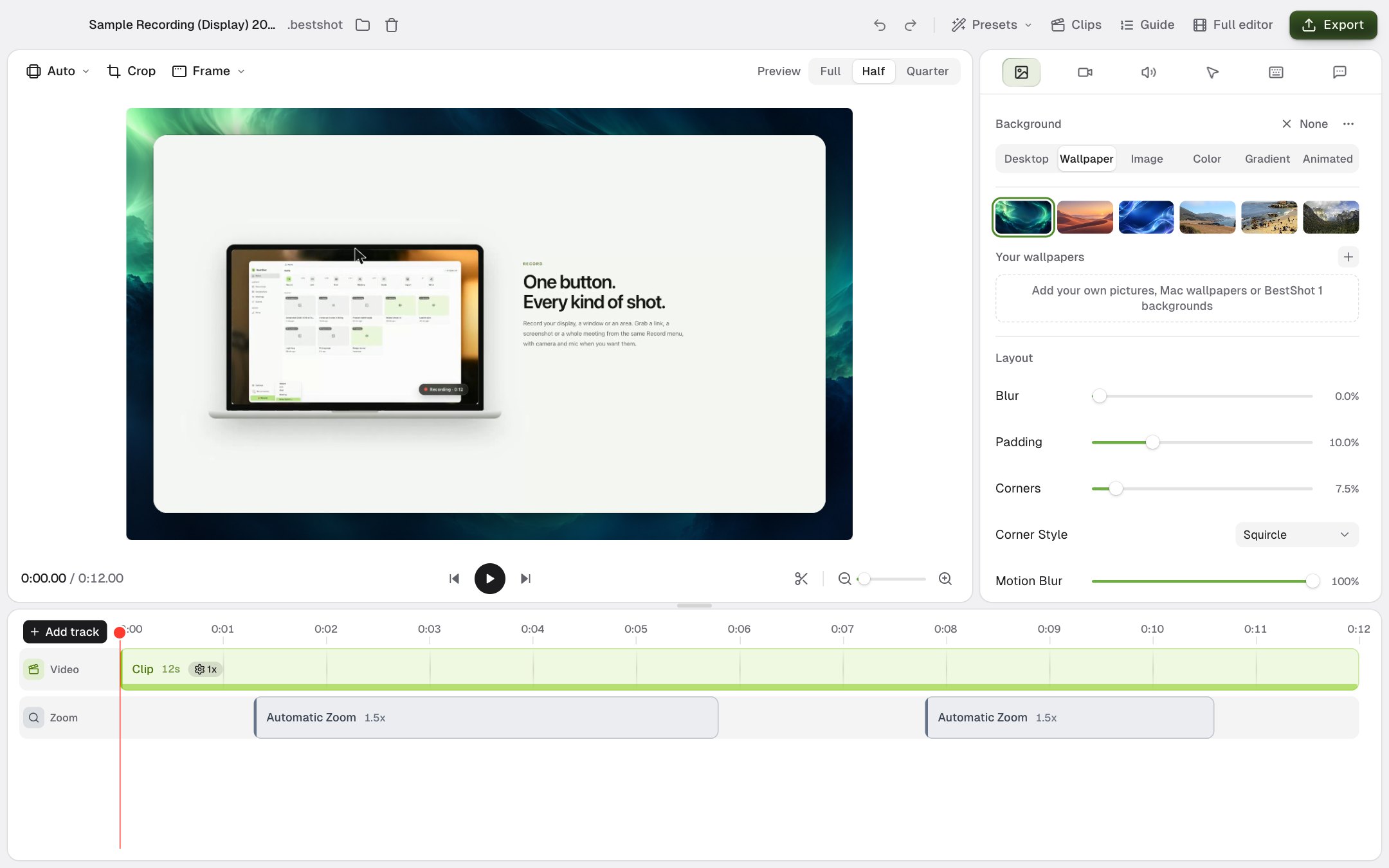
Choose a background
Pick a source along the top of the tab:
| Source | What it uses |
|---|---|
| Desktop | The desktop picture of the screen you recorded. |
| Wallpaper | One of BestShot's wallpapers, or your own under Your wallpapers (click + to add pictures). |
| Image | Any picture you choose. |
| Color | A solid colour. |
| Gradient | Two colours blended at an angle. |
| Animated | A moving gradient. |
Click None for no background at all: the recording fills the frame with no padding or rounded corners.
Layout
| Setting | What it does |
|---|---|
| Blur | Blurs a wallpaper or image background. |
| Padding | Space between the recording and the edge of the video. |
| Corners | How round the recording's corners are. Corner Style sets the curve. |
| Motion Blur | Blur on fast movement of the screen and cursor. |
| Border | A line around the recording, with Border Width, Border Color and Border Opacity. |
| MacBook notch | Draws a MacBook notch over the recording. |
| Shadow | A soft shadow under the recording. Advanced shadow settings adds Size, Opacity and Blur. |
If you drag the recording to a new spot in the preview, a Reset button appears under Padding to put it back in the centre.
New recordings start with the look you chose last. To set it on purpose, click ••• next to None and choose Use as default look, or Reset to default look to go back to BestShot's.
Add a frame
Click Frame above the preview to wrap the recording in a window or device:
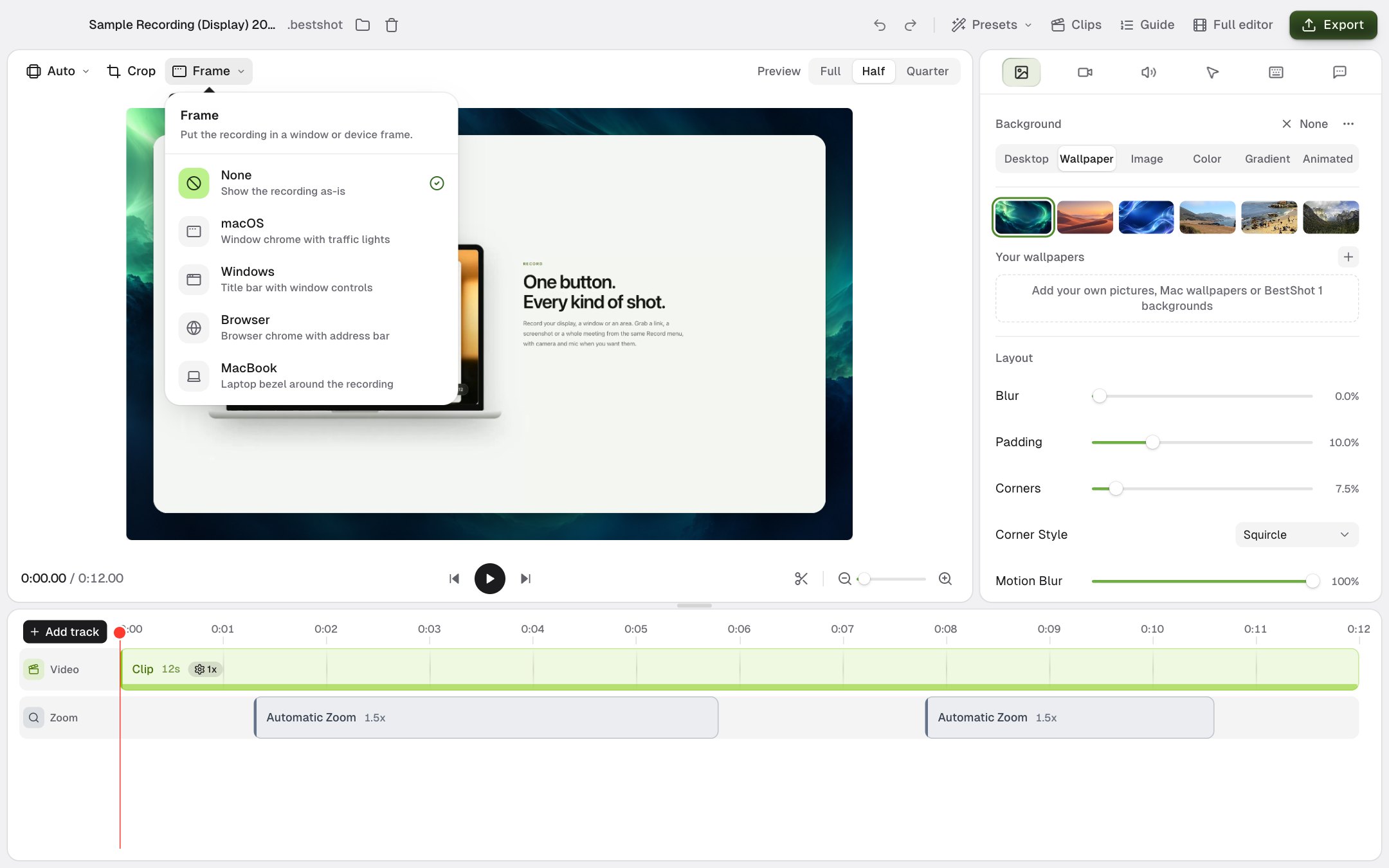
| Frame | What it adds |
|---|---|
| None | The recording as it is. |
| macOS | A window title bar with traffic lights. You can type a window title. |
| Windows | A title bar with window controls. |
| Browser | Browser chrome with an address bar. You can type the address. |
| MacBook | A laptop bezel. |
Each frame has a Light or Dark theme.
Aspect ratio and crop
The menu at the top left of the preview (it starts as Auto) sets the shape of the video: Wide 16:9, Vertical 9:16, Square 1:1, Classic 4:3 or Tall 3:4. Auto follows the recording.
Crop opens a window where you drag the edges to cut part of the recorded screen away. The rest of your edits stay as they are.
Still stuck? Email support and tell us what you tried.