Export and share a video
Save your edited video as an MP4 or GIF, copy it to the clipboard, or upload it and get a Watch link.
Click Export at the top right of the editor. The export page shows a preview of your video with your settings on the right. Exports use the same renderer as the editor preview, so the file looks exactly like what you saw while editing.
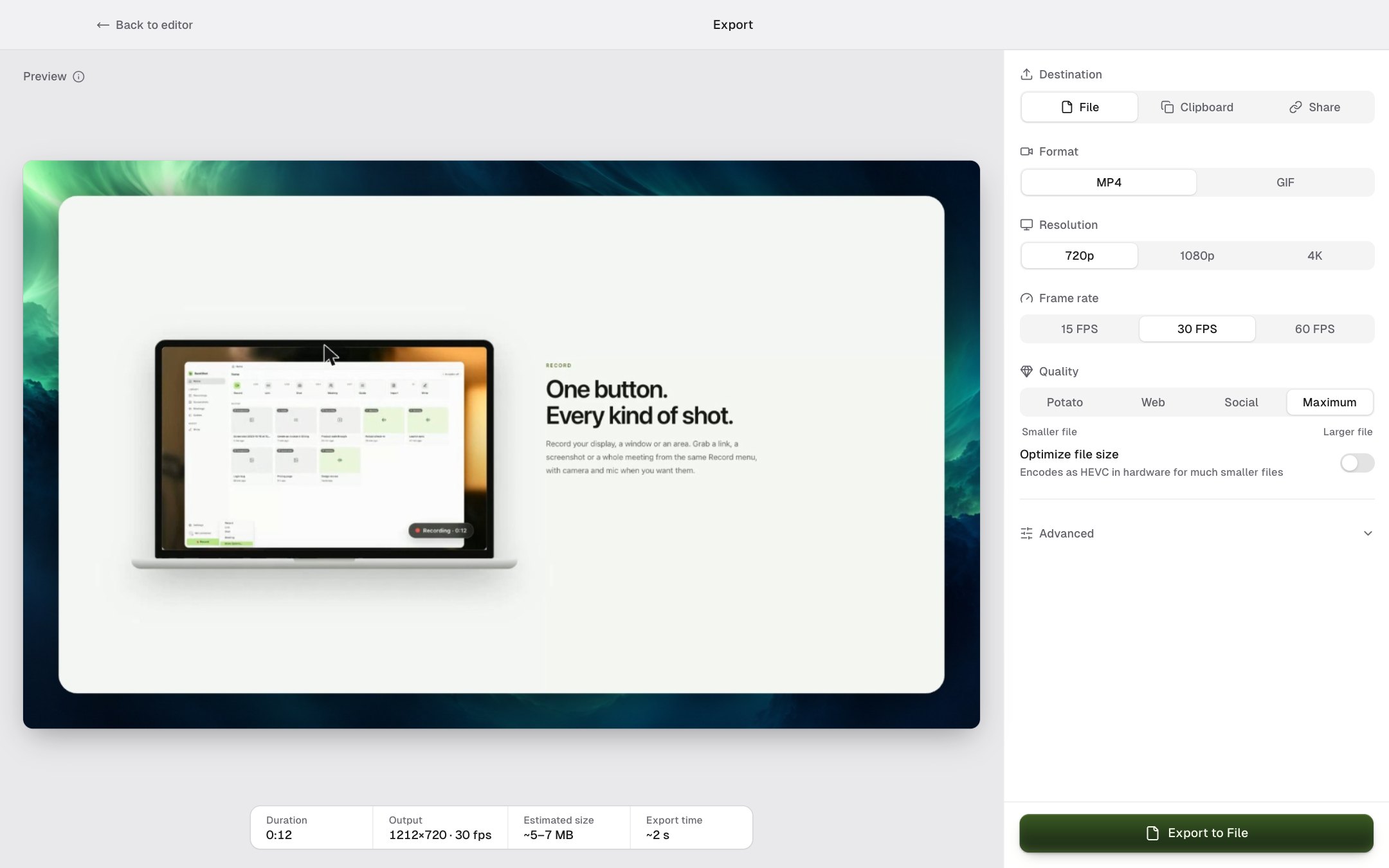
Destination
| Destination | What happens |
|---|---|
| File | Saves the video where you choose. Button: Export to File. |
| Clipboard | Copies the video so you can paste it into a chat or email. Button: Export to Clipboard. |
| Share | Exports, then uploads to your Google Drive or GoHighLevel and gives you a BestShot Watch link. Button: Export & Upload. |
Format, resolution and frame rate
| Setting | Choices |
|---|---|
| Format | MP4 (video with sound) or GIF (no sound). |
| Resolution | 720p, 1080p or 4K. GIFs offer 720p and 1080p. |
| Frame rate | MP4: 15, 30 or 60 FPS. GIF: 10 to 30 FPS. |
The bar under the preview shows the Duration, the exact Output size, an Estimated size and the Export time.
Quality (MP4)
Choose Potato, Web, Social or Maximum, from the smallest file to the best picture. Turn on Optimize file size for a much smaller file.
Advanced has:
- Export cursor only: a transparent video of just the cursor, for use in another video editor. It saves as a MOV file to a file or the clipboard.
- Bits per pixel: fine control over quality between the presets.
Share and get a Watch link
Choose Share. If you have set up uploads in Settings → Uploads, the page shows where the video will go. Click Change in Settings to change that, or Choose… to pick for this export only.
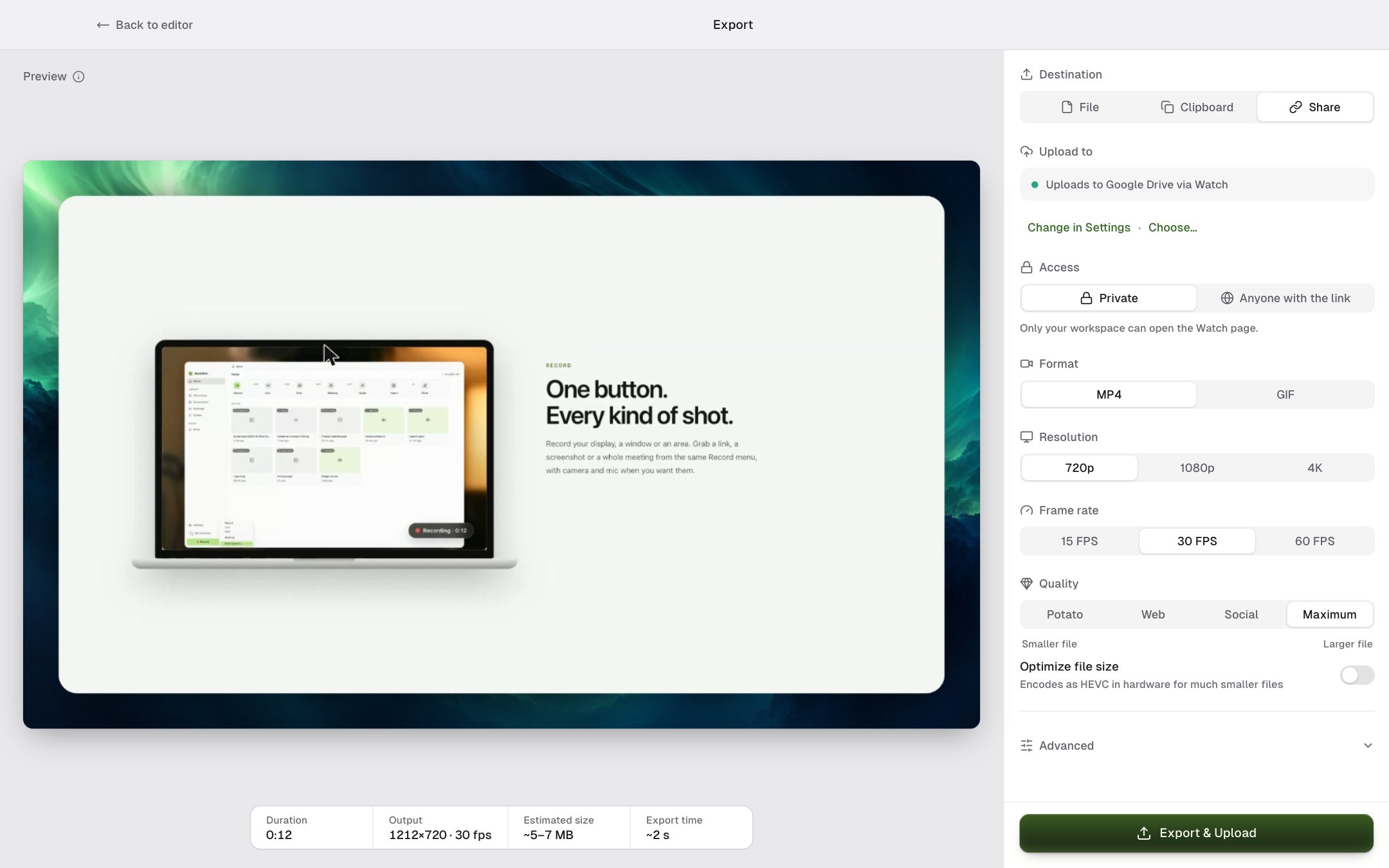
Under Access, choose Private (only your workspace can open the Watch page) or Anyone with the link. Then click Export & Upload.
When the upload finishes, the Watch link is copied to your clipboard. For MP4 uploads you can click Continue in background to go back to editing while it uploads.
Your edited project and original recording stay on your computer. Sharing uploads a copy of the exported video.
When the export finishes
- After File: Open File shows the video in Finder or File Explorer, and Copy to Clipboard copies it.
- Click Back to editor to keep editing. To export again, click Export again.
You can click Cancel while an export runs. Cancelling never removes a video you exported earlier.
Still stuck? Email support and tell us what you tried.