Add captions
Turn your speech into captions on your own computer, style them, fix words in the transcript and save SRT or VTT files.
BestShot writes captions from your recording's audio with a speech model that runs on your computer. Your audio is not uploaded anywhere to make them.
Make captions
- Open the Captions tab (the speech-bubble icon, last in the sidebar).
- Under Model, choose a model. Recommended suits most recordings.
- Under Language, leave Auto Detect or pick the language you spoke.
- The first time, click Download to get the model. It downloads once and is kept for every recording.
- Click Generate Captions.
The captions appear on the new Captions row of the timeline and in the preview.
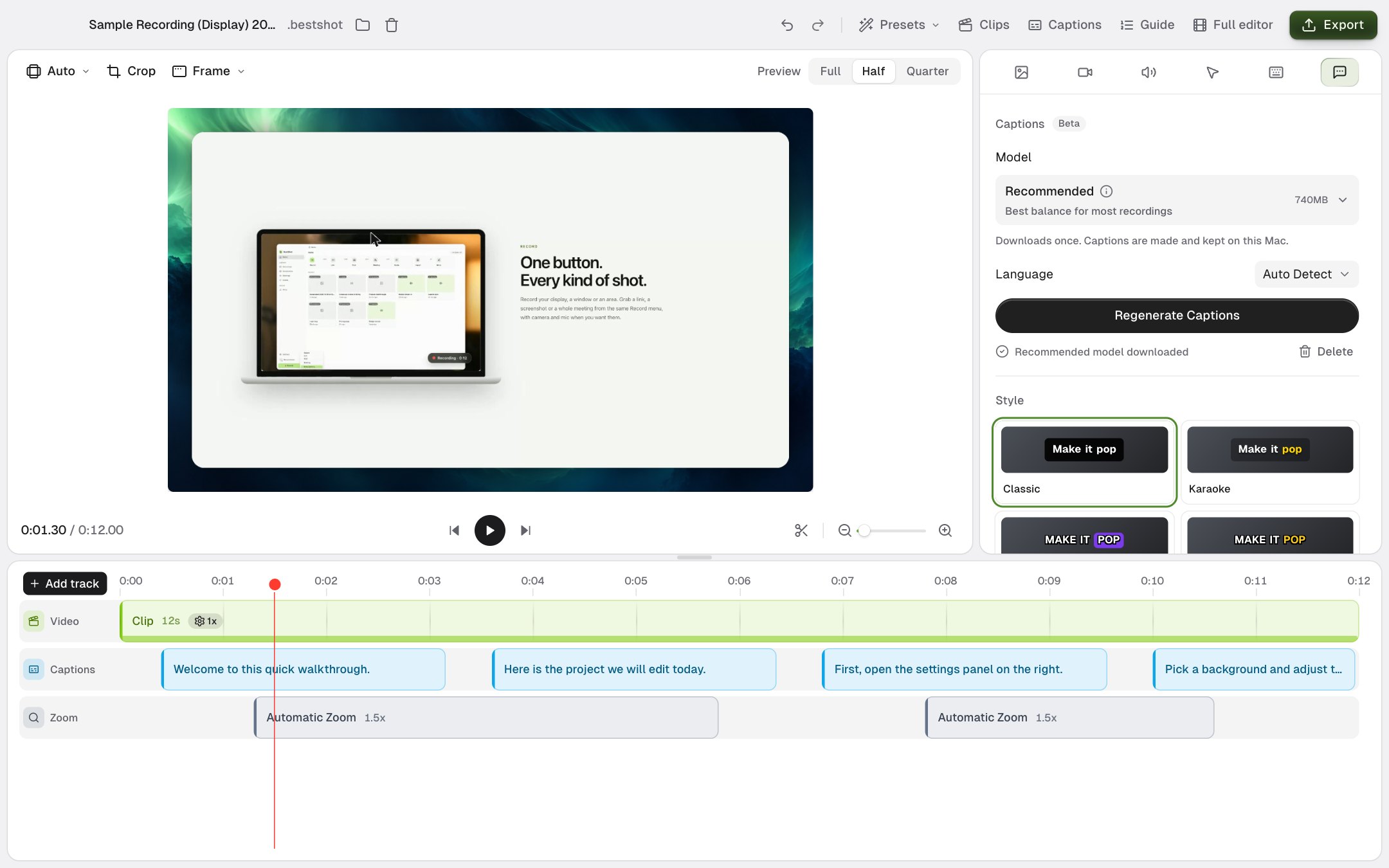
| Model | Good for |
|---|---|
| Recommended | The best balance for most recordings. |
| High Accuracy | A larger download with higher accuracy. |
| Small | The smallest download. |
| Medium | Slower, but more accurate than Small. |
On Intel Macs, only the Small and Medium models are offered.
To start over, click Regenerate Captions. Delete next to the model removes the downloaded model from your computer.
The Generate button only appears when the recording has microphone or system audio.
Style your captions
Pick a style under Style: Classic, Karaoke, Highlight, Pop or Minimal. Then fine-tune it:
| Setting | What it does |
|---|---|
| Font Family, Size, Font Weight | The look of the text. |
| Uppercase | Shows captions in capitals. |
| Active Word Highlight | Highlights each word as it is spoken, as a Color or a Pill. |
| Text Color, Background Color, Background Opacity | Colours of the text and the box behind it. |
| Position | Top or bottom, left, centre or right, or Manual to drag captions anywhere in the preview. |
| Animation Style | None, Bounce or Pop, with a Fade Duration. |
Changing any setting turns the style into Custom.
Fix words in the transcript
Click Captions in the editor header to open the transcript next to the preview. Click Back to close it.
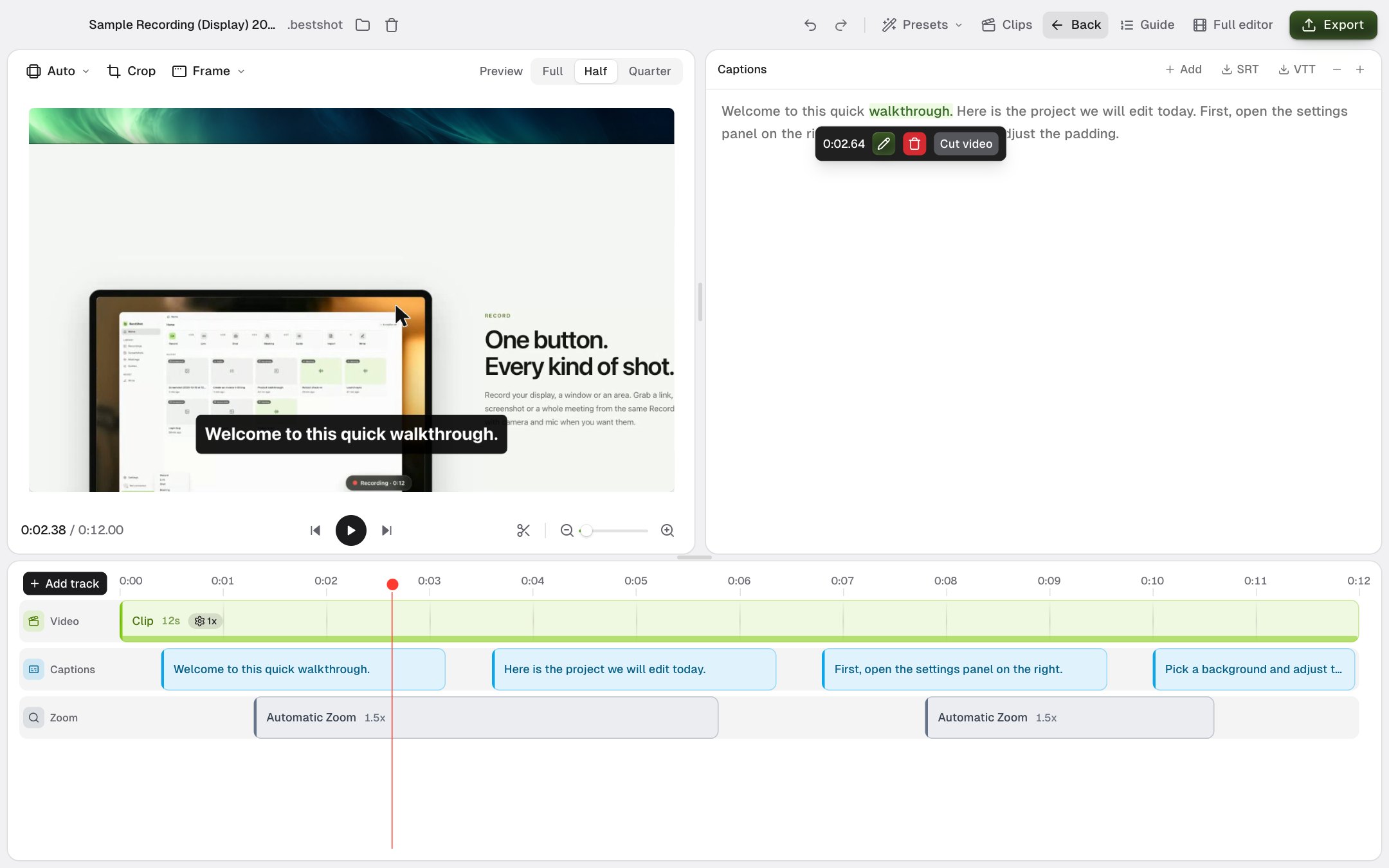
- Click a word to jump the video to it. Shift-click to select a run of words.
- Edit (the pencil), a double-click, or Enter lets you retype a word. Type several words to split it.
- Delete (the trash can), or Delete, removes words from the captions only. The video is not changed.
- Cut video, or Shift+Delete, removes the words and that part of the video, so you can cut "um"s and mistakes straight from the text.
- Add puts a new caption at the playhead.
- − and + make the transcript text smaller or larger.
Cut video removes footage from your timeline. If you change your mind, use Undo.
Save a subtitle file
Click SRT or VTT at the top of the transcript to save the captions as a subtitle file. The times match your edited video, including any cuts.
Captions in your export
When the Captions track is on, captions are drawn into the exported video exactly as they look in the preview. To leave them out, turn the track off: click Add track and then Captions. Your caption text is kept.
Still stuck? Email support and tell us what you tried.