Scenes, masks and text
Switch between screen and camera layouts, blur or highlight parts of the screen, and add titles and labels.
Scenes, masks and text each live on their own timeline track. Add them with Add track at the top left of the timeline.
Scenes: screen and camera layouts
Scenes change how the screen and camera are shown for part of your video. The Scene track needs a recording with a camera.
- Click Add track, then Scene.
- Click on the Scene row where you want a scene. A three-second scene is added.
- Click the scene to choose its Camera Layout.
| Layout | What viewers see |
|---|---|
| Default | The screen and the camera bubble. |
| Camera Only | Just the camera. |
| Hide Camera | Just the screen. |
| Split Screen | Screen and camera side by side (stacked in a vertical video). |
| Floating | Screen and camera as rounded cards side by side over the background. |
Transition In and Out set how quickly the layout changes. For Split Screen and Floating you can also zoom and reposition the screen and the camera inside their panes.
Masks: hide or highlight part of the screen
- Move the playhead to where the mask should start.
- Click Add track, then Mask. A mask appears in the middle of the preview, selected.
- Drag the mask in the preview to move it, and drag its handles to resize it. Drag its ends on the timeline to change how long it shows.
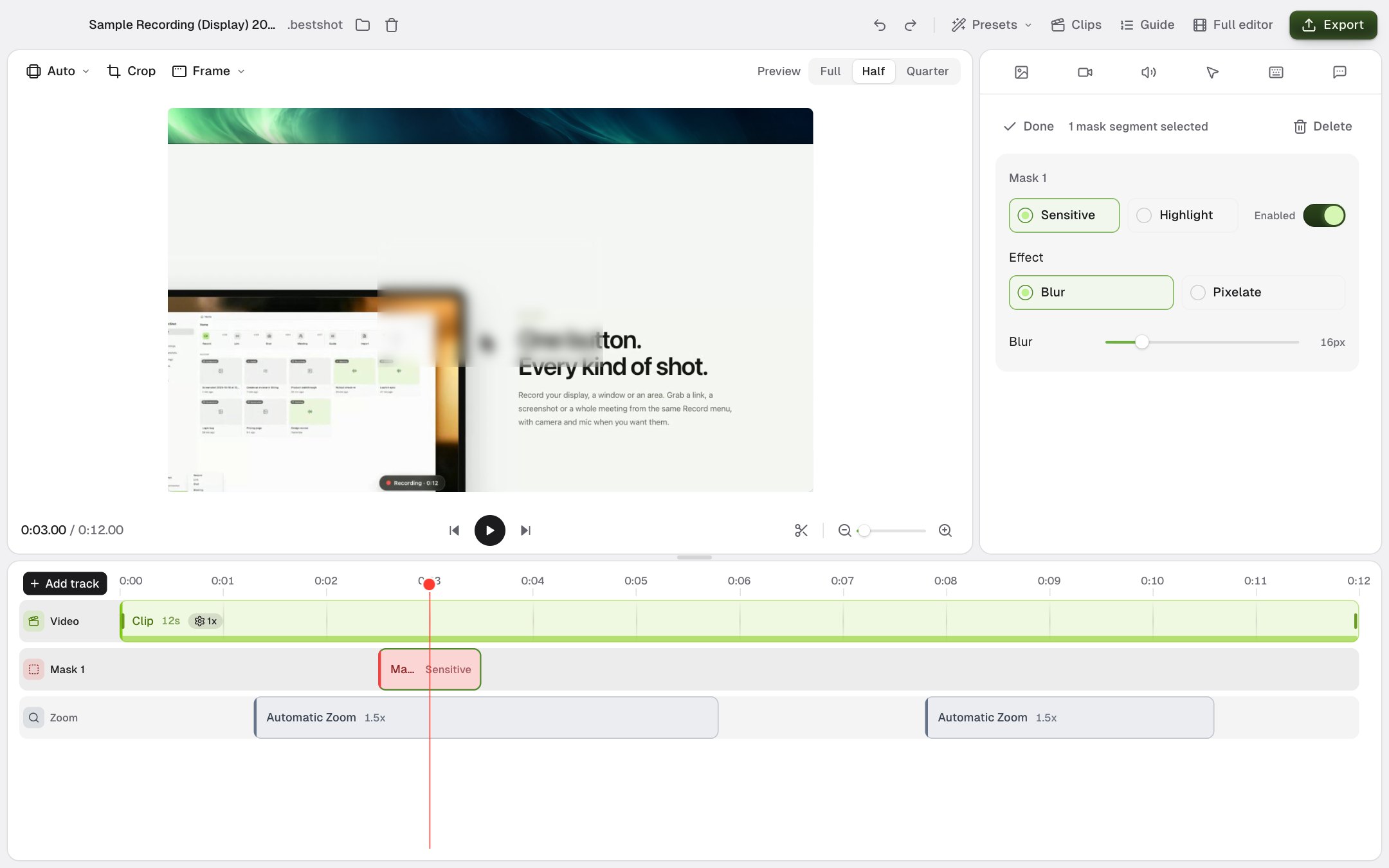
| Type | What it does |
|---|---|
| Sensitive | Hides what is underneath with Blur or Pixelate. Use it for passwords, emails and other private details. |
| Highlight | Darkens everything outside the mask, so viewers look at the area inside. Outside Darkness sets how dark, and Fade Duration how gently it appears. |
Turn Enabled off to keep a mask without showing it.
Text: titles, labels and callouts
- Move the playhead to where the text should appear.
- Click Add track, then Text. A text box appears in the preview, ready for you to type.
- Drag the box in the preview to place it.
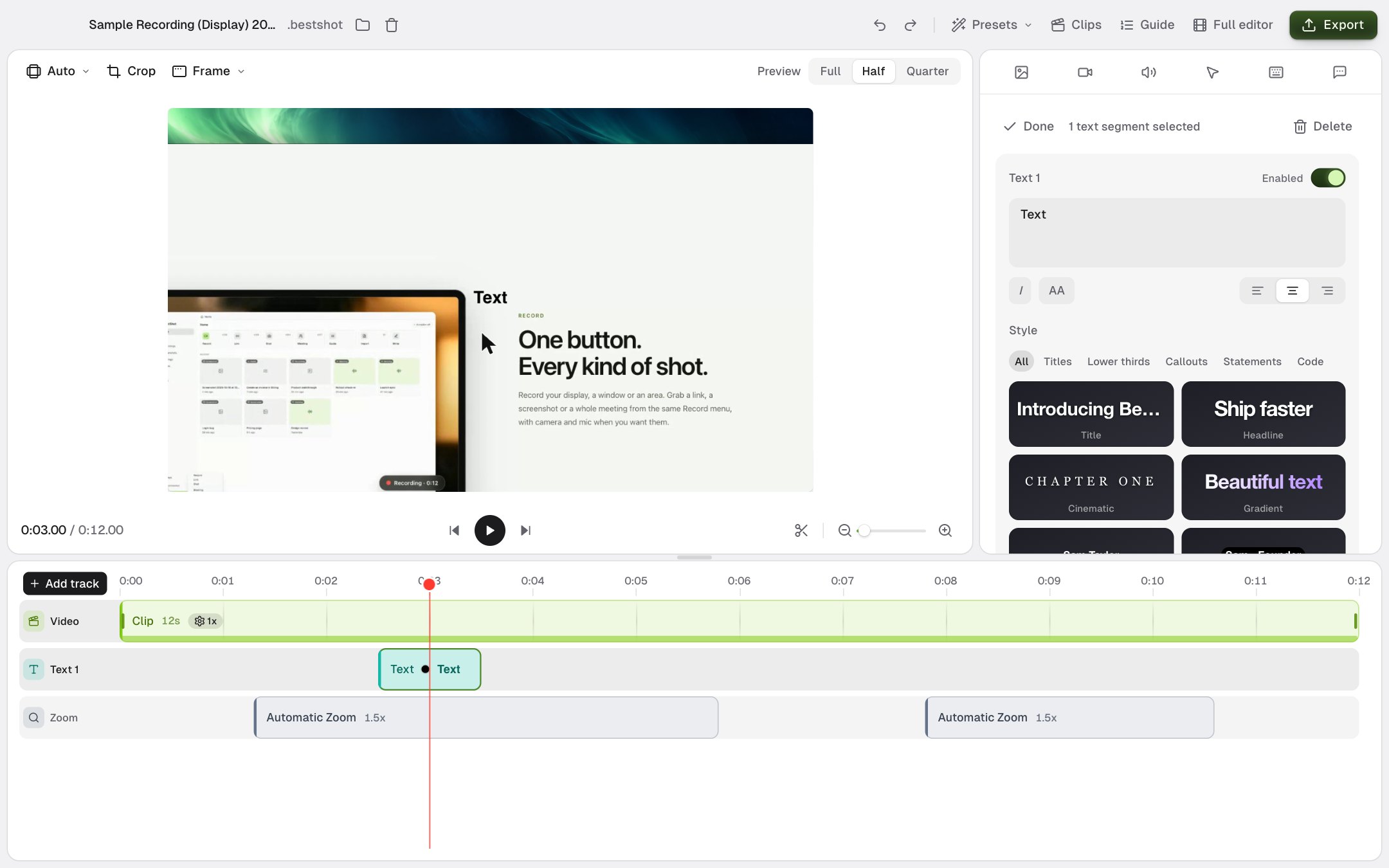
In the sidebar you can:
- Type or change the words, and set italic, uppercase and alignment.
- Pick a ready-made Style: Titles, Lower thirds, Callouts, Statements or Code.
- Change the Font, size, line height and letter spacing.
- Set the Look: colour, gradient, background (None, Box, Pill or Highlight), outline, shadow, glow and opacity.
- Choose an Animation for how the text comes In and goes Out, such as Fade, Slide, Pop or Typewriter.
- Choose a Layout: Overlay shows text over the video; Fullscreen pauses the video while the text is shown, then resumes where it left off.
More tracks
Add track also offers Image for logos and pictures, Audio for background music, Style to change the background, camera and cursor for part of the video, and 3D for cinematic camera moves.
Still stuck? Email support and tell us what you tried.