Cursor style, size and smoothing
Change how the cursor looks and moves, add click ripples, or hide it.
BestShot records the cursor separately from the screen, so you can restyle it after recording. Open the Cursor tab (the pointer icon) in the settings sidebar.
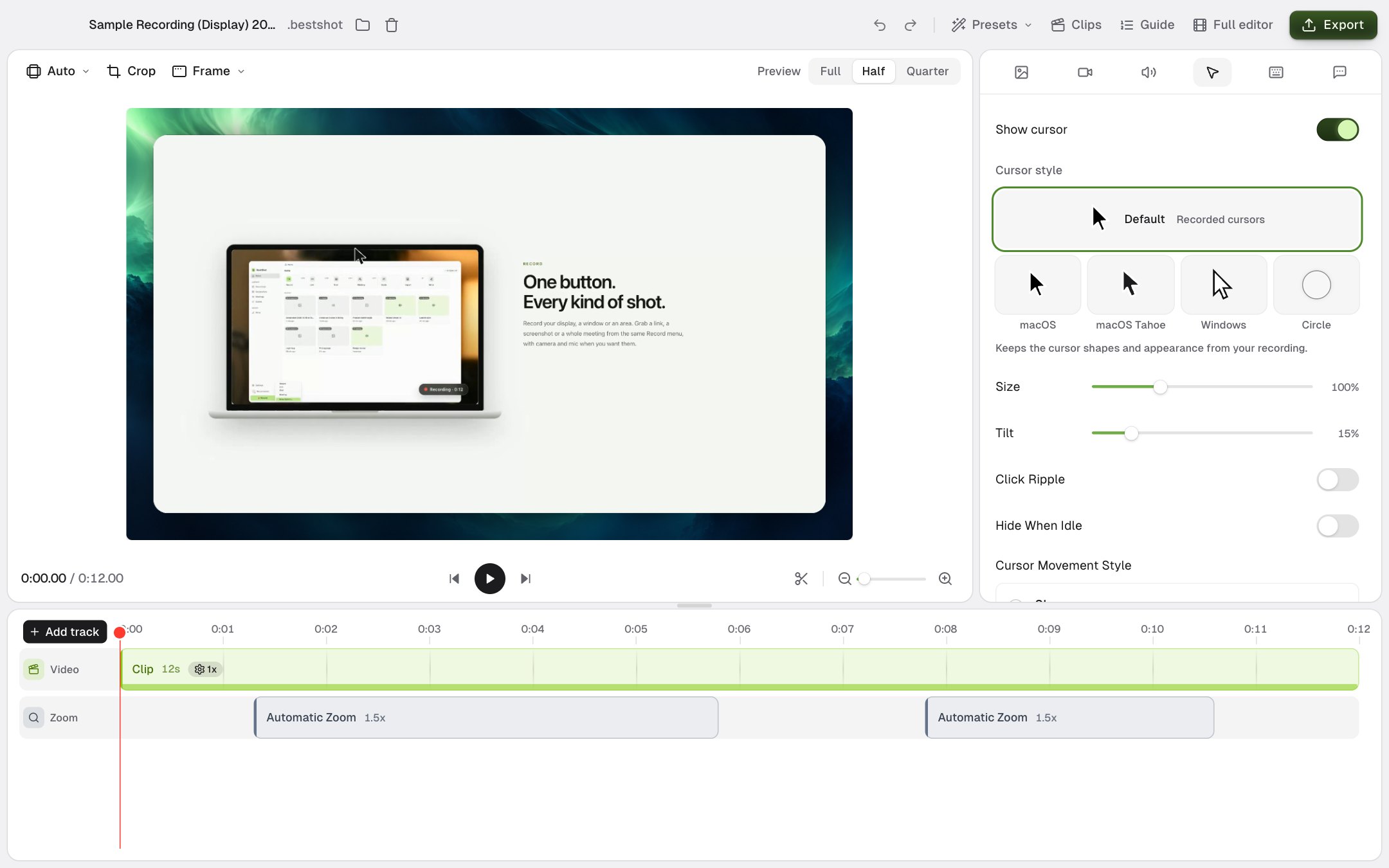
The Cursor tab is greyed out when a take has no cursor recording, for example a video you imported.
Show or hide the cursor
Show cursor turns the cursor on or off for the whole video. To hide it for just one clip, use Hide cursor in that clip's menu. See Trim, split and change speed.
Cursor style
| Style | What you get |
|---|---|
| Default | The cursor shapes exactly as they were recorded. |
| macOS | Classic macOS cursors. |
| macOS Tahoe | The macOS Tahoe look. |
| Windows | Windows cursors. |
| Circle | A soft circle in place of every cursor shape. |
With macOS, macOS Tahoe or Windows, custom cursors (such as one drawn by an app) keep their recorded shape.
Size, tilt and idle
| Setting | What it does |
|---|---|
| Size | Makes the cursor bigger or smaller, from 20% to 300%. |
| Tilt | How much the cursor is tilted. |
| Hide When Idle | Hides the cursor when it stops moving. Inactivity Delay sets how long it waits, from 0.5 to 5 seconds. |
Click ripples
Turn on Click Ripple to show a ripple each time you clicked. You can then set its Color, Strength, Size and Duration.
Smooth movement
Smooth Movement (on by default) glides the cursor between positions instead of following every small jitter. Turn it off to show the exact recorded path.
Cursor Movement Style picks the feel:
| Style | Feel |
|---|---|
| Slow | Relaxed, with a gentle follow. |
| Smooth | Very smooth and cinematic. |
| Mellow | Balanced, for everyday tutorials. This is the default. |
| Fast | Quick and responsive. |
| Custom | Set Tension, Friction and Mass yourself under Smooth Movement. |
Motion blur for the cursor and the screen is one slider, Motion Blur, on the Background tab.
Still stuck? Email support and tell us what you tried.