The editor at a glance
Where the preview, the settings sidebar and the timeline are, and what each part of the editor does.
When a Record take stops, it opens in the editor. Every part of the take (screen, camera, microphone, system audio) is kept as its own file, and the editor works on top of them. Your original recording is never changed, so you can undo or rethink any edit later.
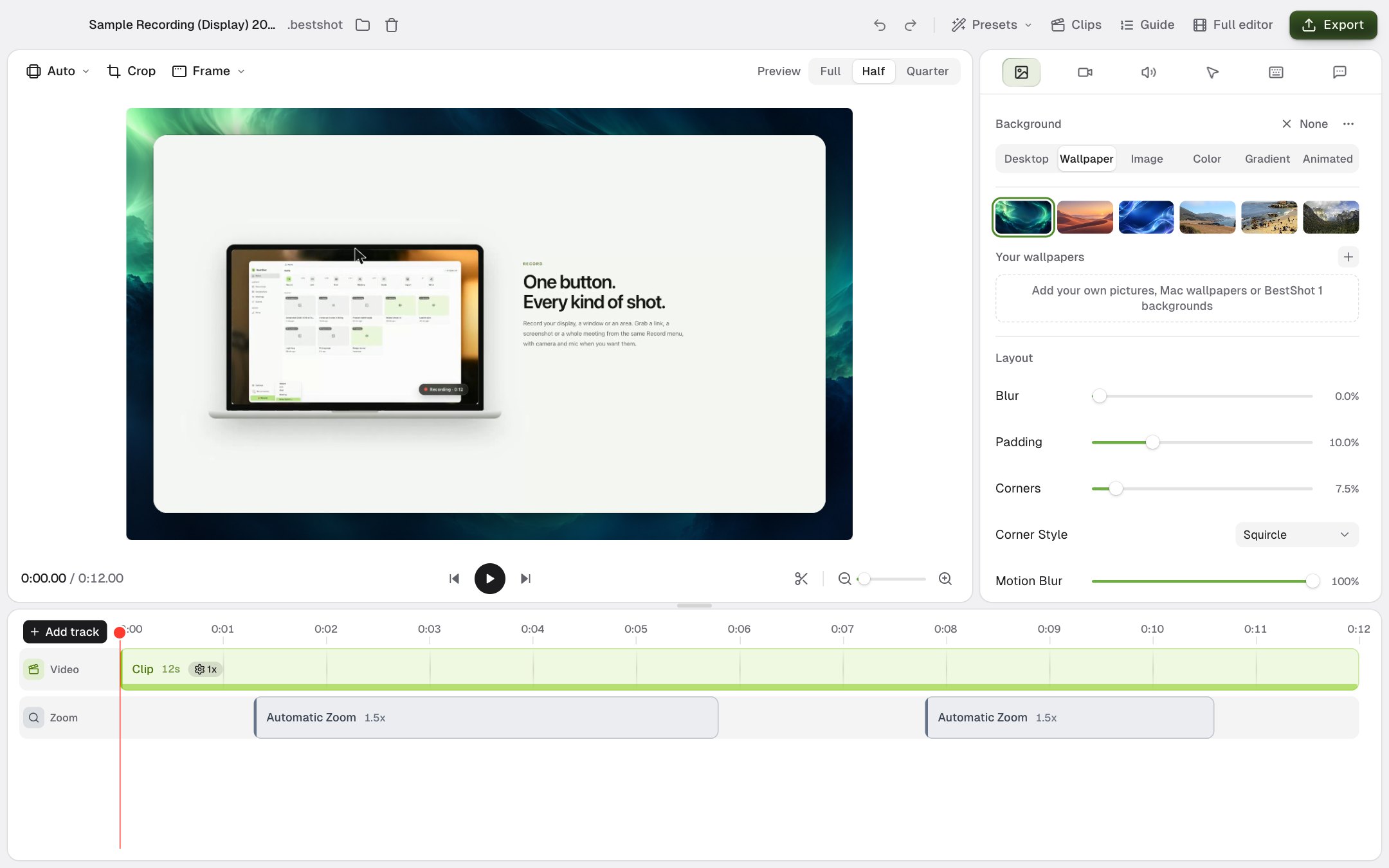
The three main areas
| Area | What it is for |
|---|---|
| Preview | Plays your video with every edit applied. What you see here is exactly what you export. |
| Settings sidebar | The look of the whole video: background, camera, audio, cursor, keyboard and captions. |
| Timeline | Your clips, plus tracks for zooms, captions, text, masks, scenes and more. |
Drag the small grip between the preview and the timeline to give the timeline more or less room.
The header
From left to right across the top:
- The recording's name. Click it to rename the recording.
- Folder shows the recording in Finder or File Explorer. Trash moves the recording to the Trash or Recycle Bin, after asking you first.
- Undo and Redo.
- Presets saves the look of this video (background, camera, cursor, captions style and so on) so you can apply it to other recordings. A preset never changes your clips or caption text.
- Clips shows your clips as a list. See Trim, split and change speed.
- Captions opens the transcript once the recording has captions. See Add captions.
- Export opens the export page. See Export and share a video.
Above the preview
- Aspect ratio (shows Auto at first): choose Wide 16:9, Vertical 9:16, Square 1:1, Classic 4:3 or Tall 3:4.
- Crop trims the edges of the recorded screen.
- Frame puts the recording in a window or device frame. See Background, padding, corners and frame.
- Preview: Full, Half, Quarter sets how sharp the preview is while you edit. A lower setting plays more smoothly on slower computers. It never changes your export.
The settings sidebar
The icons along the top of the sidebar are tabs:
| Tab | What you set |
|---|---|
| Background | Wallpaper, colour, gradient or image behind the recording, plus padding, corners, shadow and border. |
| Camera | Where the camera bubble sits and how it looks. Only available when the take has a camera. |
| Audio | Volume for the microphone and system audio, and background music. |
| Cursor | Cursor style, size, smoothing and click effects. Only available when the take recorded the cursor. |
| Keyboard | Shows the shortcuts you pressed on screen. |
| Captions | Makes captions from your speech and sets their style. |
When you select something on the timeline, such as a zoom or a text box, the sidebar shows that item's settings instead. Click Done, or click any tab, to go back.
The timeline
The Video row holds your clips. The Zoom row is always there. Click Add track for more:
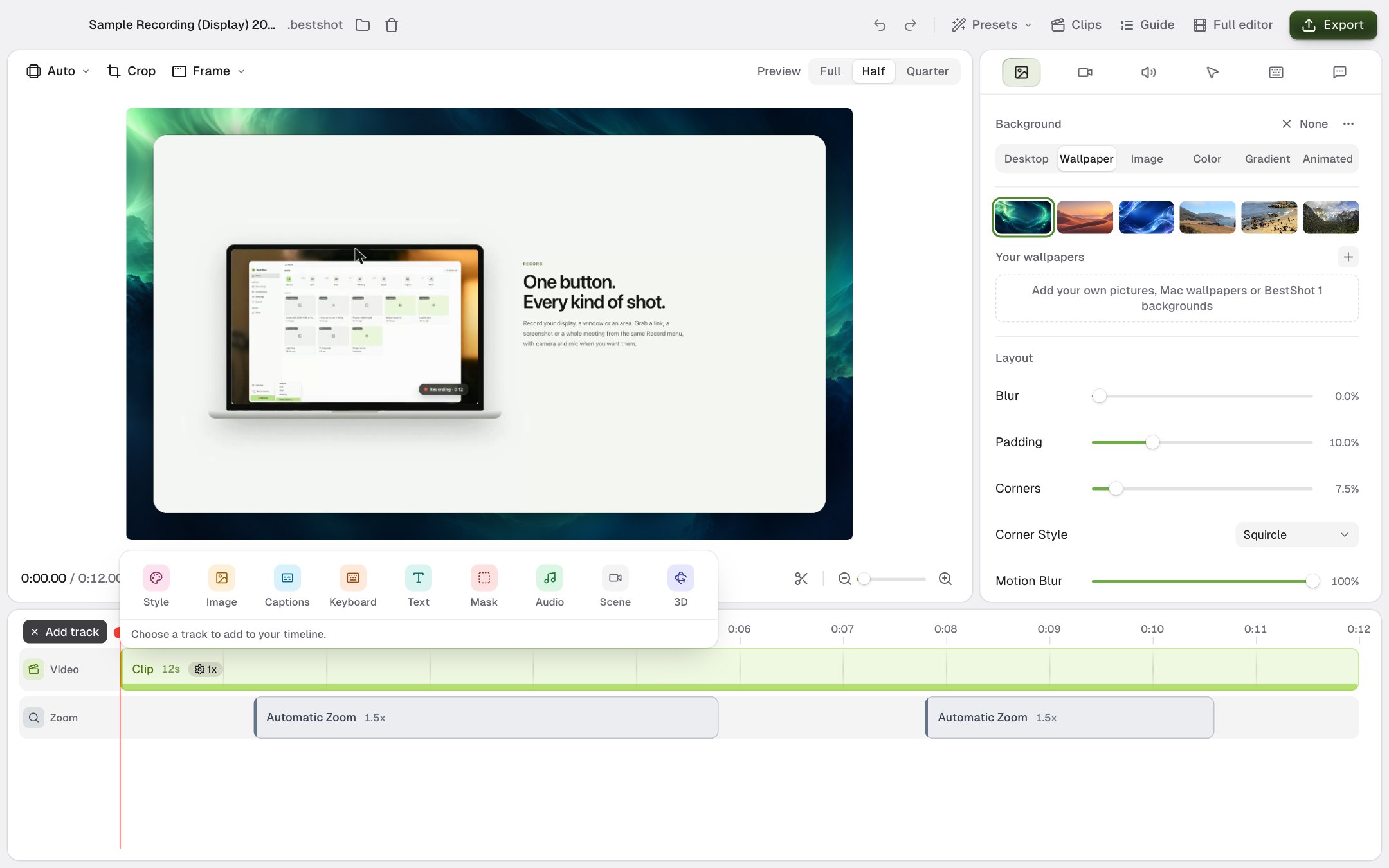
| Track | What it adds |
|---|---|
| Style | Changes the background, camera and cursor for part of your video. |
| Image | Images and logos on top of your video. |
| Captions | On-screen subtitles from your speech. |
| Keyboard | Key presses shown on screen. |
| Text | Titles, labels and other text. |
| Mask | Blurs or highlights part of the screen. |
| Audio | Background music or your own audio. |
| Scene | Switches between screen and camera layouts. Needs a recording with a camera. |
| 3D | Cinematic 3D camera moves. |
To remove a track, hover over its name on the left of the timeline and click the trash icon.
Editor changes save automatically. There is no Save button.
Handy keys
| Key | What it does |
|---|---|
| Space | Play or pause |
| S | Turn split mode on or off |
| C | Split at the playhead |
| ⌘Z / Ctrl+Z | Undo |
| ⇧⌘Z / Ctrl+Shift+Z | Redo |
| ⌘= / Ctrl+= | Zoom the timeline in |
| ⌘− / Ctrl+− | Zoom the timeline out |
| Delete | Delete what is selected on the timeline |
| Esc | Clear the selection |
Still stuck? Email support and tell us what you tried.