Transcripts and speakers
How BestShot transcribes meetings on your computer, which speech model to choose, and how to name the people speaking.
Every meeting is transcribed on your computer. The audio isn't sent anywhere to make the transcript.
Choose a speech model
Speech models are downloaded once, in Settings → Meetings → Recording → Transcript: pick a model and a language, then click Get if it isn't installed.
| Model | Languages |
|---|---|
| Parakeet Small | English only. |
| Parakeet V3 | 25 European languages, including English, Spanish, French, German, Italian, Portuguese and Dutch. |
| Whisper (Small, Turbo, Large) | Many languages, including Filipino (Tagalog). |
If the model you picked can't hear the language you chose, BestShot shows a Use Whisper… button to switch.
For meetings that mix Filipino and English, set the language to Filipino (Tagalog) with a Whisper model rather than Auto.
To transcribe a meeting again with another model, open the meeting's ••• menu and choose Transcribe Again…. This replaces the transcript and your text edits.
Read and edit the transcript
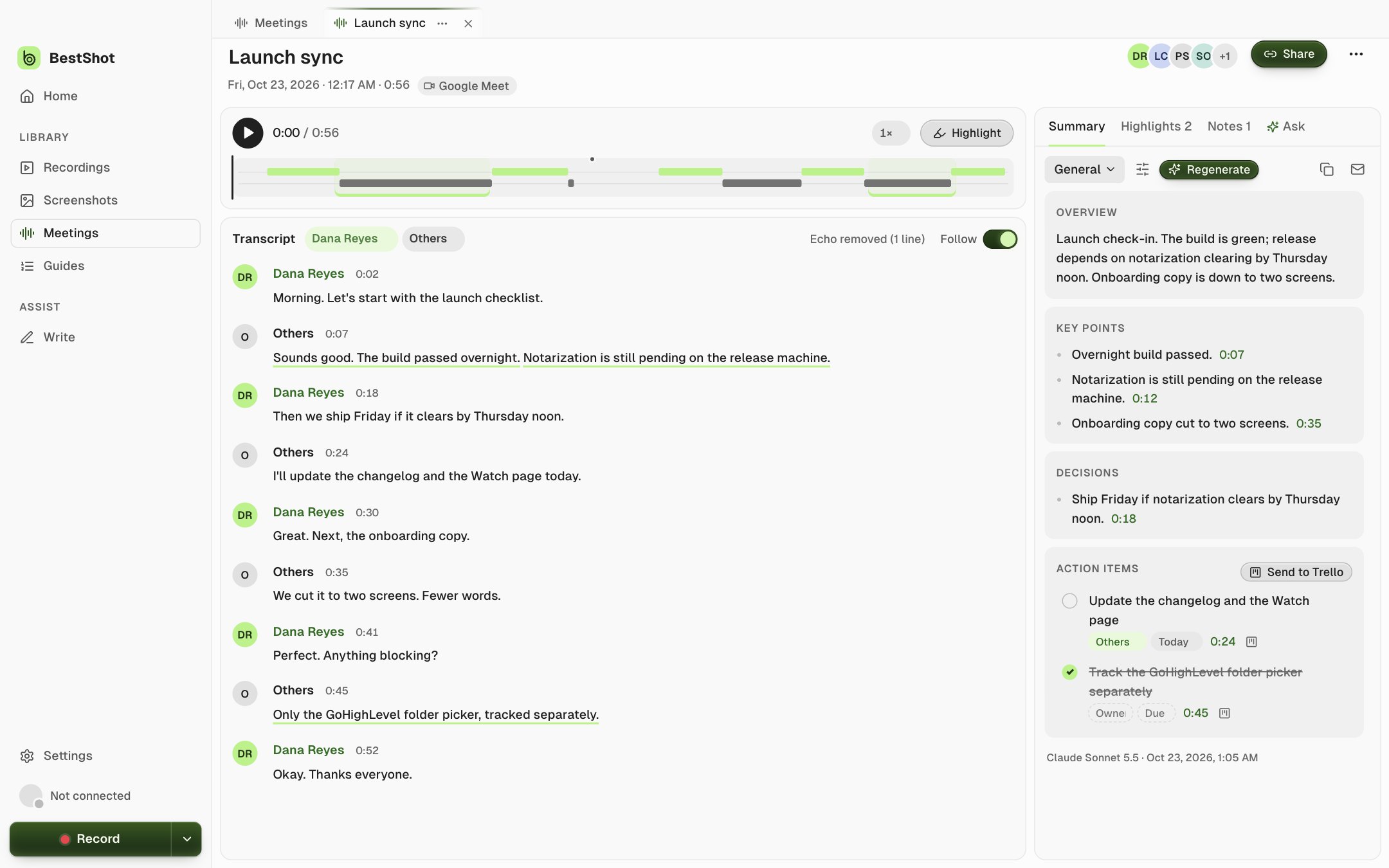
- Click a line to play the audio from there. Turn on Follow to keep the playing line in view.
- Double-click a line (or press F2) to fix a word. Edits are saved as you go.
- The timeline above shows when you spoke and when others did, plus your highlights and notes.
Your microphone is labelled with your name (or You) and the computer's audio with Others. If you recorded without headphones, BestShot removes lines where your microphone picked up the other side; the header then says Echo removed, and ••• → Restore Echo Lines puts them back.
Tell speakers apart
Speaker recognition splits the other side of the call into Speaker 1, Speaker 2 and so on. It runs on your computer after each transcription.
Turn it on in Settings → Meetings → Speakers: download the speaker models (about 32.5 MB, once) and keep Find speakers after transcription on.
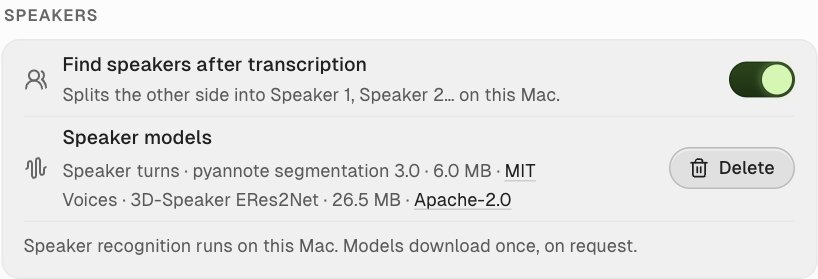
To run it again on one meeting, choose ••• → Find Speakers Again… and set the Number of speakers, or leave it on Automatic.
Name a speaker
Click a speaker's avatar or name in the transcript to open the speaker menu.
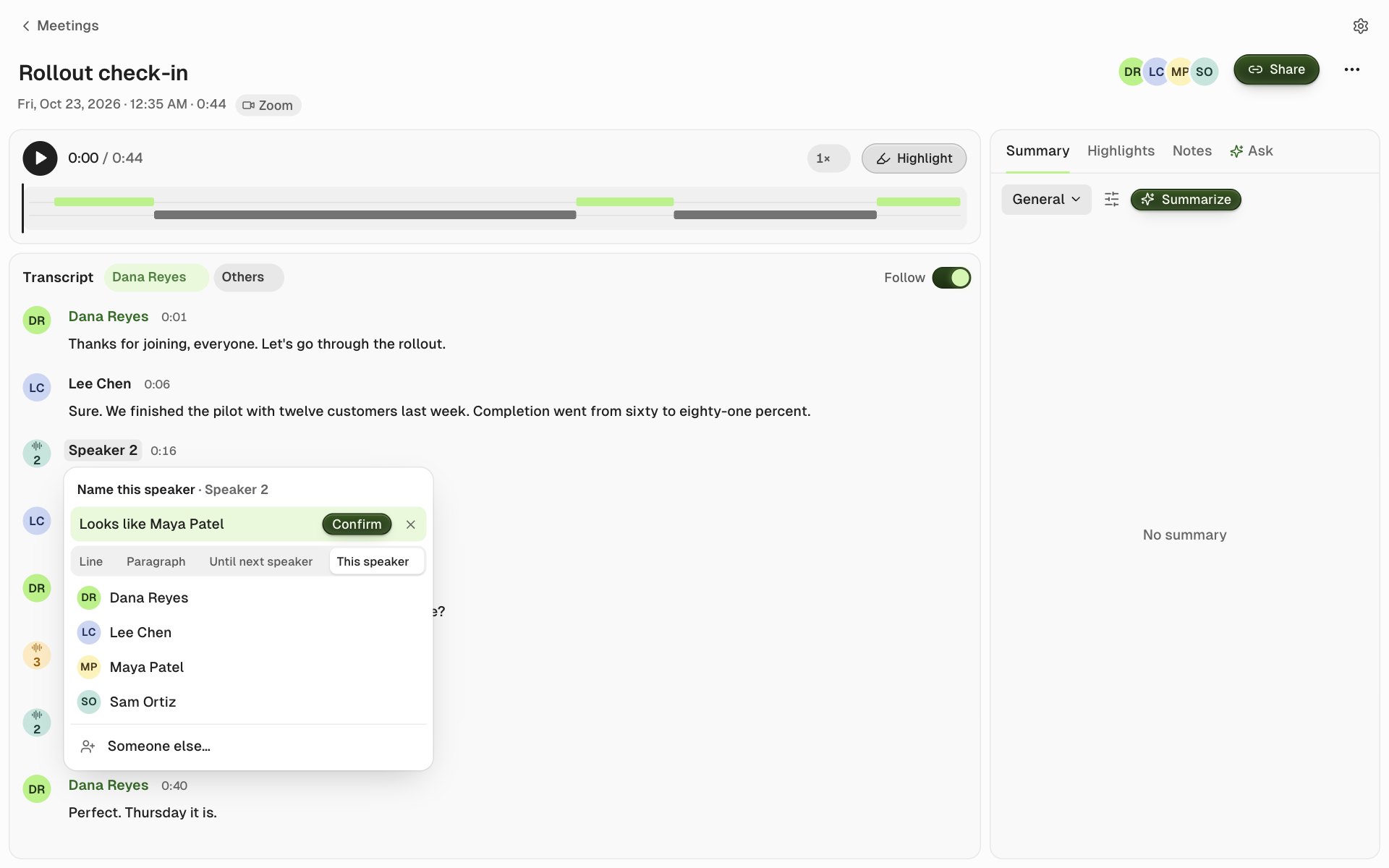
- This speaker names every line of that voice at once.
- Line, Paragraph and Until next speaker assign just those lines.
- Pick someone from the meeting's people, or Someone else… to add a name.
- Reset goes back to "Speaker N".
Names then appear in the transcript, highlights, exports, shares, new summaries and Ask.
Voice memory (optional)
With Settings → Meetings → Voice memory → Remember voices on, BestShot remembers the voices you name and suggests them in later meetings ("Looks like Dana", with Confirm). It's off by default because voice prints are biometric data. Voice data stays on your computer and is never uploaded or shared. You can forget one voice or all of them in the same place.
Still stuck? Email support and tell us what you tried.