Ask your meetings
Chat with your meetings and get answers that link to the exact moments they came from.
Ask is a chat over your meetings. Ask "What did I commit to this week?" or "What was decided about pricing?" and the answer cites the moments it used, so you can jump straight to them.
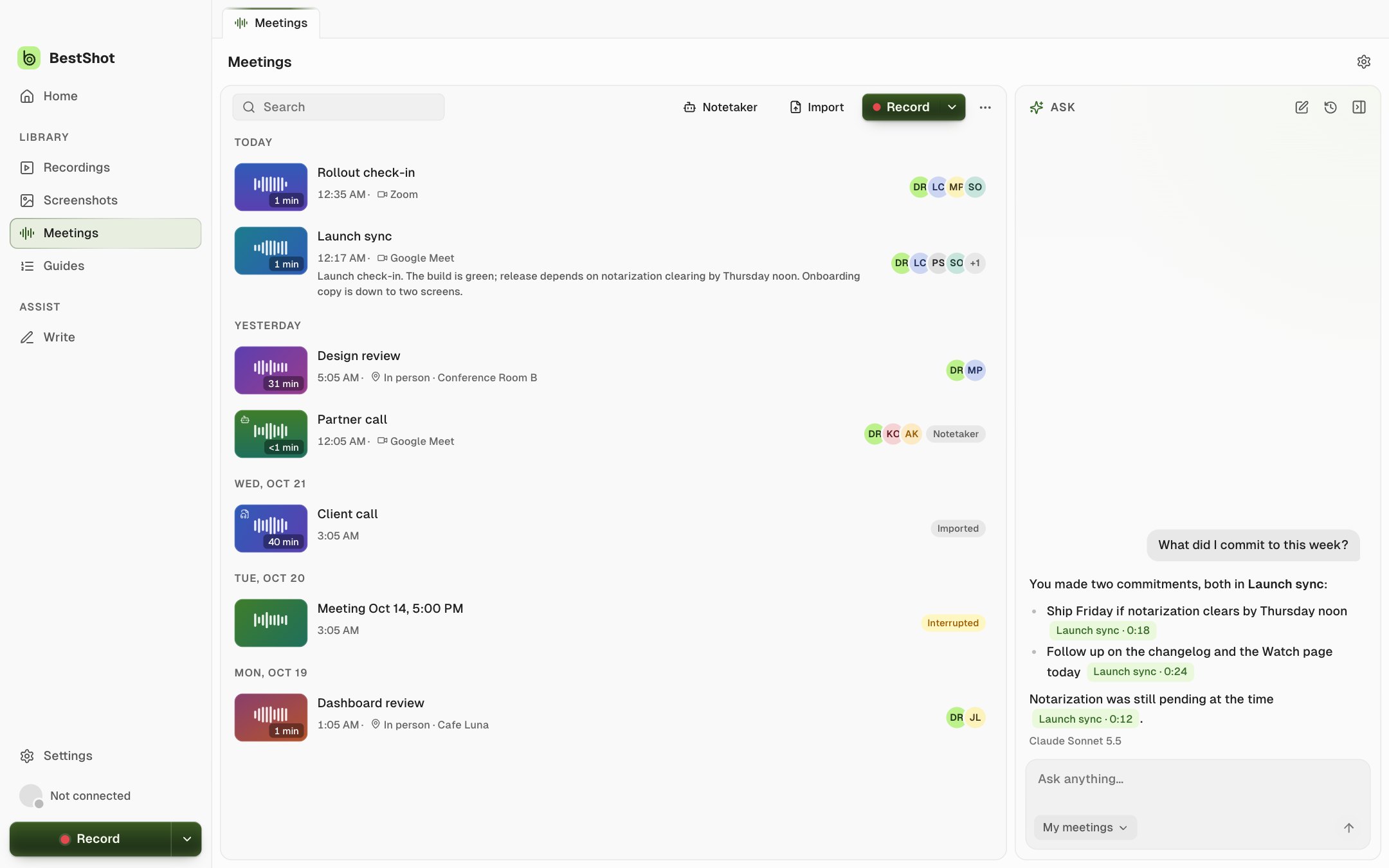
Ask a question
Ask lives in two places:
- Meetings library: the panel on the right. Hide it with the panel button; bring it back with Ask at the top.
- A meeting page: the Ask tab, which starts on This meeting.
Type in Ask anything… and press Enter (Shift+Enter adds a line), or click one of the suggestions. Click the stop button, or press Esc, to stop an answer early.
Choose what Ask searches
The chip at the bottom left of the box sets the scope:
| Scope | Searches |
|---|---|
| This meeting | The open meeting (meeting page only). |
| My meetings | All your meetings. |
| Last 7 days | Meetings from the past week. |
| Today | Today's meetings. |
A question that names a time, such as "yesterday" or "this week", narrows the search to those meetings.
Follow a citation
Each chip shows the meeting and time, such as Launch sync · 0:18. Click it to open that meeting at that moment, or, on the same meeting page, to play from there.
Chats
Ask saves your chats. New chat starts over; Chats lists recent chats and Clear History… removes them all.
Which AI answers
Ask uses the provider chosen for Ask in Settings → Meetings → AI: Apple's on-device model (macOS 26 or later), a downloaded model, Anthropic or an OpenAI-compatible service. See Summaries, highlights and follow-ups. If the provider isn't ready, Ask says what it needs, with a Settings button.
Smaller on-device models keep fewer citations and may say an answer is rough when a question needs more of your meetings than they can read at once.
Still stuck? Email support and tell us what you tried.