Record a meeting
Capture your microphone and the call's audio on your computer, mark moments while you talk, and stop when you're done.
Meeting notes in BestShot record audio only: your microphone and the sound your computer plays (the other people on the call). Nothing joins the call and no video is kept. When you stop, BestShot transcribes the recording on your computer.
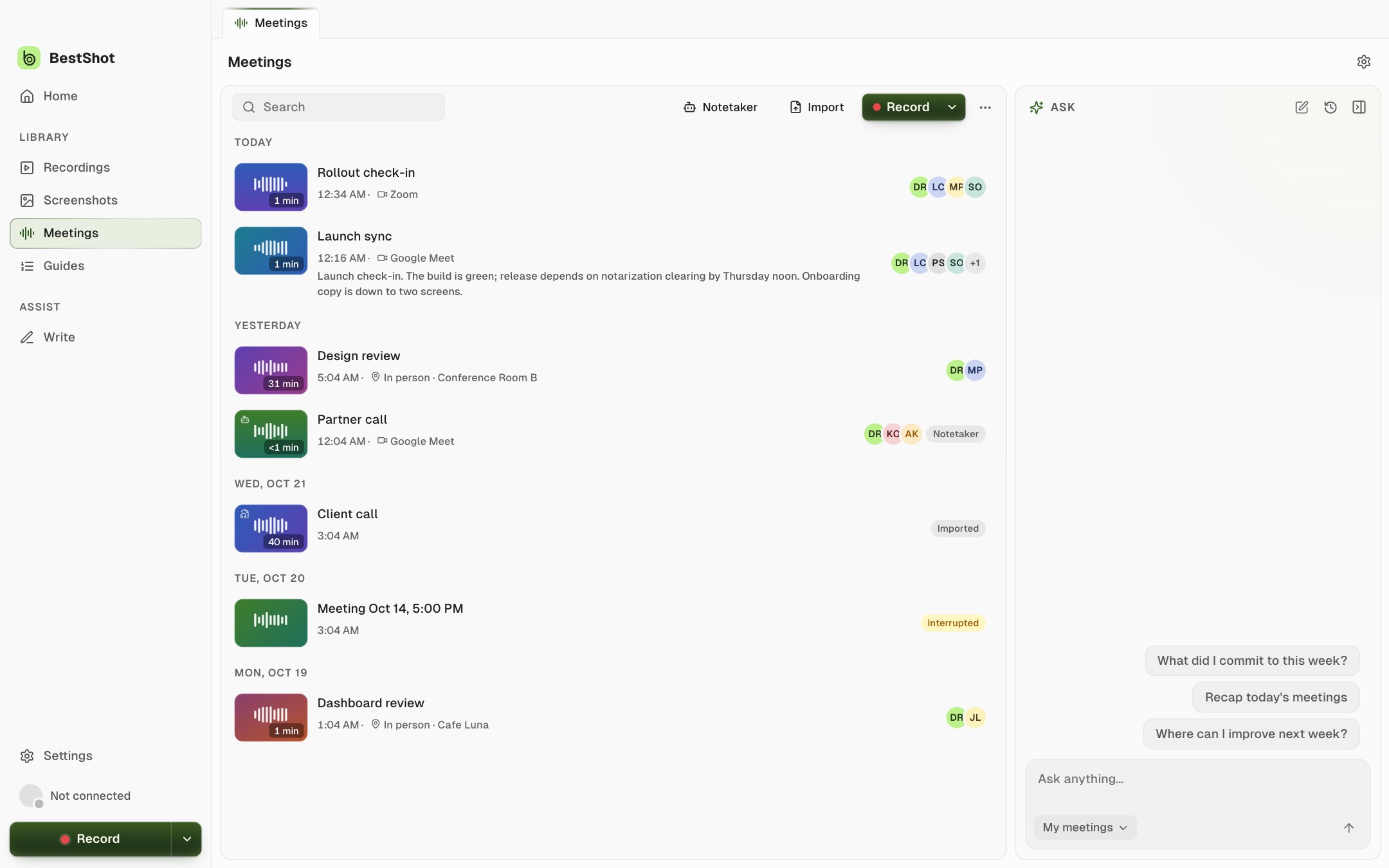
Start a meeting
Use any of these:
- Click Meeting on Home.
- Open Meetings in the sidebar and click Record.
- Press the Meeting shortcut from any app: ⇧⌘7 on a Mac, Alt+Shift+4 on Windows. Press it again to stop.
The first time, BestShot asks you to confirm that you have the consent you need to record. After that, the app window steps aside and the meeting bar appears at the top of your screen.
You can't record a meeting while a screen recording is running, or start a screen recording during a meeting. Finish one first.
Choose what to record
Click the arrow beside Record to pick the sources. Your choices are remembered for next time.
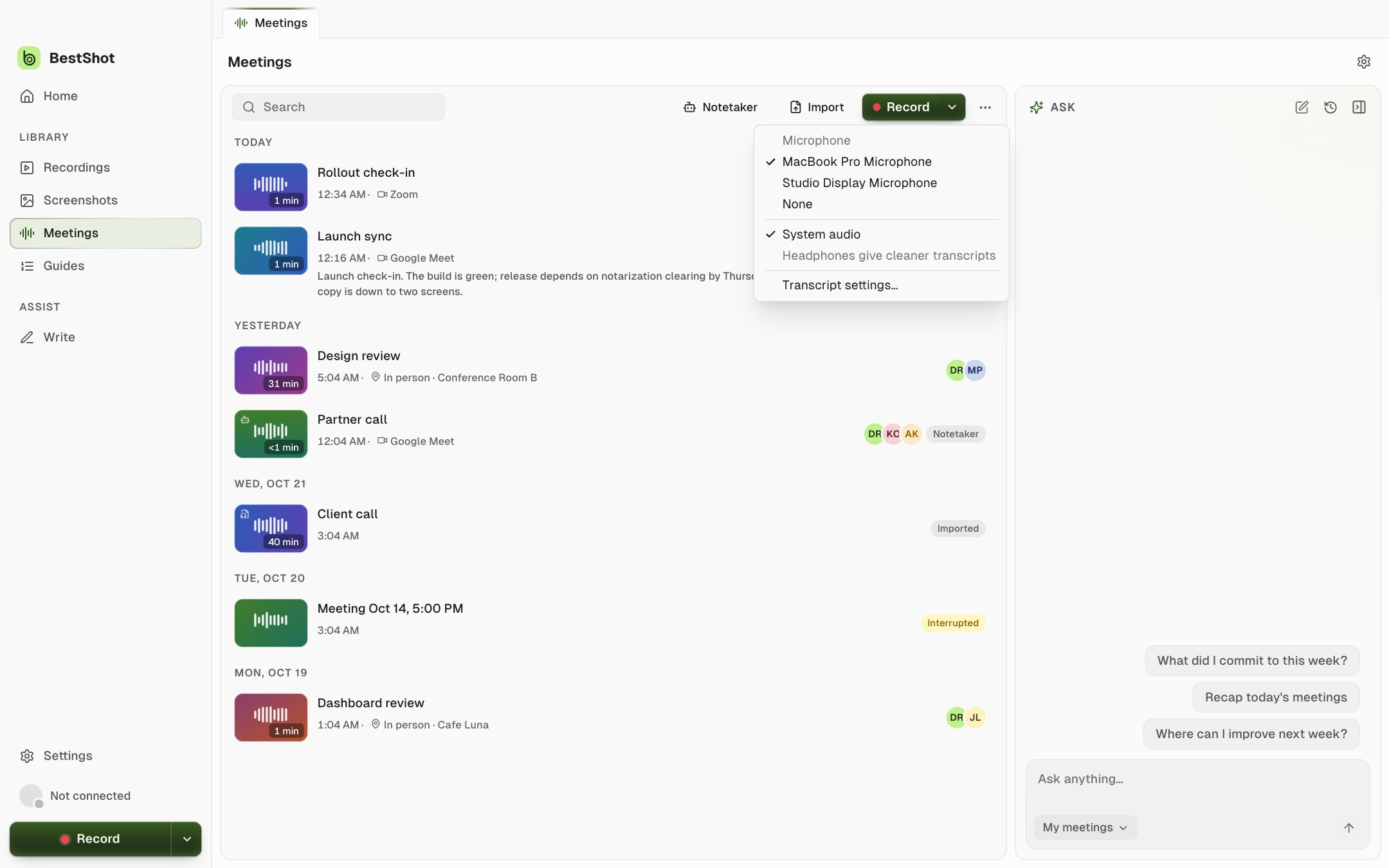
| Option | What it records |
|---|---|
| Microphone | Your voice. Choose a microphone, or None. |
| System audio | Everything your computer plays, such as the other side of a Zoom, Meet or Teams call. |
| Transcript settings… | Opens Settings → Meetings to choose the speech model and language. |
Record is unavailable when both are off. Headphones give cleaner transcripts: without them your microphone also hears the other side.
On a Mac, macOS asks once to allow System Audio Recording Only for BestShot. If you don't allow it, BestShot falls back to screen capture for the call audio, and the meeting bar says so.
The meeting bar
The small bar at the top of the screen controls the meeting. Drag it by the grip at its right edge.

| Control | What it does |
|---|---|
| Timer | How long you've been recording. |
| Highlight | Marks the moment so you can find it later. Also ⌃⇧⌘H on a Mac, Alt+Shift+H on Windows. |
| Note | Opens a one-line field for a timed note. Press Enter to save, Esc to close. |
| Mute | Mutes your microphone (shown only when you record one). |
| Pause / Resume | Pauses the recording; the pause is left out. |
| Stop | Ends the meeting. Also ⌃⇧⌘S on a Mac, Alt+Shift+S on Windows. |
When you stop
The meeting opens in the app window. BestShot saves the audio, then transcribes it on your computer with progress and Cancel. If no speech model is installed yet, the page offers one to download and a Transcribe button. See Transcripts and speakers.
If BestShot quits during a meeting, the meeting shows as Interrupted. Open it and click Recover to save and transcribe what was recorded.
Let BestShot notice calls
On a Mac, BestShot can tell when a call app (Zoom, Teams, Slack, FaceTime, Webex, Discord or a browser) starts using your microphone, and offer to take notes.
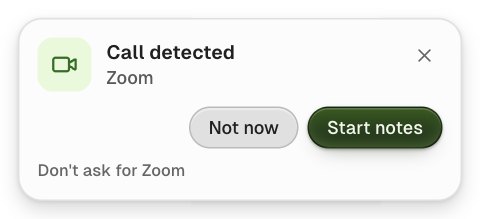
Set this up in Settings → Meetings:
- Automatic → Call detected shows the card above when a call starts.
- Start automatically starts notes for calendar meetings (external, internal or all) and, with Unscheduled calls, for other calls too. An automatic start always shows a 5-second countdown with Cancel first.
- Stop when the call ends stops notes 60 seconds after the call ends.
- Calendar reads the calendars on your Mac to show your next meeting, remind you a minute before and give the meeting its event title and attendees.
- Autopilot turns on automatic starts, summaries, saving to Google Drive and more in one switch.
Import audio
Click Import in Meetings to turn an audio or video file you already have into a meeting with a transcript. Your file is copied, never moved or changed.
Still stuck? Email support and tell us what you tried.