Share a meeting or save it to Google Drive
Send a meeting as a BestShot Watch link, share a single highlight, or keep every meeting in Google Drive as readable files.
Meetings stay on your computer until you share them. You can share one as a BestShot Watch link, share just a highlight, or save meetings to Google Drive.
Sharing and Google Drive use your BestShot Watch workspace. Connect it first in Settings → Connected services.
Share a meeting link
- Open the meeting and click Share at the top right.
- The first time, choose what to include, then click Create link.
- BestShot prepares the audio and uploads it. The link is copied when it's ready.
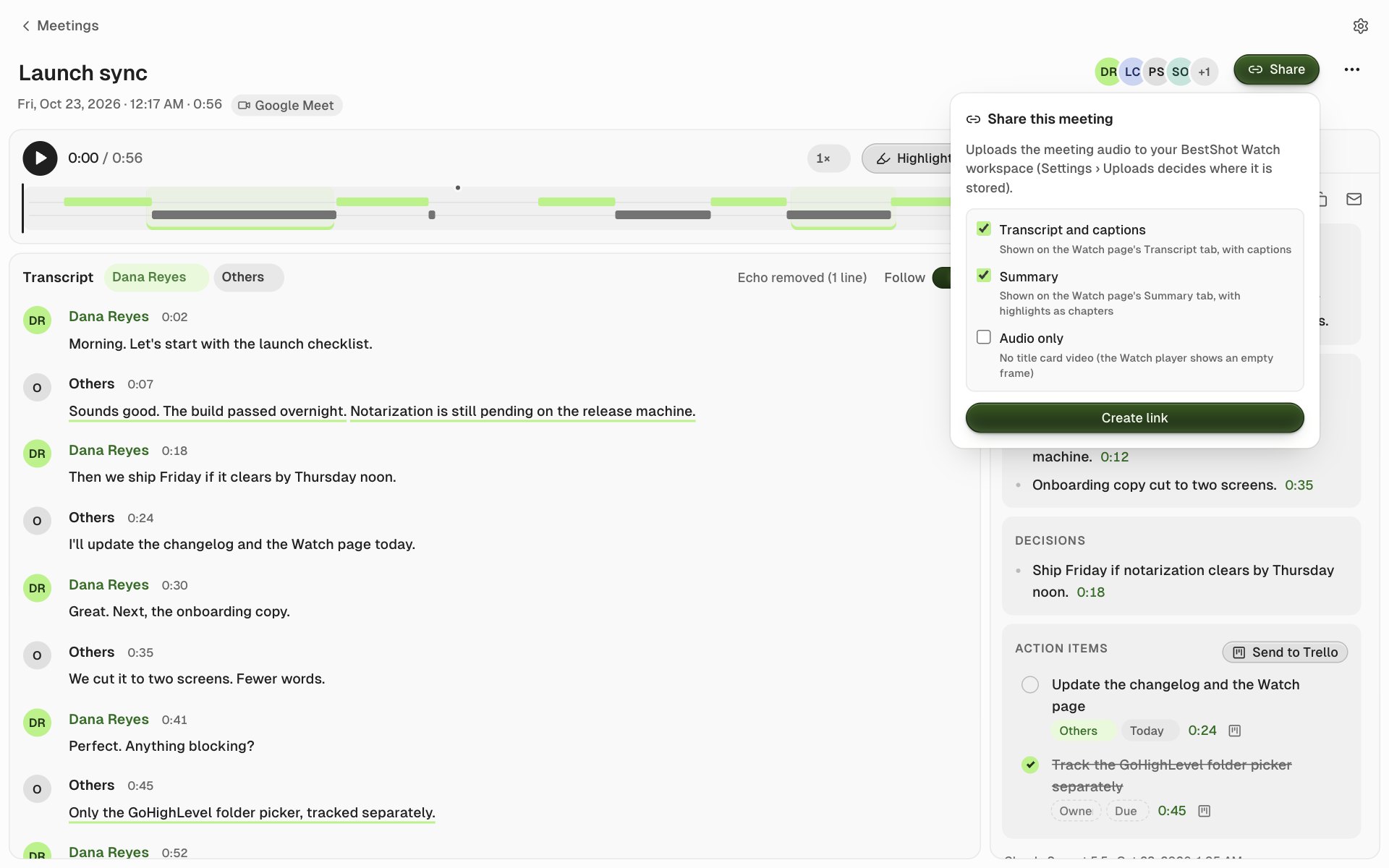
| Option | What it adds |
|---|---|
| Transcript and captions | The transcript on the Watch page's Transcript tab, with captions. On by default. |
| Summary | The summary on the Summary tab, with highlights as chapters. On by default. |
| Audio only | Leaves out the still title card video, so the player shows an empty frame. Off by default. |
The upload keeps going if you close the popover. Who can open the link and where the file is stored follow Settings → Uploads.
If you change the title, transcript, speaker names or summary after sharing, the popover offers Update link. That uploads again as a new link; the old link keeps the old version.
To share one moment, open the Highlights tab and click Share clip on a highlight. In the library, a shared meeting's ••• menu has Copy Link and Open Link.
Save meetings to Google Drive
BestShot can keep every meeting in your Google Drive as plain files that you and AI tools can search without opening BestShot.
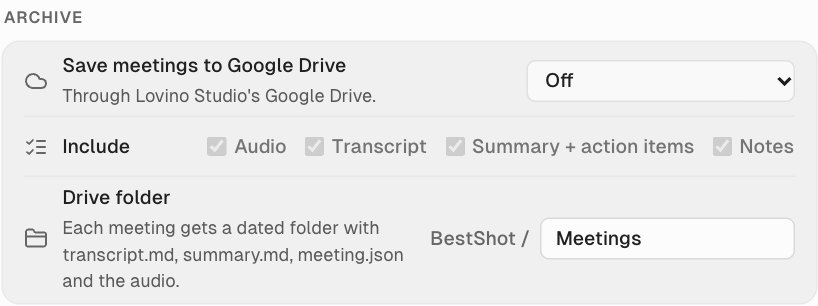
In Settings → Meetings → Archive:
- Save meetings to Google Drive: Off, Ask after each meeting or Automatically.
- Include: Audio, Transcript, Summary + action items, Notes.
- Drive folder: the folder name inside your BestShot folder in Drive (Meetings by default).
Each meeting gets a dated folder with transcript.md, summary.md, notes.md (when there are notes), meeting.json and the audio.
To save one meeting by hand, open its ••• menu and choose Save to Drive Now; Open in Drive opens it afterwards. Later saves replace the changed files in place, so links to them keep working. After you edit a saved meeting, its header shows Edited since saved.
If your workspace server is too old to save archives, BestShot says so and uploads nothing. Ask your workspace owner to update it.
Still stuck? Email support and tell us what you tried.