Summaries, highlights and follow-ups
Turn a transcript into a summary with decisions and action items, choose which AI writes it, and draft a follow-up email.
Once a meeting is transcribed, BestShot can summarize it: an overview, key points, decisions, action items and open questions. Every point links to the moment it came from, so you can check it in one click.
Summarize a meeting
- Open the meeting and stay on the Summary tab.
- Pick a template from the chip at the top left (it starts on General).
- Click Summarize. Later, Regenerate writes a new version.
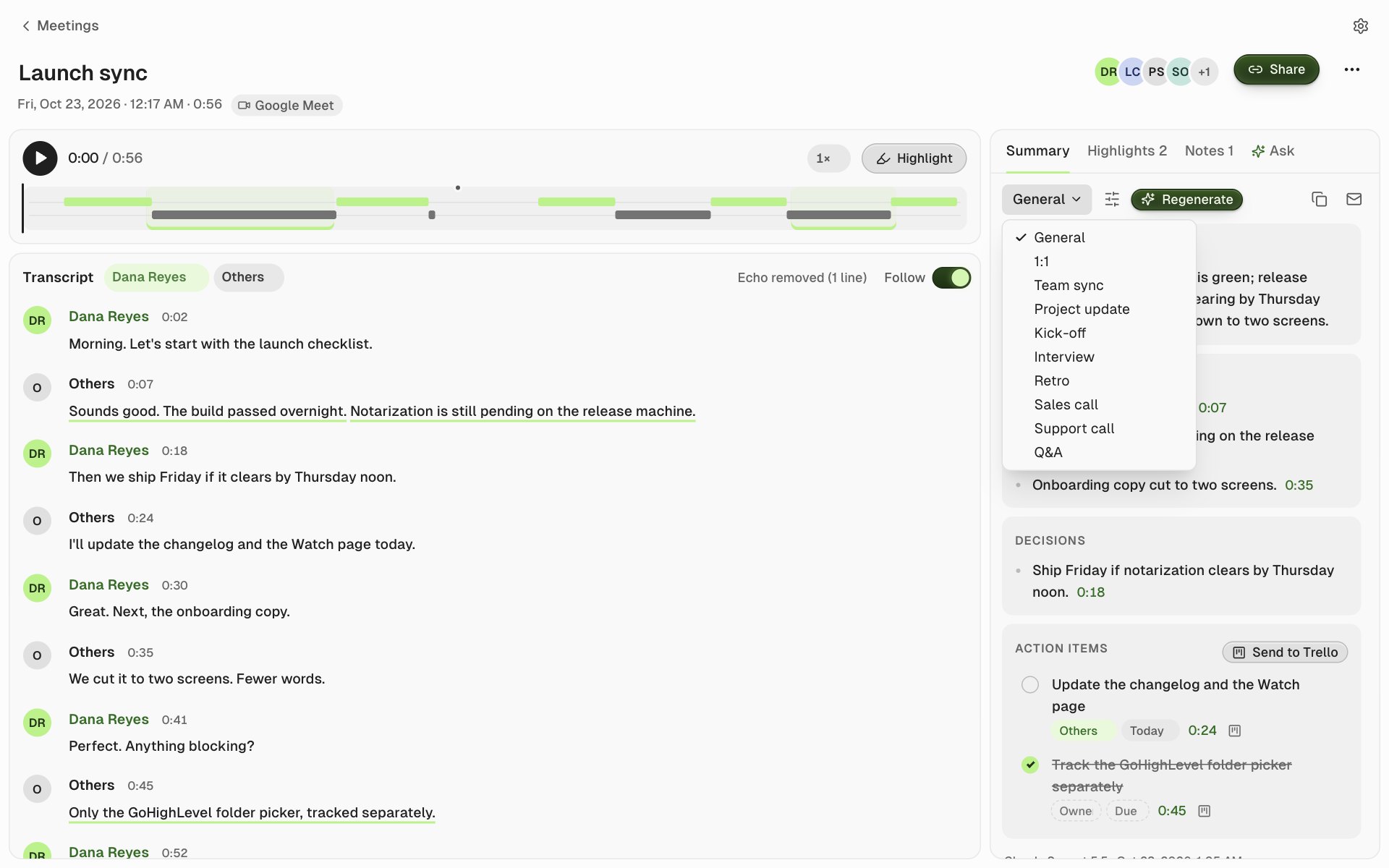
The sliders button next to the template adds Instructions, for this meeting or for future ones. Earlier versions are kept, and the copy button copies the summary.
To summarize every meeting by itself, turn on Summarize after transcription in Settings → Meetings. Each summary also gives the meeting a short title unless you've typed your own.
Action items
Tick an item when it's done, and click Owner or Due to fill them in. If you connect Trello in Settings → Meetings → Trello, Send to Trello turns the items into cards.
Highlights and notes
The Highlights tab lists the moments you marked with Highlight. Each one shows its time range and transcript, can be renamed, and can be saved as an audio clip with Save clip. The Notes tab holds your timed notes and a free notes field.
Draft a follow-up email
Click the envelope button on the Summary tab. BestShot drafts a short email from the summary, with a subject and body you can edit, then Open in Mail or Copy. BestShot never sends it for you.
Choose which AI writes summaries
Pick providers in Settings → Meetings → AI. Summaries and Ask each have their own choice; Auto picks for you.
| Provider | Where it runs | What you need |
|---|---|---|
| On this Mac (Apple) | On your Mac | macOS 26 or later with Apple Intelligence turned on. |
| On this Mac (downloaded model) | On your computer | A one-time download: Qwen3.5 2B (1.3 GB), Qwen3.5 4B (2.7 GB) or Gemma 4 E4B (5.0 GB). |
| Anthropic | Anthropic's cloud | Your own Anthropic API key. |
| Custom | The service you choose | Any OpenAI-compatible service, such as OpenRouter, OpenAI, Ollama or LM Studio. |
The status under each choice says whether it's ready or what it still needs. API keys are kept in your system's keychain, not in BestShot's files.
On-device models have small memories. For long meetings BestShot summarizes in parts, and may say "Long meeting — results may be rough". A cloud provider gives better results for long meetings.
Still stuck? Email support and tell us what you tried.