Fix screen recording and microphone permissions
What to do when BestShot can't see your screen or hear your microphone.
Your computer asks you to allow BestShot before it can record the screen, the microphone or the camera. If a recording is blank, silent, or Record won't start, a permission is usually missing.
Check in BestShot
The first time you open BestShot, setup shows a Permissions step with a card for each one: Screen & system audio (required), Microphone, Camera and Step details for guides (optional). Click Allow on any that are missing.
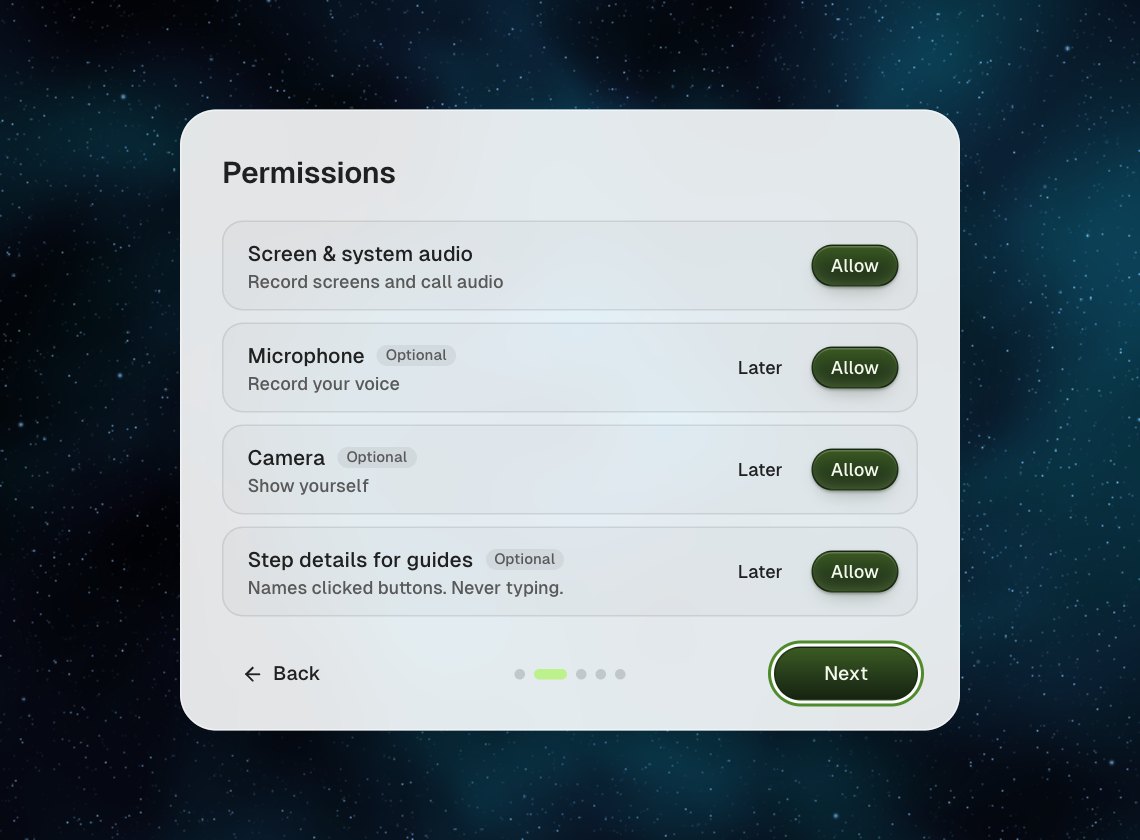
To see this step again later, open Settings → General and, under Setup, click Open next to Run setup again.
On a Mac
macOS keeps these switches in System Settings → Privacy & Security:
- Open System Settings → Privacy & Security.
- Choose Screen & System Audio Recording, Microphone or Camera.
- Turn on BestShot.
After you allow screen recording, BestShot may say Reopen BestShot to apply. Click Reopen: macOS only applies the screen recording permission after the app restarts. Microphone and camera work straight away.
Meeting notes record the other side of a call with macOS's audio-only system capture, so macOS may also ask you to allow System Audio Recording Only for BestShot. If you don't, notes still record using screen capture.
Step details for guides uses Accessibility (System Settings → Privacy & Security → Accessibility). It is optional: it only names the buttons you click, never what you type.
On Windows
Windows does not ask for screen recording permission. The microphone and camera follow your Windows privacy settings: open Settings → Privacy & security, choose Microphone or Camera, and make sure access is on for desktop apps.
Still not working?
Make sure the right microphone is chosen for your take. If it still fails, see Contact support.
Still stuck? Email support and tell us what you tried.