Share a Watch link
Get a BestShot Watch link straight from a Link take, or from the Export page after you edit.
A Watch link is a page on BestShot Watch (watch.bestshot.site) that plays your recording, with comments and a transcript beside it. The video itself is uploaded to your own Google Drive or GoHighLevel storage, and the Watch page plays it from there.
Before your first share, connect BestShot to your Watch workspace and to Google Drive or GoHighLevel. See Connect Google Drive and Use GoHighLevel storage.
Link takes upload by themselves
A Link take is the quickest way to share. When you stop recording, BestShot exports the video, uploads it without opening the editor and copies the Watch link to your clipboard. A small card shows the progress, so you can paste the link as soon as it says Watch link copied.
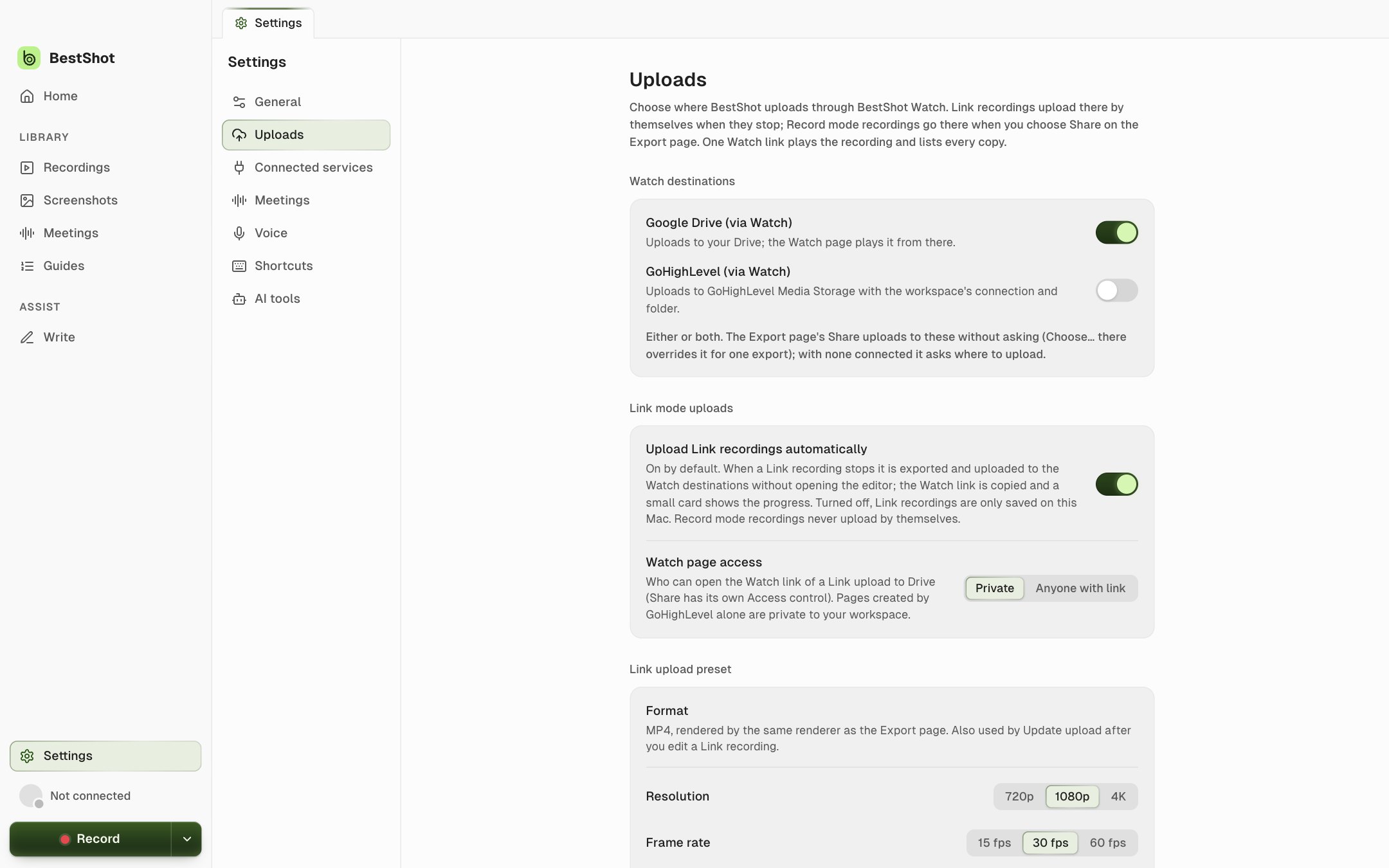
This is controlled in Settings → Uploads:
- Watch destinations: choose Google Drive (via Watch), GoHighLevel (via Watch), or both.
- Upload Link recordings automatically: on by default. Turn it off and Link takes are only saved on your computer.
- Watch page access: Private (the default) or Anyone with link, for Link uploads to Drive.
- Link upload preset: the resolution, frame rate and quality used for these uploads.
Record takes never upload by themselves. They open in the editor so you can polish them first, and you share them from the Export page.
Share from the editor
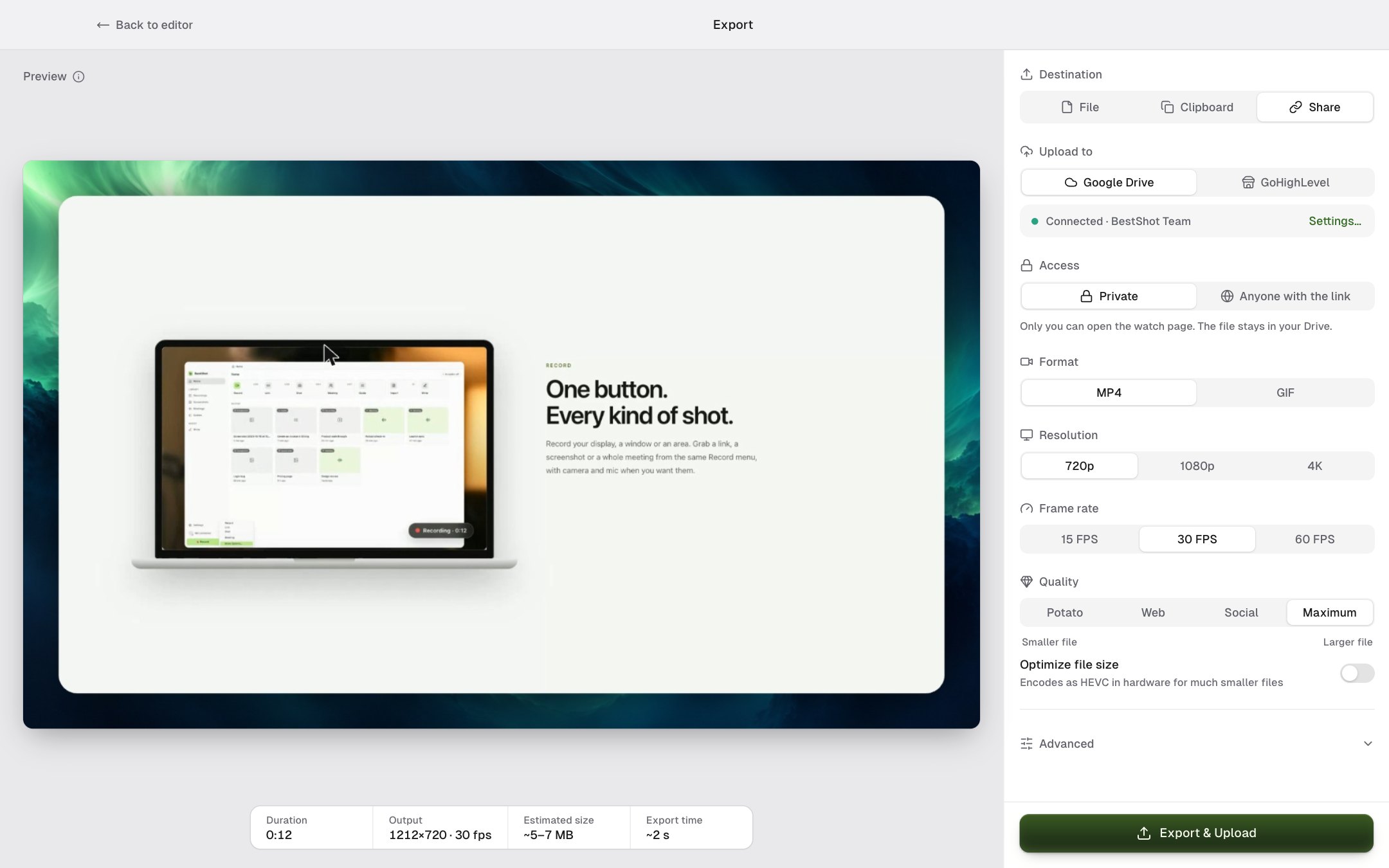
- In the editor, click Export.
- Under Destination, choose Share.
- Check Upload to. If you chose Watch destinations in Settings, it shows where the video will go, with Change in Settings and Choose… to pick something else for this export only. Otherwise choose Google Drive or GoHighLevel.
- Under Access, choose Private or Anyone with the link.
- Set the format, resolution, frame rate and quality as for any export, then click Export & Upload.
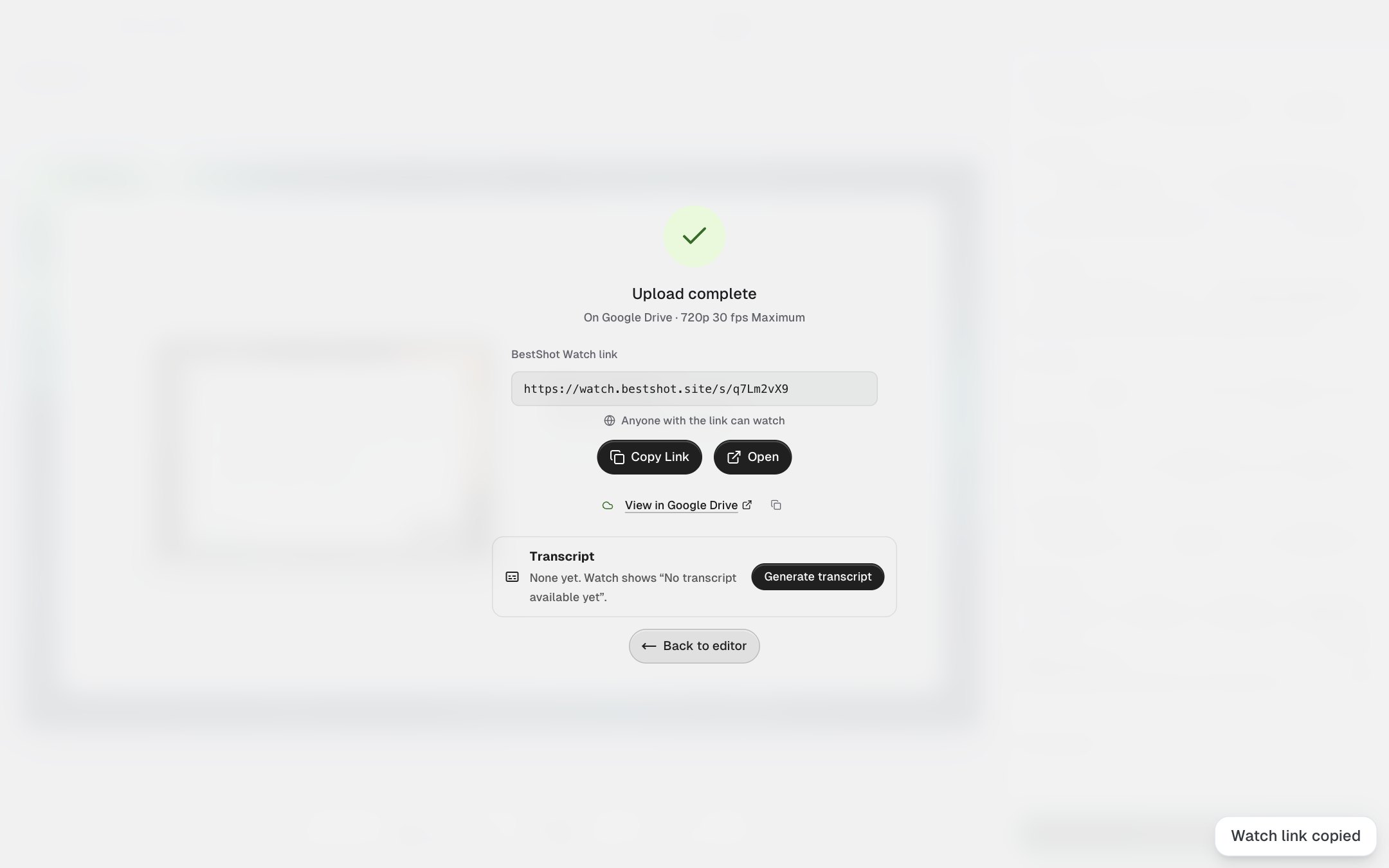
When the upload finishes you see Upload complete with your BestShot Watch link. Click Copy Link to copy it, or Open to see the page. View in Google Drive opens the file where it is stored.
You can also start from your library: the Share action on a recording card opens that recording's Export page with Share already selected.
Keep working while it uploads
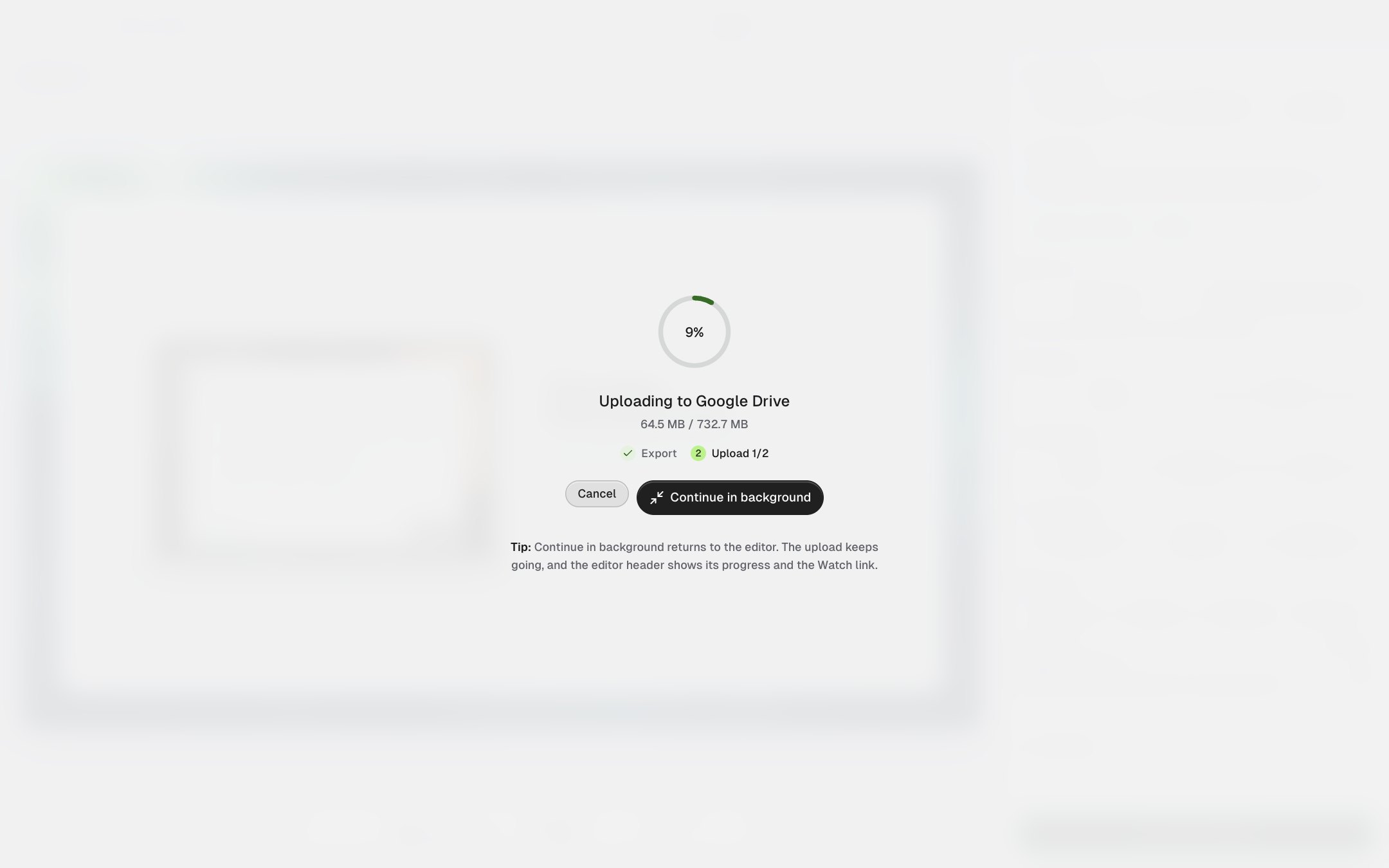
Long videos can take a while. While the first upload runs, click Continue in background to go back to the editor. The upload keeps going, even if you close the editor, and the editor header shows its progress and a Copy link button once the Watch link is ready. If you quit BestShot, the upload carries on the next time you open it, without exporting again.
If you upload to both Google Drive and GoHighLevel, both copies join the same Watch page. The Watch link is copied as soon as the first one finishes.
If you change the recording later
After you edit a recording that was already shared, the upload shows edited since. Choose Update upload to export and upload it again. This makes a new Watch link; the earlier one is kept in the upload details as Earlier Watch link.
Still stuck? Email support and tell us what you tried.