Use GoHighLevel storage
Upload shared recordings to a GoHighLevel sub-account's Media Storage, through Watch or from your computer.
If you work in GoHighLevel, BestShot can upload recordings to a sub-account's Media Storage instead of, or as well as, Google Drive. Both copies can share one Watch link.
What you need
In the GoHighLevel sub-account, open Settings › Private Integrations and create a token with the medias.readonly and medias.write scopes. You also need the same sub-account's Location ID.
Connect through Watch (recommended)
Connecting in Watch lets every BestShot upload use it, and the token stays on the Watch server, encrypted.
- At watch.bestshot.site, open your account menu and choose Connect GoHighLevel.
- Enter the Location ID and Private integration token, then click Connect GoHighLevel.
- Pick the folder uploads should go to and save it.
- In BestShot, open Settings → Uploads and turn on GoHighLevel (via Watch).
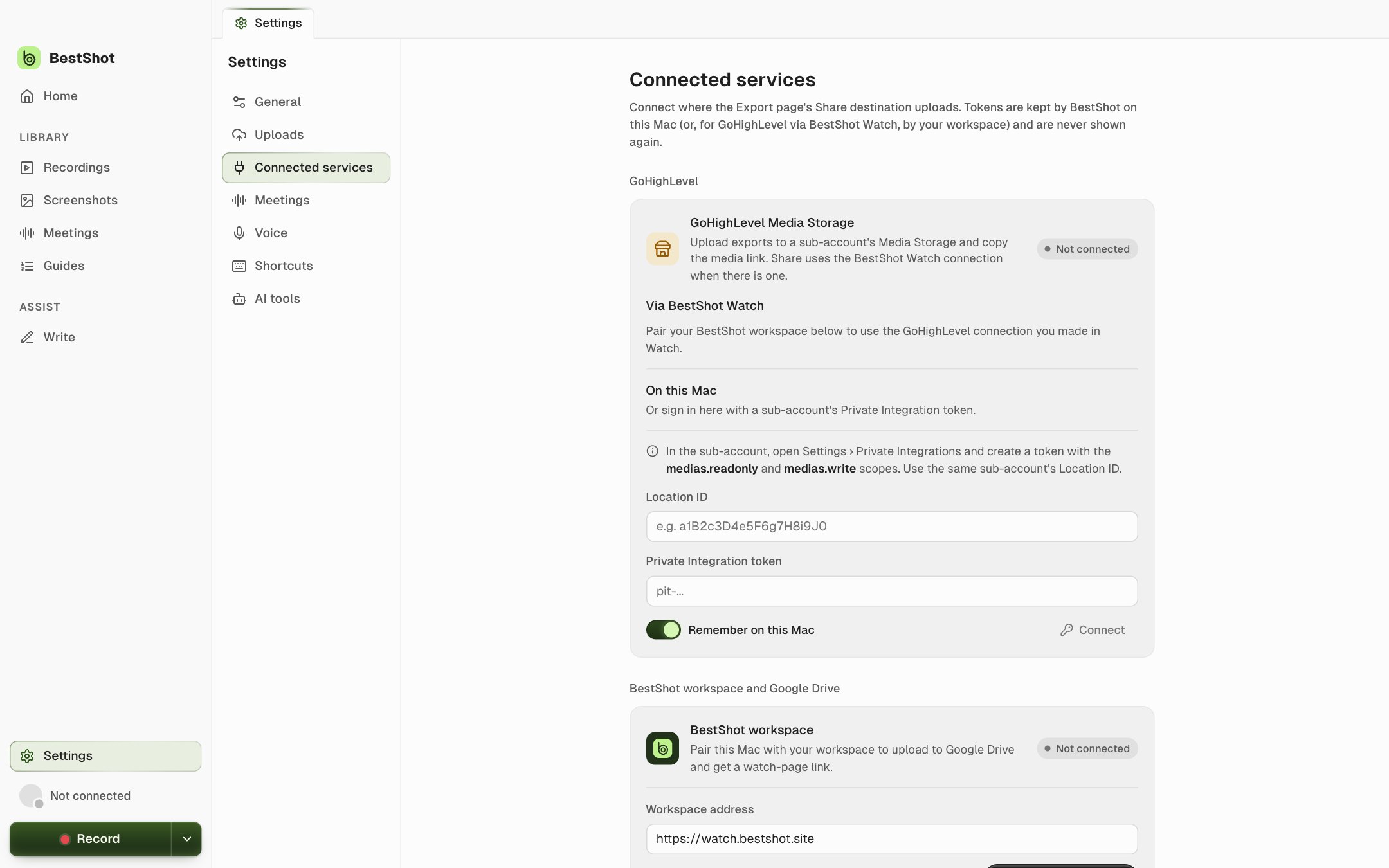
Settings → Connected services then shows GoHighLevel Via BestShot Watch as connected, with Manage in Watch and Check again.
Or connect on this computer
You can also sign in from BestShot directly. In Settings → Connected services → GoHighLevel, under On this Mac, enter the Location ID and Private Integration token and click Connect. With Remember on this Mac on, the token is kept in your computer's keychain; off, it is forgotten when BestShot quits.
On the Export page, choose Share, then GoHighLevel under Upload to, and pick a folder.
GoHighLevel media links are public to anyone who has the link, even when the Watch page is private. Think twice before sending the direct link for confidential content.
Good to know
- Through Watch, GoHighLevel takes MP4 videos. To send a GIF, use the connection on this computer.
- A Watch page created only from a GoHighLevel upload is private to your workspace.
- Disconnecting removes the saved token. Files already in GoHighLevel stay there.
Still stuck? Email support and tell us what you tried.