Connect Google Drive
Let BestShot upload shared recordings to a BestShot folder in your Google Drive, and how to disconnect it.
Google Drive is where BestShot keeps the recordings you share. Your videos stay in your own Drive, and the Watch page plays them from there, so they are kept for as long as you keep the files.
Before you start
BestShot uploads to Drive through your BestShot Watch workspace, so connect the workspace first:
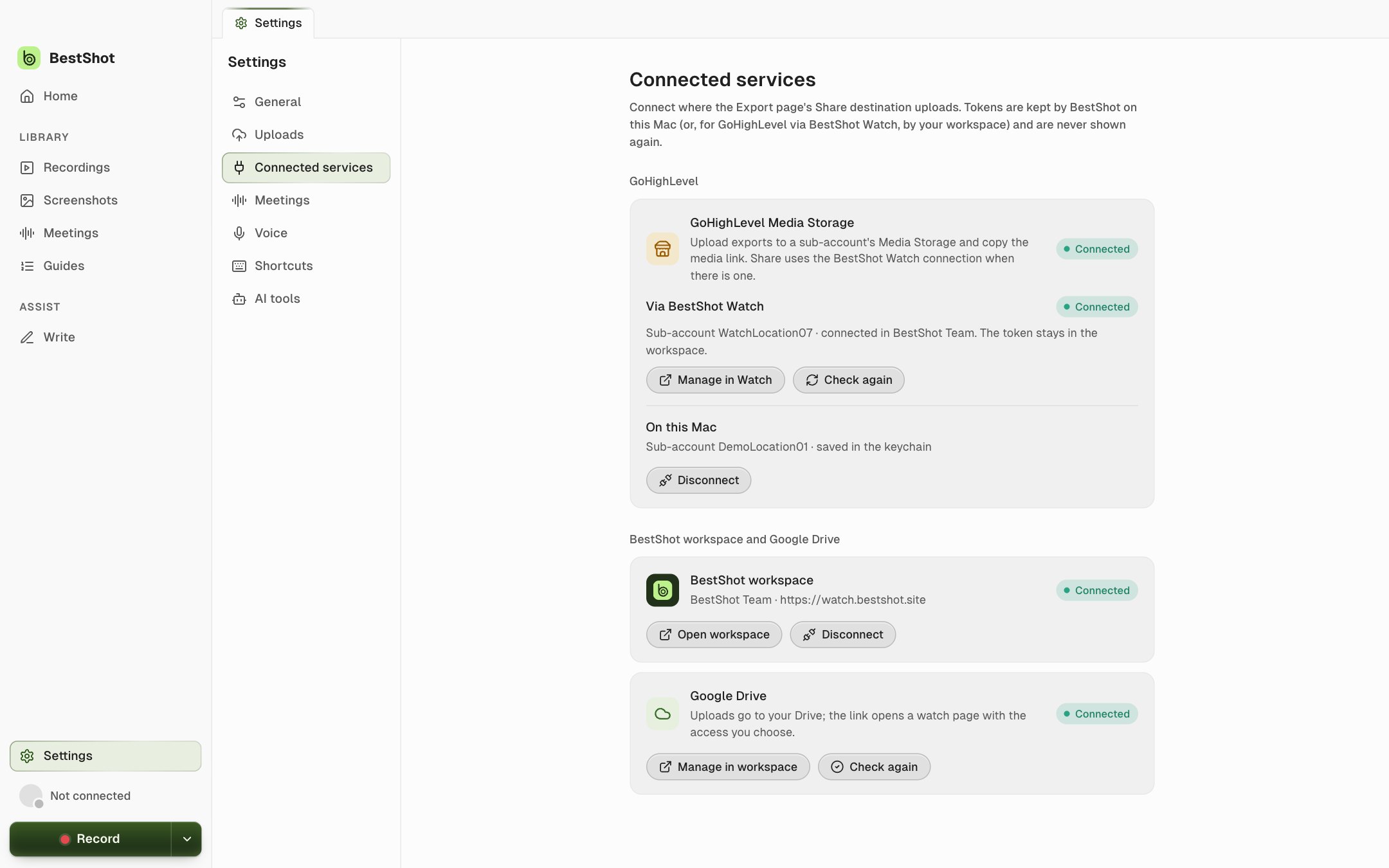
- Open Settings → Connected services.
- Under BestShot workspace, leave the address as
https://watch.bestshot.siteand click Connect workspace. - An approval page opens in your browser. Sign in to Watch and approve access. BestShot shows the workspace as Connected.
Connect Drive
Connecting Drive is a separate permission step. Signing in to Watch, even with Google, does not connect Drive on its own.
- In Settings → Connected services, under Google Drive, click Connect Google Drive.
- Your browser opens Google's permission page for BestShot. Choose your account and allow access.
- Back in BestShot, click Check again if the card does not yet say Connected.
You can also connect from Watch itself: open your account menu at watch.bestshot.site and choose Connect Google Drive.
What BestShot can see in your Drive
BestShot asks for access only to the files you use with it, not your whole Drive. Uploads go into a BestShot folder in My Drive. The files stay private in Drive: no public Drive link is created, and the Watch page's access setting decides who can watch.
When someone watches, the video streams from your Drive through the Watch server, which checks they are allowed to see it first.
Disconnect or revoke access
- On Watch: open your account menu and choose Disconnect Drive. BestShot removes its saved connection. Your files stay in Drive.
- In Google: you can also remove BestShot's access in your Google Account's permissions settings.
While Drive is disconnected, Watch pages for recordings stored in Drive cannot play. Reconnect Drive to bring them back.
Still stuck? Email support and tell us what you tried.