Use the teleprompter
Read a script from a floating window that scrolls at your speaking pace and stays out of your recordings.
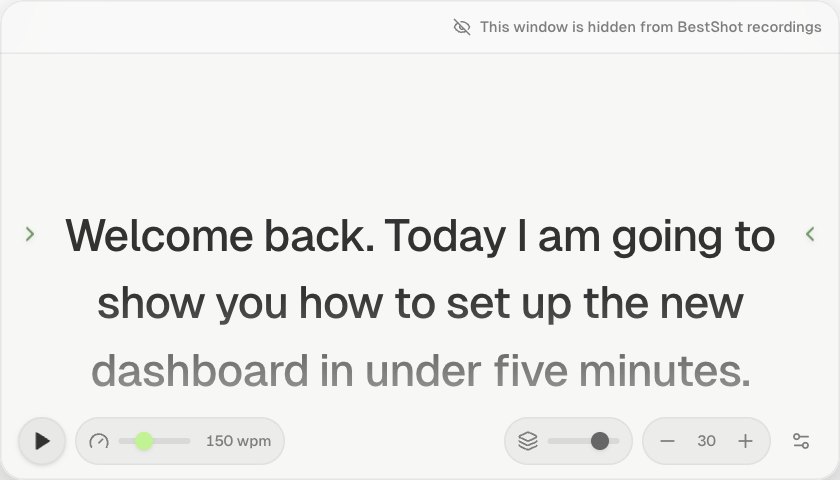
The teleprompter is a small window that floats above everything else and holds your script. Press play and the text scrolls at your reading speed, so the line you're reading stays in the middle. While you record, the window is hidden from the recording.
Open it
Click the BestShot icon in the menu bar (the system tray on Windows) and choose Prompter. There is only ever one teleprompter window; opening it again brings it forward where you left it.
Write your script
Type or paste your script into the window. It's saved as you type and is there next time you open the teleprompter.
Play
- Set the speed with the slider, from 60 to 350 words per minute (150 to start).
- Scroll to where you want to start, or leave it at the top.
- Click play. Click again to pause.
The whole script takes as long to scroll as it would take to read at that speed. Changes to the speed, text or window size apply straight away.
The teleprompter follows your recording: when you pause the recording, scrolling pauses, and it carries on when you resume. Starting a recording doesn't start scrolling; you always press play yourself.
Adjust the window
| Control | What it does |
|---|---|
| Opacity slider | Makes the window see-through, from 45% to 100%. |
| – / + | Smaller or larger text. |
| Settings | Cue markers (the arrows marking the reading line) and Mirror text for a mirrored prompter. |
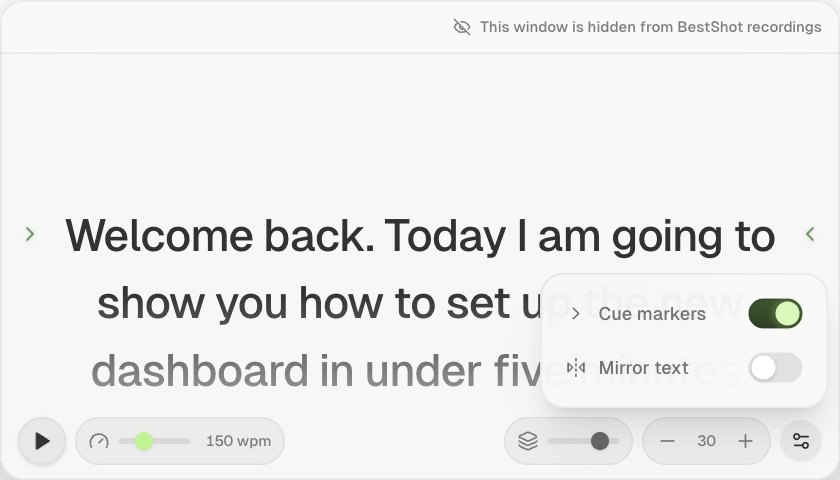
Resize the window from any edge and drag it by its top bar.
The window is hidden from recordings on Mac and Windows. The top of the window confirms it. On Linux it may appear in recordings.
Still stuck? Email support and tell us what you tried.