Turn a recording into a step-by-step guide
Make a guide from a Record take, with one step per click and a screenshot for each, then edit, export or share it.
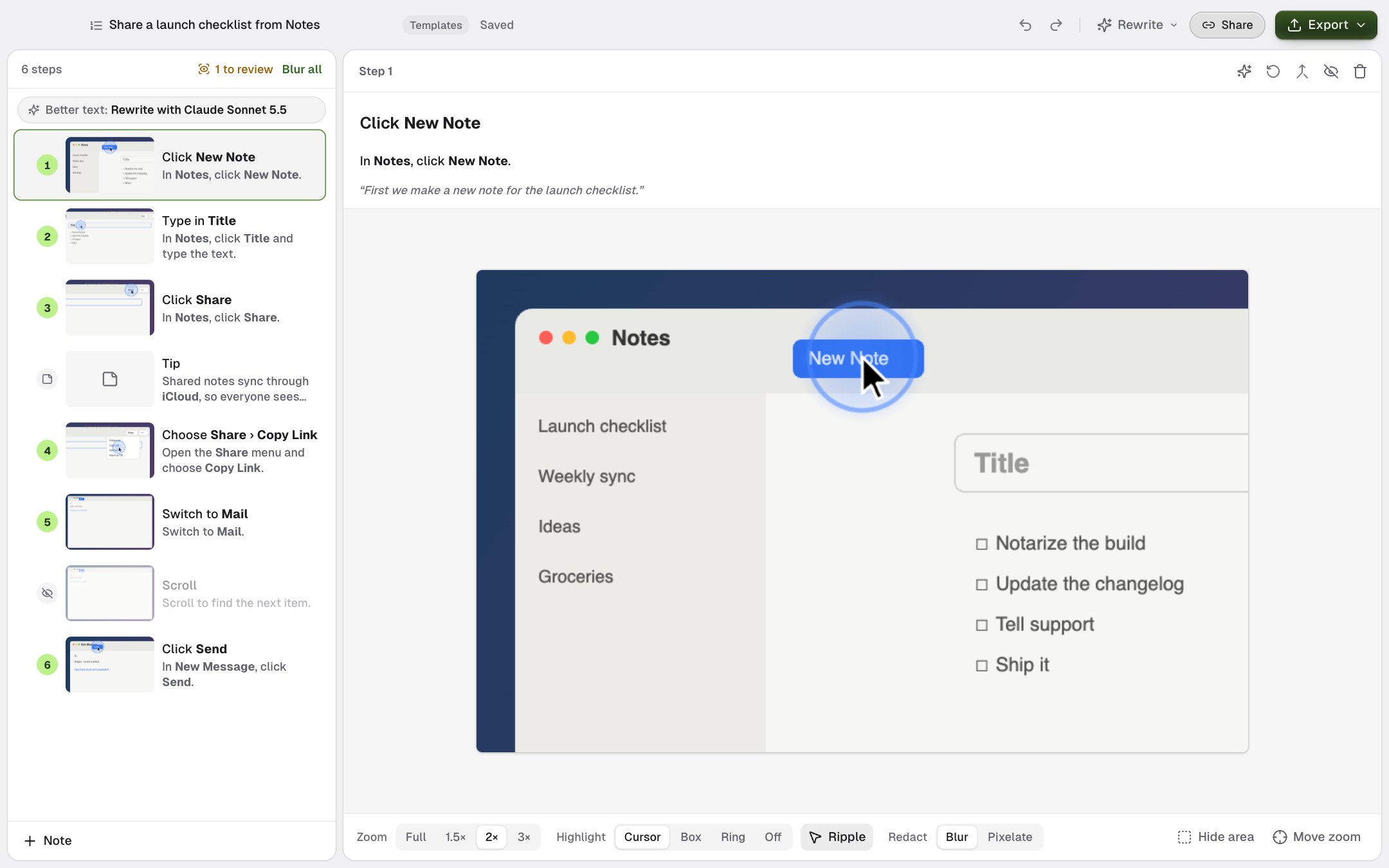
A guide turns a walkthrough you recorded into numbered steps. Each click becomes a step with a short title, an instruction that names what you clicked, and a screenshot of the moment just before, with your pointer drawn where it was. Places you pointed at, screen changes and what you said can become steps too.
Create a guide
Guides are made from Record mode takes. To start one:
- Click Guide on Home, or New guide in Guides, and pick one of your recent recordings.
- Click Create guide on a recording card in Recordings.
- Click Guide in the editor's header.
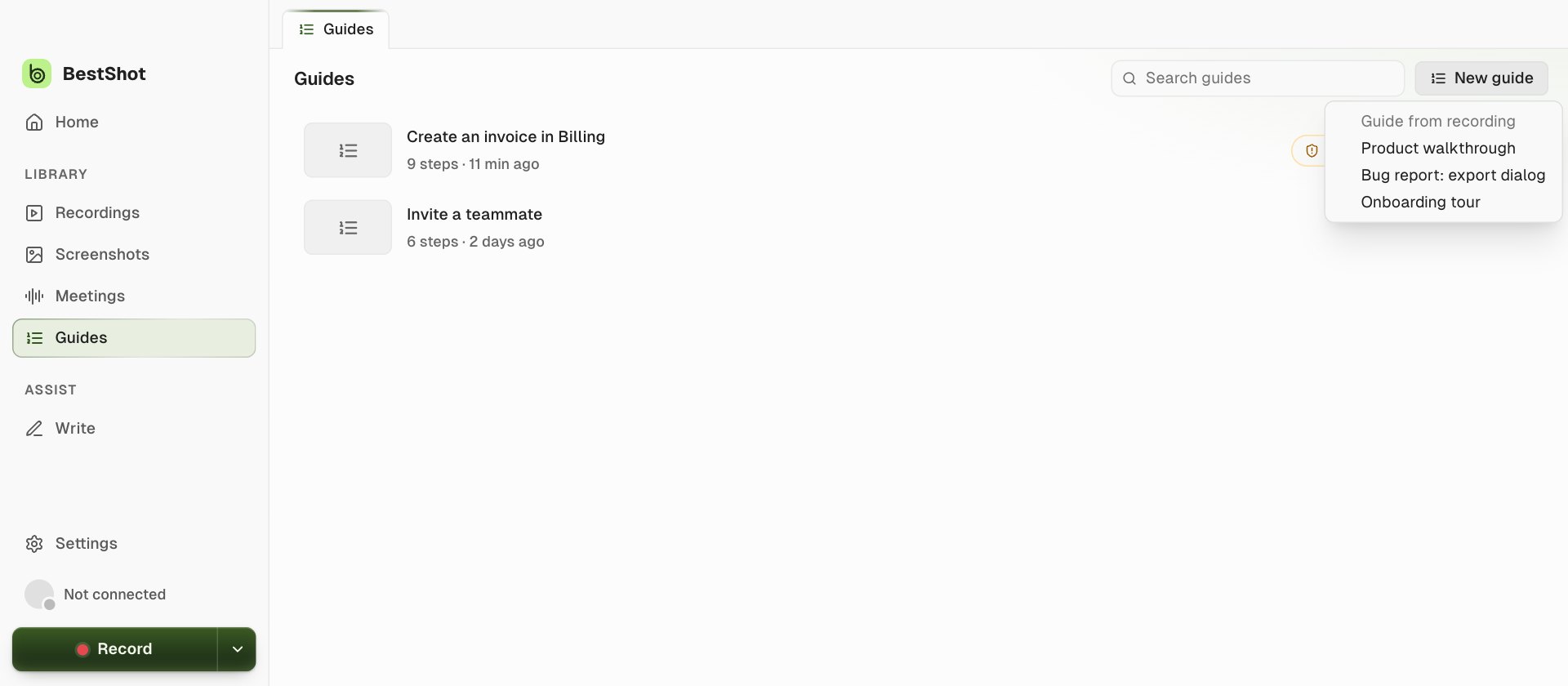
Then click Create guide. BestShot reads the recording on your computer; narration is transcribed if you spoke, and text on screen is recognised to name what you clicked.
For better step names on a Mac, turn on step details in Settings → General before you record (it needs Accessibility permission). BestShot then notes the app, window and name of each control you click. What you type is never recorded: a typing step only says that you typed in a field.
Edit the steps
- Click a step to edit its title and instruction. Drag steps to reorder them; press Delete to remove one.
- + Note adds a tip between steps.
- Under the screenshot: Zoom (Full, 1.5×, 2×, 3×), Highlight (Cursor, Box, Ring or Off), Redact (Blur or Pixelate), Hide area and Move zoom.
- Hidden steps (such as scrolls) stay in the list but are left out of exports.
BestShot suggests blurs for things that look sensitive, such as email addresses and card numbers. The list header shows how many are left to review, with Blur all.
Better text with AI
Step text starts from templates. To have AI rewrite it, choose a provider for Guides in Settings → Meetings → AI, then use Rewrite in the guide's header. AI only uses the names BestShot captured, so it can't invent a button. Text you edited yourself is kept.
Export or share
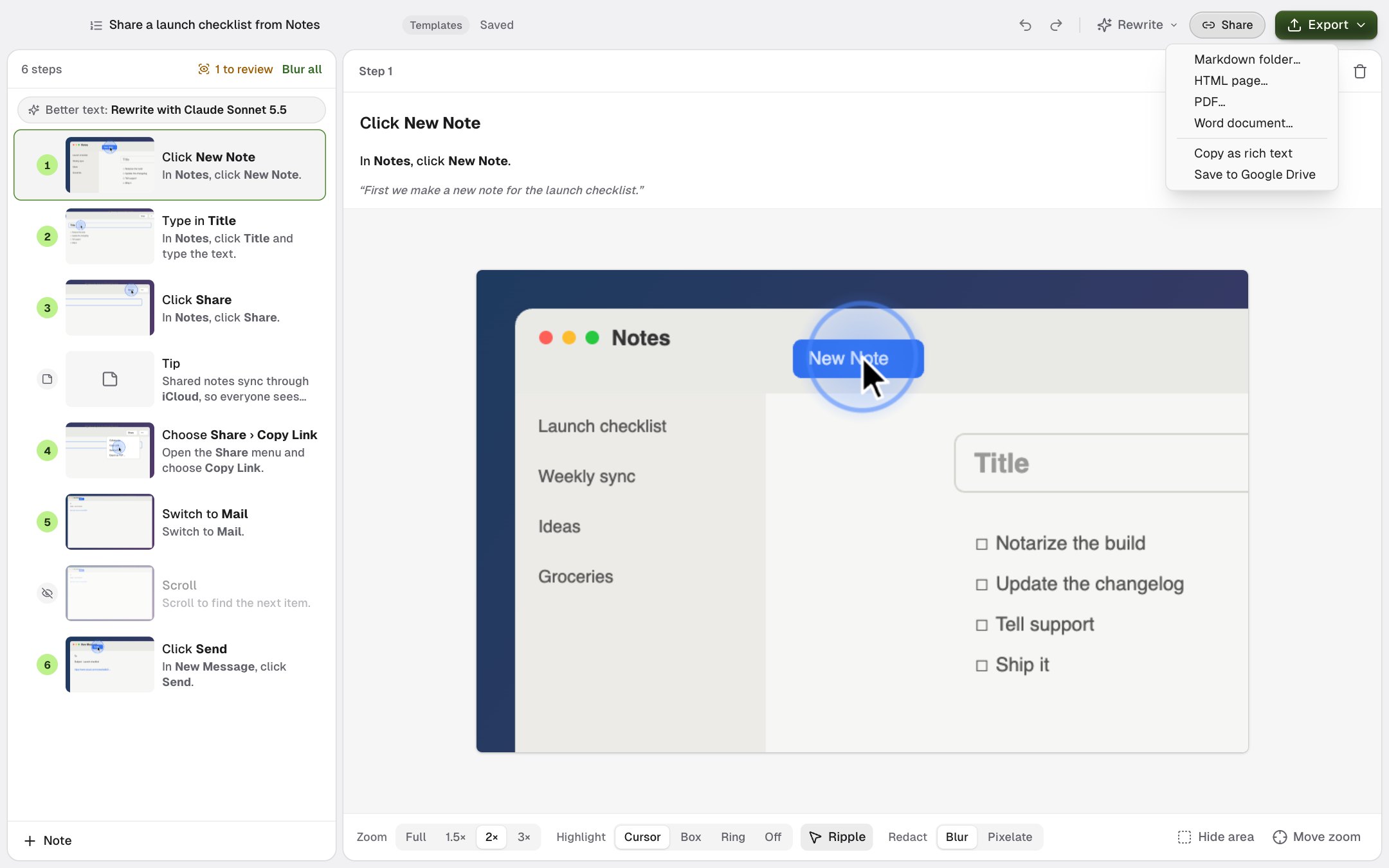
Export saves the guide as a Markdown folder, an HTML page, a PDF or a Word document, copies it as rich text, or saves it to Google Drive.
Share publishes the guide as a BestShot Watch page with each step and downloads in PDF, HTML, Markdown and Word. If blur suggestions are still unreviewed, BestShot asks you to review them first. After you edit a shared guide, Update link updates the same page; the link stays the same.
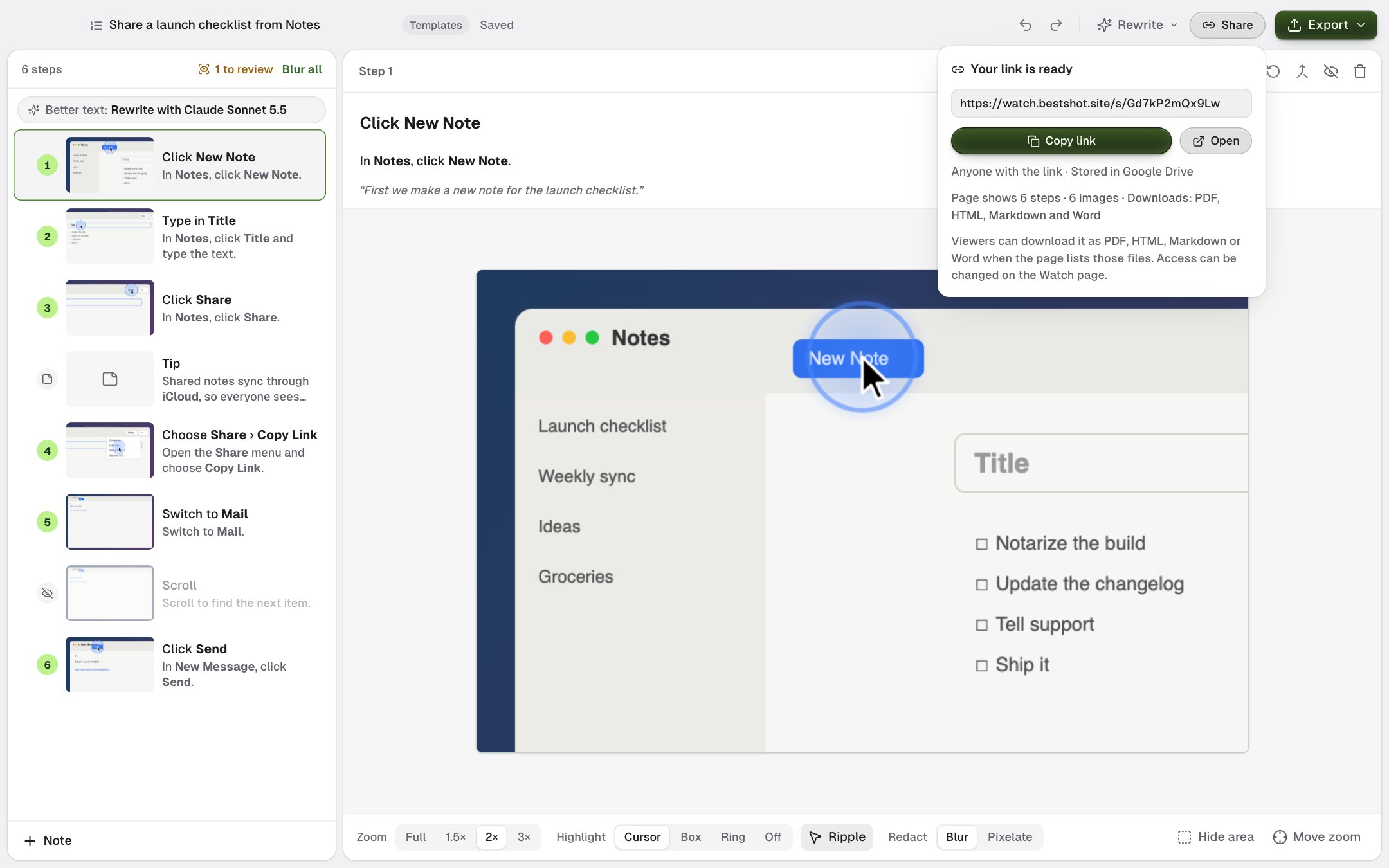
Only the redacted step images leave your computer. Your original recording is never changed.
Still stuck? Email support and tell us what you tried.