Connect AI tools (MCP)
Let Claude Code, Claude Desktop, Codex and other MCP clients read your meetings and guides, or record and share for you, at the level you choose.
BestShot comes with an MCP server, so AI tools such as Claude Code, Claude Desktop and Codex can use it. They can read your meetings, transcripts and guides, and, if you allow it, record, take screenshots, run meetings and share links. Everything stays on your computer: BestShot opens no network port.
Choose an access level
AI tools are Off until you choose a level in Settings → AI tools.
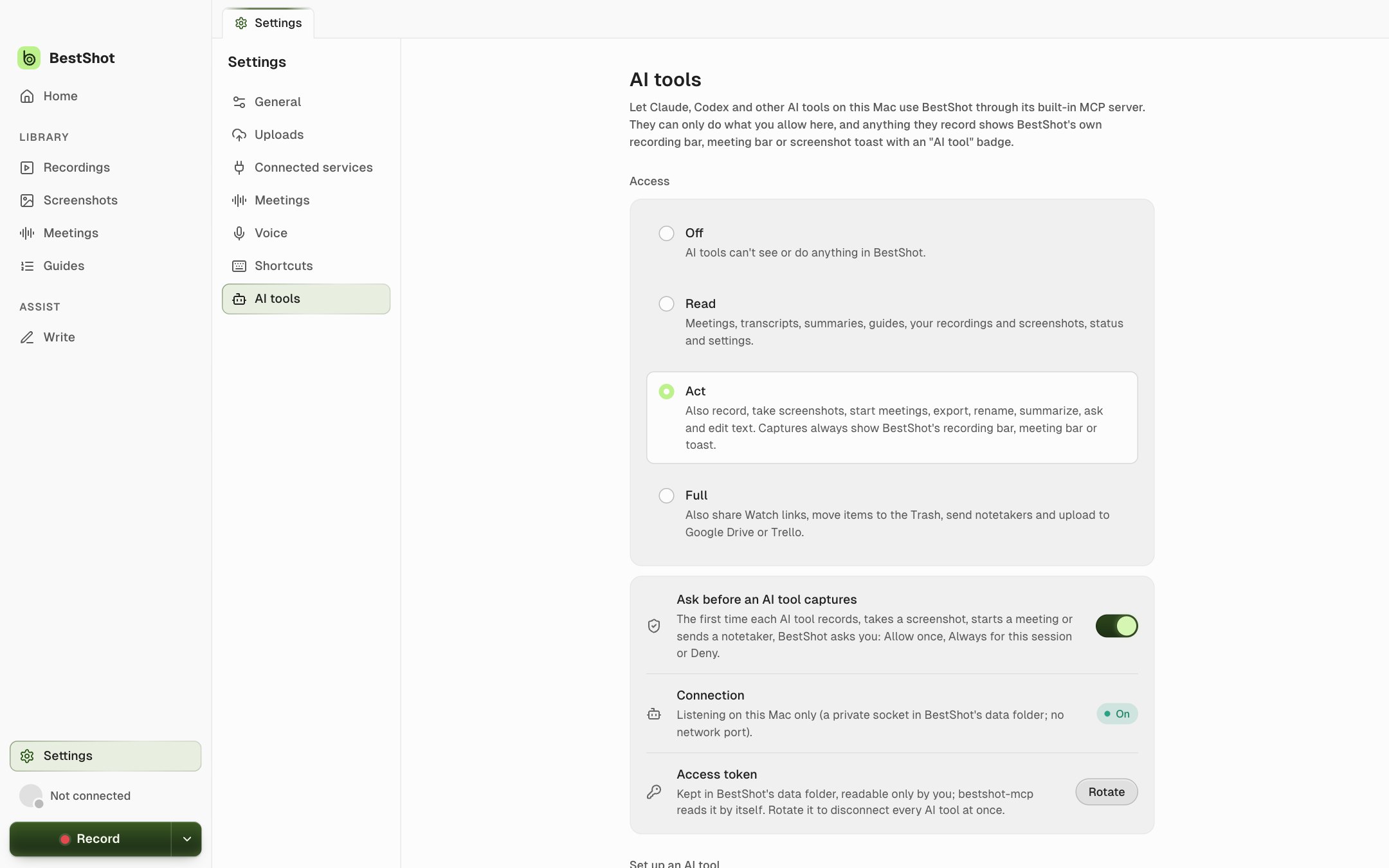
| Level | What AI tools can do |
|---|---|
| Off | Nothing. This is the default. |
| Read | Read your meetings, transcripts, summaries, guides, lists of recordings and screenshots, status and settings. |
| Act | Also record, take screenshots, start meetings, export, rename, summarize, ask your meetings, edit meeting and guide text, and create guides. |
| Full | Also share Watch links, move items to the Trash, send notetakers, and upload to Google Drive or Trello. |
Reading meetings and guides works even while BestShot is closed. Everything else needs BestShot running.
Set up your AI tool
Lower on the same page, Set up an AI tool has the setup for each tool, ready to copy:
- Claude Code: run the
claude mcp add bestshot …command shown. - Claude Desktop: add the
bestshotentry to Claude Desktop's config file, then restart Claude. - Codex: add the
[mcp_servers.bestshot]lines to Codex'sconfig.toml. - Other MCP clients: use the command shown, with no arguments.
BestShot never edits your AI tool's settings for you. Then try something like "Ask my meetings what Lee promised this week" or "Create a guide from my newest recording".
You stay in control
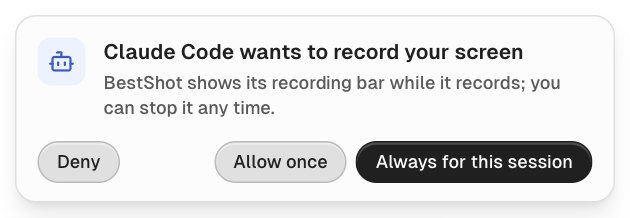
- Ask before an AI tool captures (on by default): the first time each AI tool records, takes a screenshot, starts a meeting or sends a notetaker, BestShot asks you: Deny, Allow once or Always for this session.
- Captures are never silent. They show BestShot's own recording bar, meeting bar or screenshot toast, with a badge naming the AI tool, and you can stop them as usual.
- AI tools can't change their own access level.
- Recent activity lists which tool used what, and when. Rotate the access token to disconnect every AI tool at once.
On Windows, AI tools can read your meetings and guides, but controlling the app (recording, screenshots, sharing) isn't available yet.
Still stuck? Email support and tell us what you tried.