The Screenshots library
Find, reopen, copy and tidy up every screenshot you have taken.
Every screenshot is saved to your library as soon as you take it. Open Screenshots under Library in the BestShot sidebar to see them all, newest first.
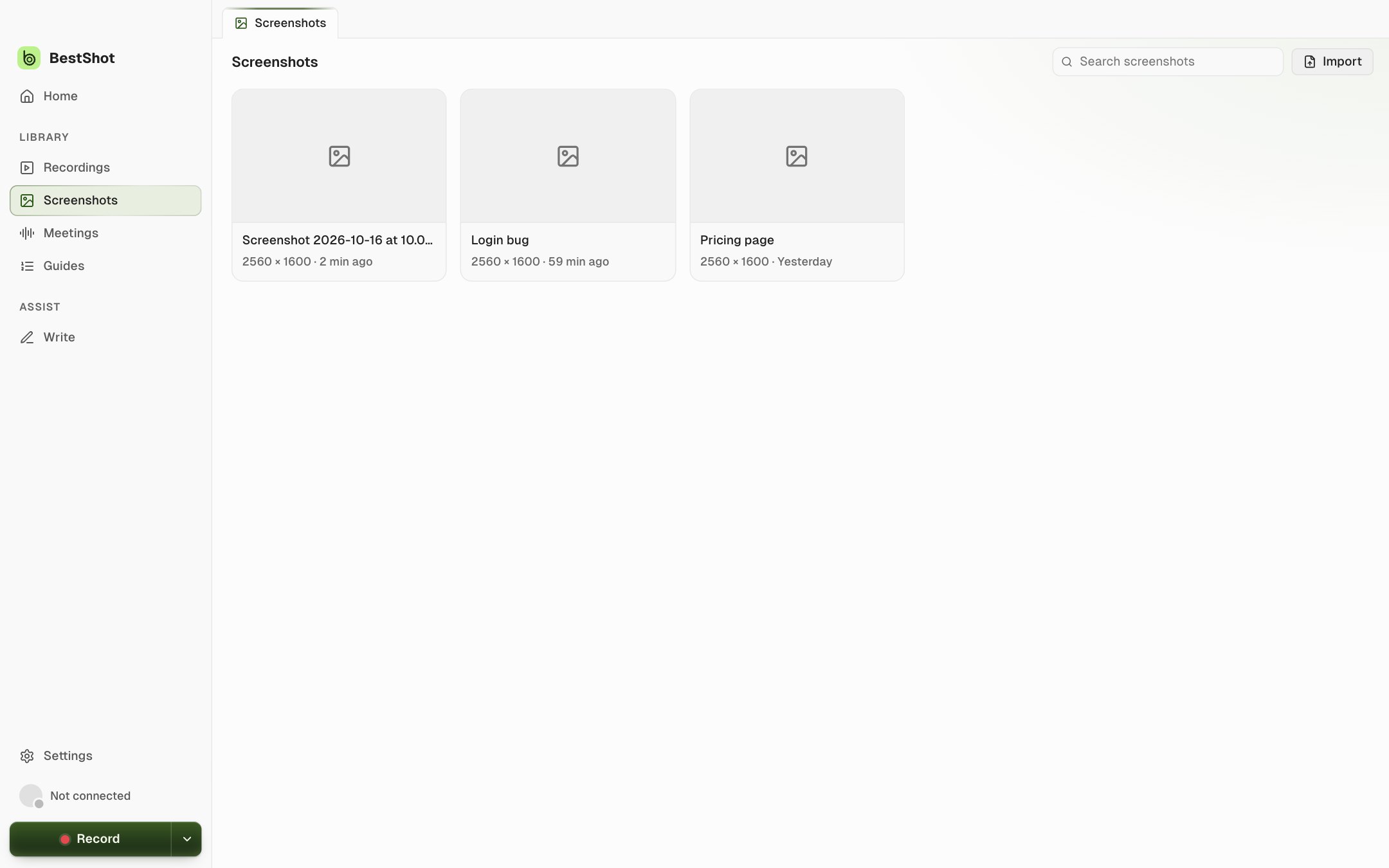
Each card shows the screenshot's name, its size in pixels and when you took it. Type in Search screenshots to find one by name.
Card actions
Hover over a card to see its actions:
| Action | What it does |
|---|---|
| Edit | Opens the screenshot in Screenshot Studio. Clicking the card does the same. |
| Copy image | Copies the picture with all of your edits. |
| Copy link | Copies the Watch link. Only shown for screenshots you have shared. |
| Move to Trash | Moves the screenshot to the Trash or Recycle Bin, after asking you first. |
BestShot never deletes a screenshot permanently. Anything you remove goes to your computer's Trash or Recycle Bin, so you can get it back.
Rename a screenshot
New screenshots are named with the date and time, such as "Screenshot 2026-10-16 at 10.02.11". To rename one, open it in Screenshot Studio and click its name at the top left. Press Enter to save the new name or Esc to cancel.
Where screenshots open
By default each new screenshot opens in a new tab of the BestShot window. To get just a small thumbnail you can click to edit, change Settings → General → After a shot to Show thumbnail only.
For editing, see Edit a screenshot in Screenshot Studio.
Still stuck? Email support and tell us what you tried.