Edit a screenshot in Screenshot Studio
Annotate, crop, rotate and frame a screenshot on a background, without ever changing the original.
Every screenshot you take with Shot opens in Screenshot Studio. The original capture is kept as it is; your arrows, crops and backgrounds are saved as edits on top, so you can change or remove them at any time.
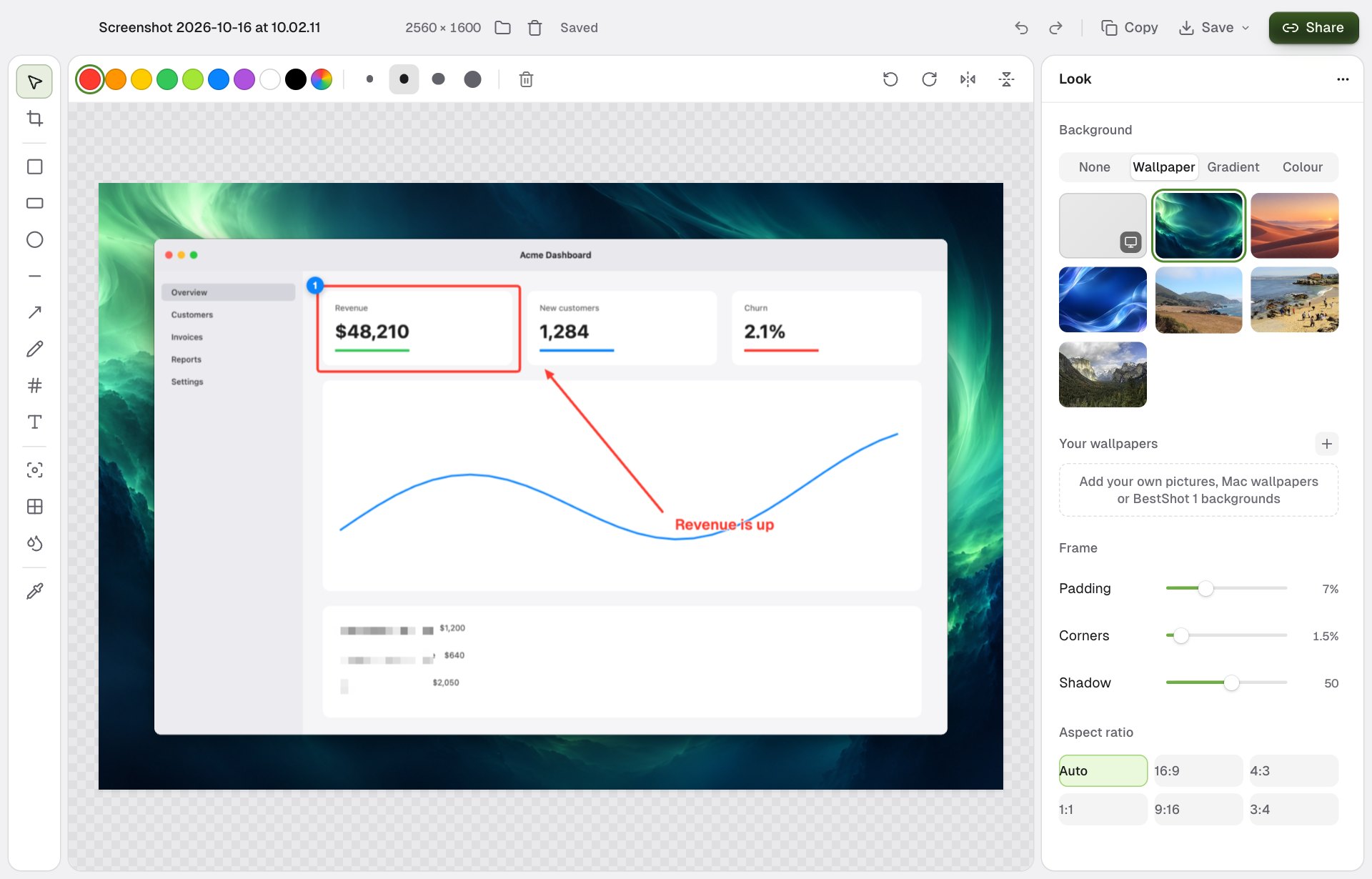
Draw and annotate
The tools run down the left side. Pick one, then drag on the picture. Each tool has a one-key shortcut.
| Tool | Key | What it does |
|---|---|---|
| Select | V | Picks, moves and resizes annotations. |
| Crop | C | Drag a new crop. |
| Rectangle | R | An outlined box. |
| Filled rectangle | F | A solid box. |
| Ellipse | O | An outlined oval. |
| Line | L | A straight line. |
| Arrow | A | An arrow. |
| Pen | P | Freehand drawing. |
| Number | N | Numbered steps: each click places the next number. |
| Text | T | Click and type. Enter finishes, Shift+Enter adds a line. |
| Spotlight | S | Dims everything except the area you draw. |
| Pixelate | X | Pixelates an area, such as a password or email. |
| Blur | B | Blurs an area. |
| Pick colour | I | Takes a colour from the picture and copies its hex code. |
Hold Shift while drawing to keep lines at 45° steps and boxes square.
The bar above the picture sets the colour and size (S, M, L, XL) for new annotations and for the one you have selected. It also has buttons to delete the selection, rotate left or right, flip horizontally or vertically, and reset the crop.
Change an annotation
With Select, click an annotation to select it. Drag it to move it, or drag its handles to resize it. Arrow keys nudge it, and Delete removes it. Double-click text to edit it.
Add a background and frame
The Look panel on the right puts your screenshot on a background:
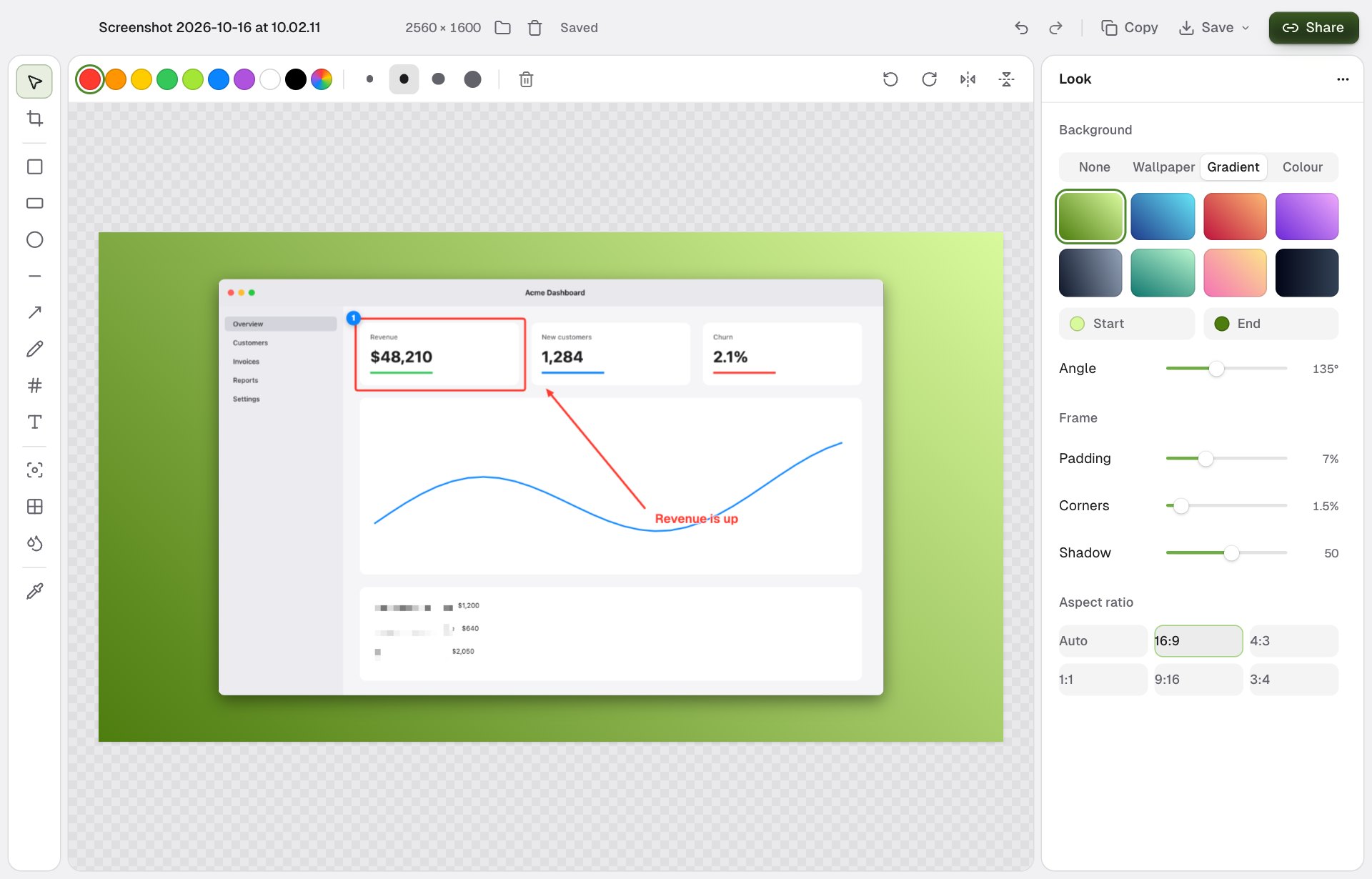
| Setting | What it does |
|---|---|
| Background | None, Wallpaper, Gradient or Colour. The Wallpaper list starts with your current desktop picture, and Your wallpapers holds pictures you add. |
| Padding | Space around the screenshot. |
| Corners | Rounds the screenshot's corners. |
| Shadow | A soft shadow under the screenshot. |
| Aspect ratio | Auto, 16:9, 4:3, 1:1, 9:16 or 3:4, handy for slides and social posts. |
Padding, Shadow and Aspect ratio need a background.
New screenshots start with the look you used last. Click ••• at the top of the Look panel to Use as default look or Reset to default look.
Undo and saving
Your edits save automatically. Undo with ⌘Z (Ctrl+Z on Windows) and redo with ⇧⌘Z (Ctrl+Shift+Z). The header shows Saved once everything is stored.
To copy, save or share the finished picture, see Copy, save and share a screenshot.
Still stuck? Email support and tell us what you tried.