Copy, save and share a screenshot
Copy a screenshot with your edits, save it as PNG or JPEG, or share it as a Watch link.
The buttons at the top right of Screenshot Studio send your screenshot on, with all of your annotations, crop and background included.
Copy
Click Copy, or press ⌘C (Ctrl+C on Windows), to copy the finished picture. Paste it into a chat, email or document.
When you take a screenshot, BestShot also copies the original to the clipboard straight away. Turn this off in Settings → General → Copy to the clipboard.
Save as a file
Click Save and choose Save as PNG… or Save as JPEG…, then pick where to save it.
| Shortcut | Saves as |
|---|---|
| ⌘S / Ctrl+S | PNG |
| ⇧⌘S / Ctrl+Shift+S | JPEG |
Files are saved at full resolution. In a JPEG, transparent areas (such as rounded corners without a background) become white.
Share as a link
Click Share, or press ⇧⌘L (Ctrl+Shift+L on Windows). BestShot uploads the screenshot with its edits and gives you a BestShot Watch link, which is copied to your clipboard.
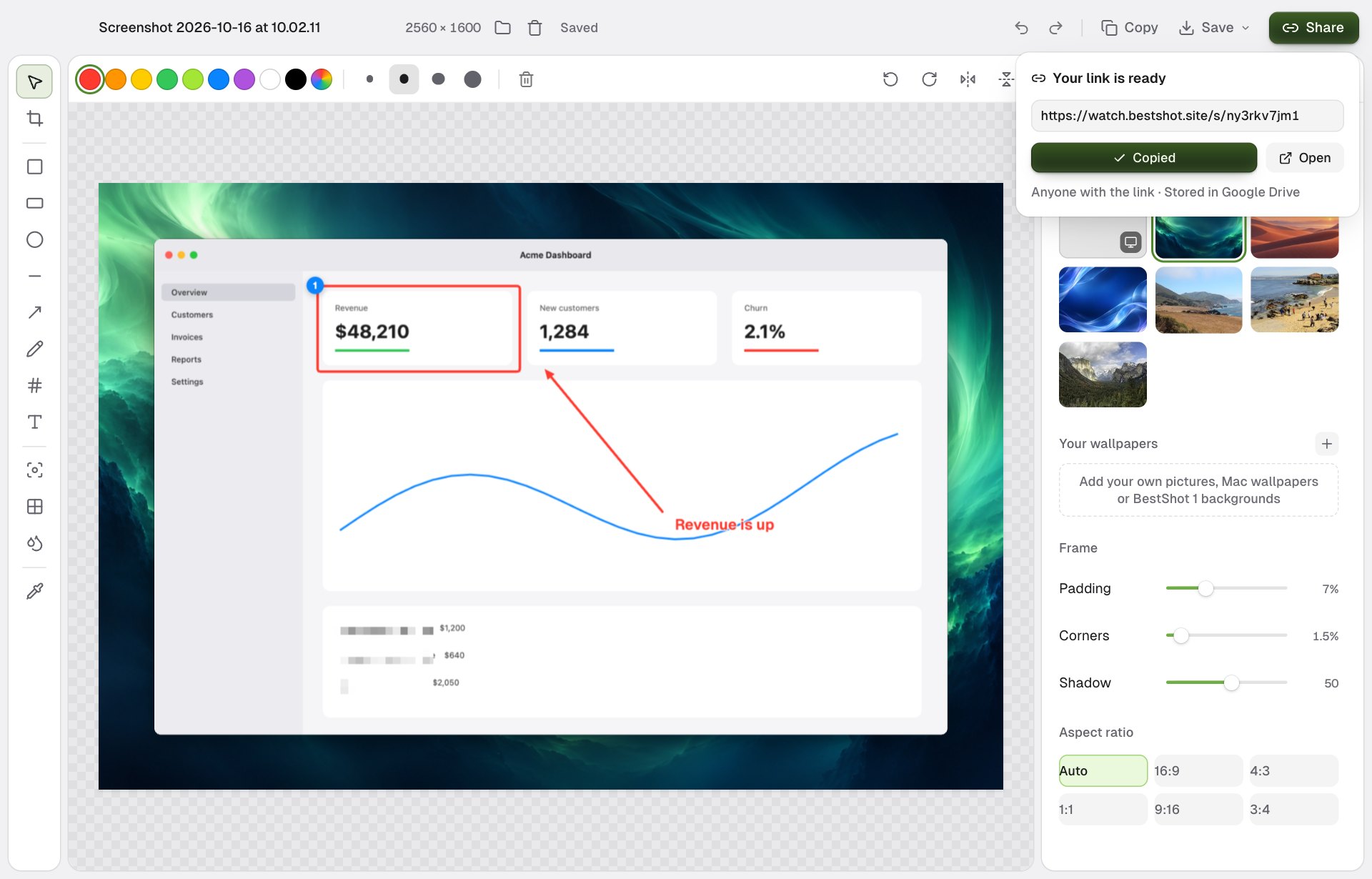
- Copy link copies the link again. Open opens the Watch page in your browser.
- The line underneath shows who can open it and where the file is stored.
- Where it uploads (Google Drive or GoHighLevel) and who can see it follow Settings → Uploads.
- The upload keeps going if you close the screenshot.
If you have not connected BestShot Watch yet, Share offers Connect…, which opens Settings.
If you edit a screenshot after sharing it, the link still shows the earlier version. Click Update link to upload the new version. This makes a new link; the old link keeps the old picture.
Still stuck? Email support and tell us what you tried.